There are two types of images in documentation markdown files:
* Images that appear in integration/script/playbook README files. These images only appear in [https://xsoar.pan.dev/](https://xsoar.pan.dev/). They do not appear in the product UI.
* Images that appear in pack README files and integration description files. These images appear in both [https://xsoar.pan.dev/](https://xsoar.pan.dev/) and in the product UI.
### Use relative image URLs in content entity READMEs
When creating markdown README documents for playbooks, integrations, or scripts that appear in [https://xsoar.pan.dev/](https://xsoar.pan.dev/) only, you can use relative or absolute URLs. Relative URLs can NOT be used for content pack READMEs and integration description file images. For content pack READMEs and integration description file images, see the Absolute URLs section below.
You can use relative URLs to documentation images stored in the `doc_files` or `doc_imgs` directories. To use relative URLs, link the image using a relative path.
For example:

View the README.md file in GitHub's web interface and verify that the images display properly.
Examples of documentation using relative URLs:
* [Google Calendar](https://github.com/demisto/content/blob/master/Packs/GoogleCalendar/Integrations/GoogleCalendar/README.md)
* [G Suite Admin](https://github.com/demisto/content/blob/master/Packs/GSuiteAdmin/Integrations/GSuiteAdmin/README.md)
### Use absolute image URLs in content pack documentation
When creating markdown README documents for playbooks, integrations, or scripts that appear in [https://xsoar.pan.dev/](https://xsoar.pan.dev/) only, you can use relative or absolute URLs. When creating markdown files for content pack READMEs and integration description file images, you can only use absolute URLs.
To obtain an absolute URL to an image from GitHub:
1. Commit the image and push to GitHub.
2. View the file in the GitHub web interface.
3. Copy the URL from the **Download** button.
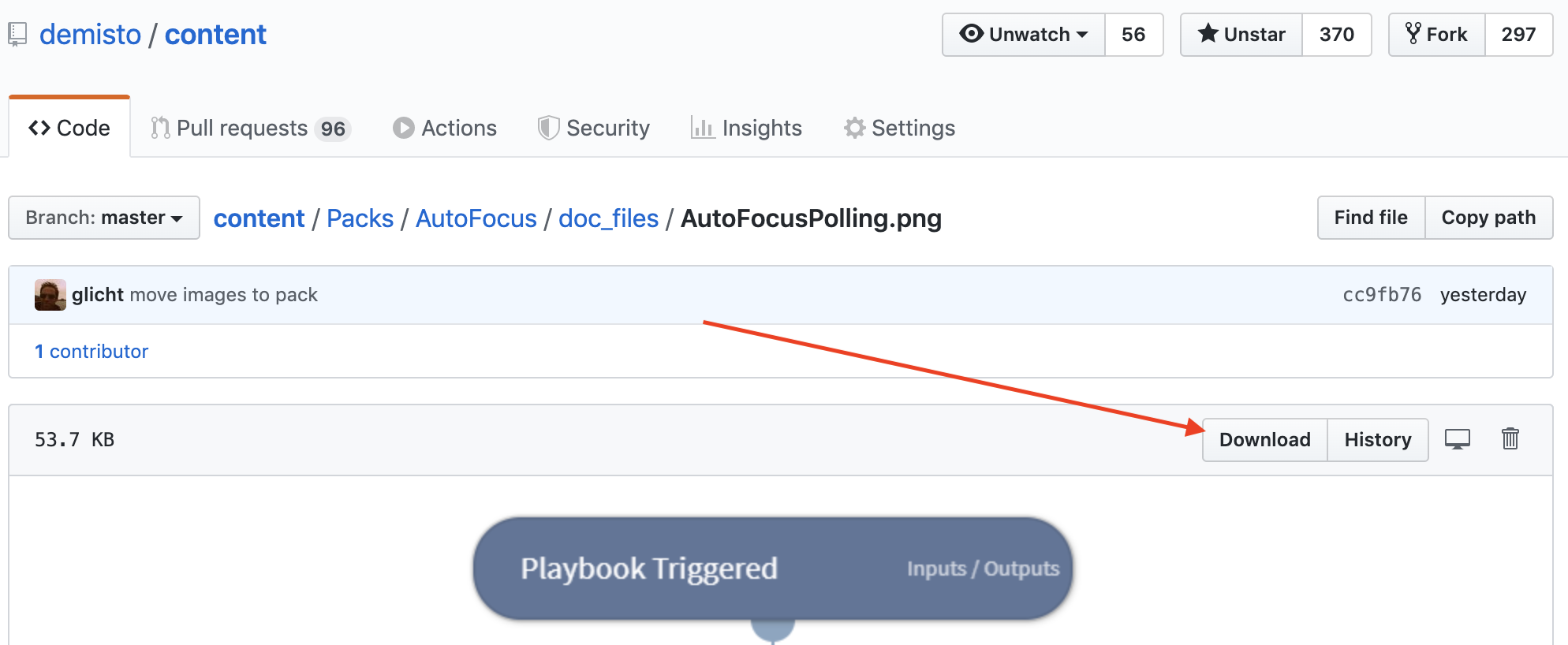
Verify the URL you are copying is not referring to a branch which will be deleted after the pull request is merged. The URL should refer to a commit hash or the master branch.
If you click the Download button, GitHub performs a redirect and the URL in the browser points to the domain: `raw.githubusercontent.com`. You can also use this URL as the absolute URL.
4. Embed the image in the README.md using a Markdown Image Link. For example: ``
For more control of how the image displays, you can use the HTML \ tag. For example: ``
Examples of documentation using absolute URLs:
* [URL to commit hash](https://github.com/demisto/content/raw/2d6e082cfb181f823e5b1446ae71e10537591ea6/Packs/AutoFocus/doc_files/AutoFocusPolling.png)
* [URL to master branch](https://github.com/demisto/content/raw/master/Packs/AutoFocus/doc_files/AutoFocusPolling.png)
* [URL after redirection](https://raw.githubusercontent.com/demisto/content/master/Packs/AutoFocus/doc_files/AutoFocusPolling.png) (also valid)
**Note**
To keep the main content repository small, images are limited to 2 MB. For larger images, follow the instructions for [Videos](videos-in-documentation) about how to store large media files in the [content-assets](https://github.com/demisto/content-assets) repository.