All the metadata of your integration is included in the YAML file. It is a key value set for your integration. When pushing content for public release, your YAML file must follow certain structural requirements to work properly. Scripts also have a metadata YAML file that follows a similar structure.
### Cortex XSIAM integration YAML common fields
The `commonfields` section contains information the Cortex XSIAM server uses to identify your integration.
```programlisting
commonfields:
id: New Integration
version: -1
```
This section contains the following information.
| Name | Description |
| ------- | ------------------------------------------------------------------ |
| id | A unique identifier for your integration. |
| version | Setting the value to -1 locks the integration from being modified. |
### Basic integration metadata
This section contains integration metadata.
```programlisting
name: MaxMind GeoIP2
display: MaxMind GeoIP2
category: Data Enrichment & Threat Intelligence
image: data:image/png;base64,**Base64 of Image Here**
description: Enriches IP addresses
detaileddescription: 'The MaxMind GeoIP2 integration allows you to query the MaxMind
API service and retrieve a JSON of all details. '
```
It includes the following parameters:
| Name | Description |
| ------------------- | -------------------------------------------------------------------------------------------------------------------------------------------------------------------------- |
| sectionOrder | A key to organize collection and connection related parameters in separate sections in the integration settings configuration page. Applied to each parameter as relevant. |
| name | The name of your integration. This may be different than the display name. |
| display | The display name for your integration. |
| category | The applicable pack category. See [all available values](https://github.com/demisto/content/blob/master/Config/approved_categories.json). |
| image | The icon used for the integration. This image must be in Base64. |
| description | A brief description of what your integration does. |
| detaileddescription | More details about how your integration works.. |
### Integration settings configuration
The `configuration` section specifies the integration settings configuration requirements that are necessary for the integration to operate.
```programlisting
configuration:
- display: API Key
name: apikey
defaultvalue: ""
type: 0
required: true
- display: Use system proxy
name: proxy
defaultvalue: ""
type: 8
required: false
```
It includes the following parameters.
| Name | Description |
| -------------- | --------------------------------------------------------------------------------------------------------------------------------------------------------------------------------------------------------------------------------------------------------------------------------------------------------------------------------------------------------------------------------------------------------------------------------------- |
| display | The display name for the setting field. |
| name | The setting field name used within the integration. |
| defaultvalue | If there is a default for the field, it is indicated here. |
| type | <p>An Integer representing the field type.</p><p>Possible values</p><ul><li>0 - Short text field</li><li>4 - Encrypted text field</li><li>8 - Boolean checkbox</li><li>9 - Authentication text - allows switching to credentials</li><li>12 - Long text block</li><li>13 - special use - automatically added - Incident type single select dropdown</li><li>15 - Single select dropdown</li><li>16 - Multiple select dropdown</li></ul> |
| required | Boolean value indicating whether the parameter is required. |
| additionalinfo | Additional info about the field, appears when clicking a question mark in the settings configuration panel. |
| fromlicense | Specifies to take the credentials from the Cortex XSIAM license. This is relevant for type 9 - Authentication text. |
| advanced | Whether to expose the configuration under the advanced settings. Possible values are true or false. |
| section | Which section the configuration setting will be under. Possible values are Collect or Connect. |
#### Hide integration settings parameters
To hide integration parameters from the UI in all Marketplaces, set the optional **`hidden`** field to true.
To hide the parameter in specific content Marketplace versions, provide a list of marketplace version names.
* `xsoar` - Cortex XSOAR 6 and 8
* `xsoar_on_prem` - Cortex XSOAR 6
* `xsoar_saas` - Cortex XSOAR 8 Cloud and On-prem
* `marketplacev2` - Cortex XSIARM
* `xpanse` - Cortex XPANSE
#### Integration configuration sections
An integration's configuration display is divided into the following sections to help users easily find parameters.
**Connect parameters**
Parameters required to connect to the product
* Name
* Server URL / URL address
* Classifier / Incident Type / Mapper section
* Username
* Password
* API key
* Other mandatory parameters
**Advanced Connect parameters**
Additional connect parameters
* Trust any certificate (not secure)
* Use system proxy settings
* Log level
* Run on single engine
* Any additional filters or non-mandatory parameters
**Collect parameters**
Parameters required to collect information from the product
* Fetch events / Do not fetch radio buttons or Fetch/Do not fetch indicators
* First fetch timestamp
* Number of events to fetch per fetch
* Do not use by default
* Indicator reputation
* Source reliability
* Traffic light protocol color
**Advanced Collect parameters**
Additional collect parameters
* Events fetch interval
* Indicator expiration method
* Feed fetch interval
* Bypass exclusion list
* Create relationships
* Any additional filters or non-mandatory parameters
**Optimize parameters**
This section contains parameters that do not belong to the **Connect** or **Collect** sections, such as **Advanced Thresholds** and **Advanced Queries**.
#### Add configuration sections to an integration YAML file
To add sections to your integrations:
1. Add the `sectionOrder` key to the YAML's root. This key should contain a list of sections available. Currently, the only supported section types are `Connect`, `Collect`, and `Optimize`.
2. Add the `section` key to each parameter in the configuration, with one of the sections listed above.
3. If the parameter should only be shown in the advanced settings, add the `advanced:true` key and value to it.
```programlisting
category: Analytics & SIEM
sectionOrder:
- Connect
- Collect
commonfields:
id: GitLab Event Collector
version: -1
configuration:
- display: Server URL
name: url
required: true
type: 0
section: Connect
- displaypassword: API Key
additionalinfo: The API Key to use for connection.
name: api_key
required: true
hiddenusername: true
type: 9
section: Connect
- display: Groups IDs
name: group_ids
required: false
type: 0
section: Collect
- display: First fetch timestamp (<number> <time unit>, for example, 12 hours, 7 days, 3 months, 1 year)
name: after
required: true
defaultvalue: 1 day
type: 0
section: Collect
- display: Trust any certificate (not secure)
name: insecure
required: false
type: 8
section: Connect
advanced: true
- display: Use system proxy settings
name: proxy
type: 8
required: false
section: Connect
advanced: true
```
#### Configuration sections example
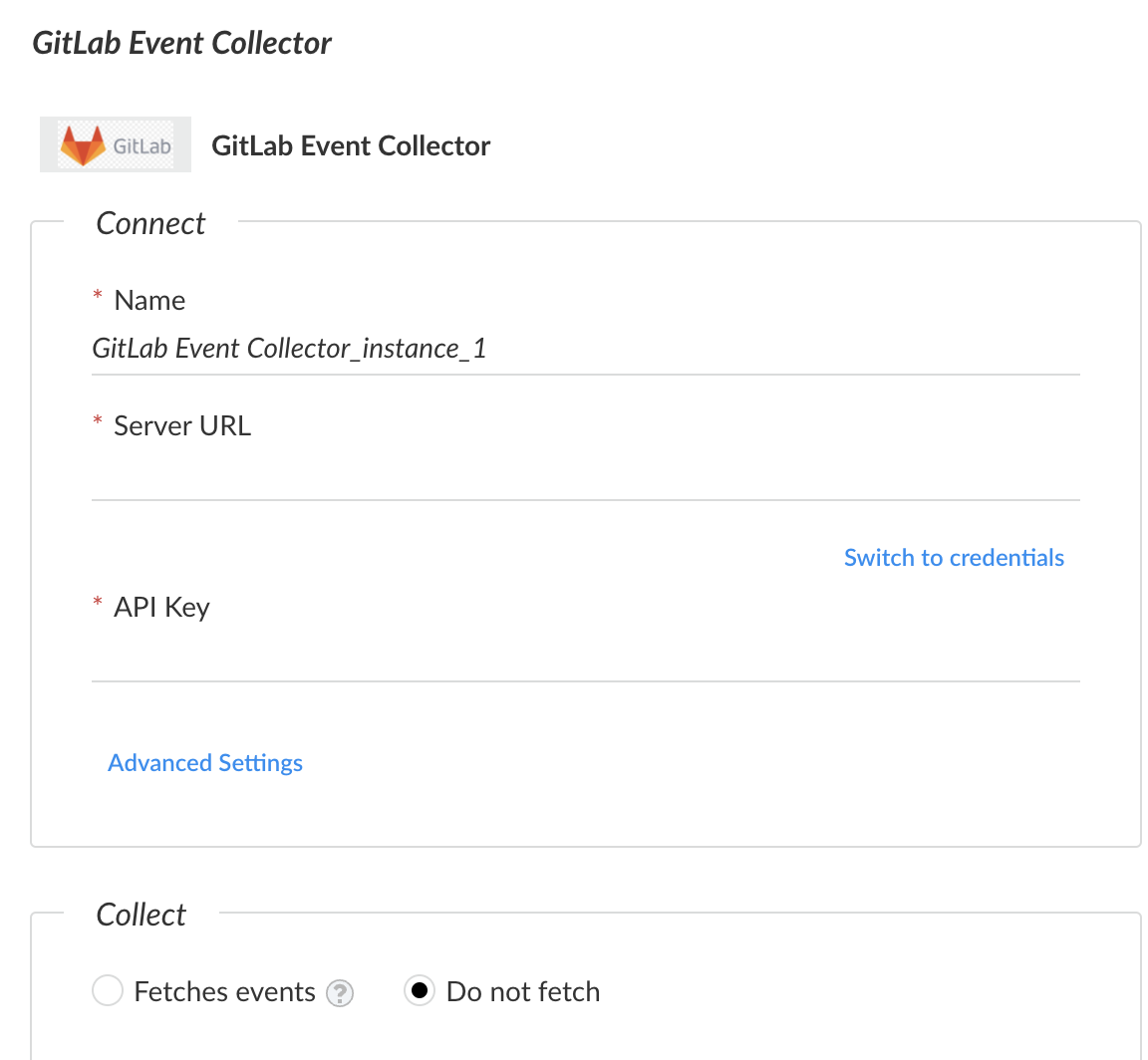
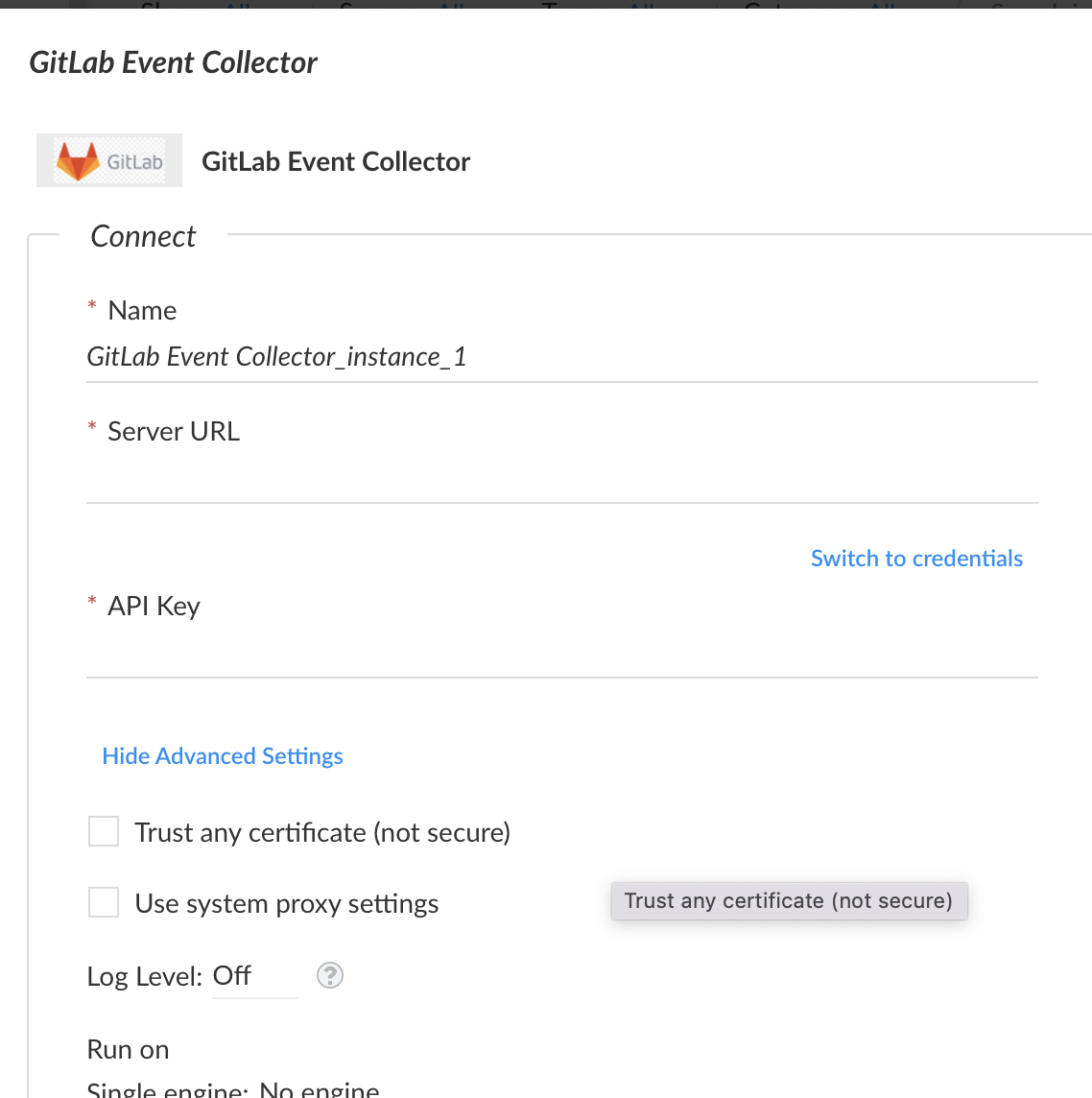
In the following example, you can see the advanced parameters remain hidden until the user expands the **Advanced Settings** section.
### Integration script configuration
The `script` section is where the code resides.
```programlisting
script:
script: |
import requests
import collections
def explain_yaml():
if user.understands is False:
re_read_documentation()
type: python
subtype: python3
dockerimage: demisto/python3:3.7.5.3066
```
It includes the following parameters.
| Name | Description |
| ----------- | --------------------------------------------------------------------------------------------------------------------------------------------------------------------------------------------------------------------------------------------------------------------------------------------------------------------------------------------------------------------------------------------------------------------------------------------------------------------- |
| type | Indicates the language your integration is written in. Cortex XSIAM currently supports Python.t |
| subtype | When using Python, specifying subtype field is required. Use python3. |
| dockerimage | <p>When using Python, dockerimage should be specified. If dockerimage is not specified a default python3 image is used.</p><p>You can also specify any publicly available image found in <a href="https://hub.docker.com/u/demisto">DockerHub demisto account</a>.</p><p>If you need to need to generate a custom image with your own Python packages installed, see <a href="https://github.com/demisto/dockerfiles">https://github.com/demisto/dockerfiles</a>.</p> |
### Integration command configuration
The `command` section tells Cortex XSIAM what arguments are required for your command as well as what the outputs are.
```programlisting
commands:
- name: command-name
arguments:
- name: command-argument
required: true
default: false
isArray: false
secret: true
description: This is a description for the argument
outputs:
- contextPath: Example.Sample.Name
description: The name of the sample
type: string
- contextPath: Example.Sample.ID
description: The ID for the sample
type: string
description: Sample description for the command-name function
runonce: false
```
It includes the following parameters.
#### Command fields
| Name | Description | Standard |
| ----------- | --------------------------------------------- | ------------------ |
| name | The name of the command. | vendorname-command |
| description | A description for the command. | |
| runonce | Boolean. Whether the command runs repeatedly. | |
#### Command argument fields
| Name | Description | Standard |
| ----------- | ------------------------------------------------------------------------------------------------------------------------------------------------------------------------------------------------------------------------------------------------------------------------------------------------------------------------------------------------------------------------------------------------------------------------------------------------------------------------- | -------------- |
| name | The name of the argument. | argument\_name |
| required | Boolean. Whether the argument is required. | |
| default | <p>Boolean. If set to true, the user can pass a value for this argument without specifying the argument name. For example if an argument called <code>ip</code> is marked as default, running <code>!ip 1.1.1.1</code> will be equivalent to running <code>!ip ip=1.1.1.1</code>.</p><div data-gb-custom-block data-tag="hint" data-style="info" class="hint hint-info"><p><strong>Note</strong></p><p>Only one argument per command can be set as the default.</p></div> | |
| isArray | Boolean. Whether the argument accepts a CSV list of input values. If set to true, the command will run once instead for each input. | |
| secret | Boolean. If set to true, the argument value will not be printed in the War Room when the command runs. | |
| execution | Boolean. If set to true, the command will be marked as `Potentially harmful`. | |
| description | A description of the argument. | |
| type | The type of the argument. For example `keyValue` is a valid argument type. If used, the argument received by your code is a python dictionary. | |
#### Command output fields
| Name | Description | Standard |
| ----------- | ----------------------------------------------- | -------------------------------------------------------------- |
| contextPath | The dot notation representation of the context. | Product.Entity.EntityDetails |
| description | Description of the context item. | |
| type | The type the context item will be formatted as. | Available options are: Unknown, String, Number, Date, Boolean. |
### Integration version compatibility and tests
The last section of the YAML file provides Cortex XSIAM with information regarding what version is supported and tests.
```programlisting
fromversion: 6.5.0
tests:
- Sample Integration Test
```
It includes the following parameters.
| Name | Description |
| ----------- | ---------------------------------------------------------------------------------------------------------------------------------------------------------------------------------------------------------------------------------------------------------------------------------------------------------------------------------------------------------------------------------------------------------------------------------------------------------------------------------------------------------------------------------------------------------------------------------------- |
| fromversion | Indicates the server version that is supported with the integration. If the server version is below the `fromversion`, the integration will not display in the **Settings** area. |
| tests | <p>Instructs the Cortex XSIAM build which test to run to verify that the integration is working.</p><p>To run all of the tests, set <code>tests</code> to <code>Run all tests</code>.</p><p>To not run any tests (not recommended), set <code>tests</code> to <code>No test - <reason></code> .</p><div data-gb-custom-block data-tag="hint" data-style="info" class="hint hint-info"><p><strong>Note</strong></p><p>Both the automatic and the manual mechanisms run in parallel and do not override each other, and will not cause the same test to run more than once.</p></div> |
### War Room entry types
| ID | Name | Details |
| ----- | ---------------- | ---------------------------------------------------------------------------------------- |
| 1 | Note | A text entry in the War Room. |
| 2 | Download Agent | Internal use only. |
| 3 | File | Displays a file and its metadata. |
| 4 | Error | Displayed with a red background, this indicates that a command did not run successfully. |
| 5 | Pinned | Internal use only. |
| 6 | User Management | Internal use only. |
| 7 | Image | Displays an image in the War Room. |
| 8 | Playground Error | Indicates an error has occurred in the playground. |
| 9 | Entry Info File | Used in the `FileResult` function in ServerCommon. Similar to the `file` entry type. |
| 10-14 | Reserved | For future entry types. |
| 15 | Map | Posts a map location in the War Room. This requires an API key from Google maps. |