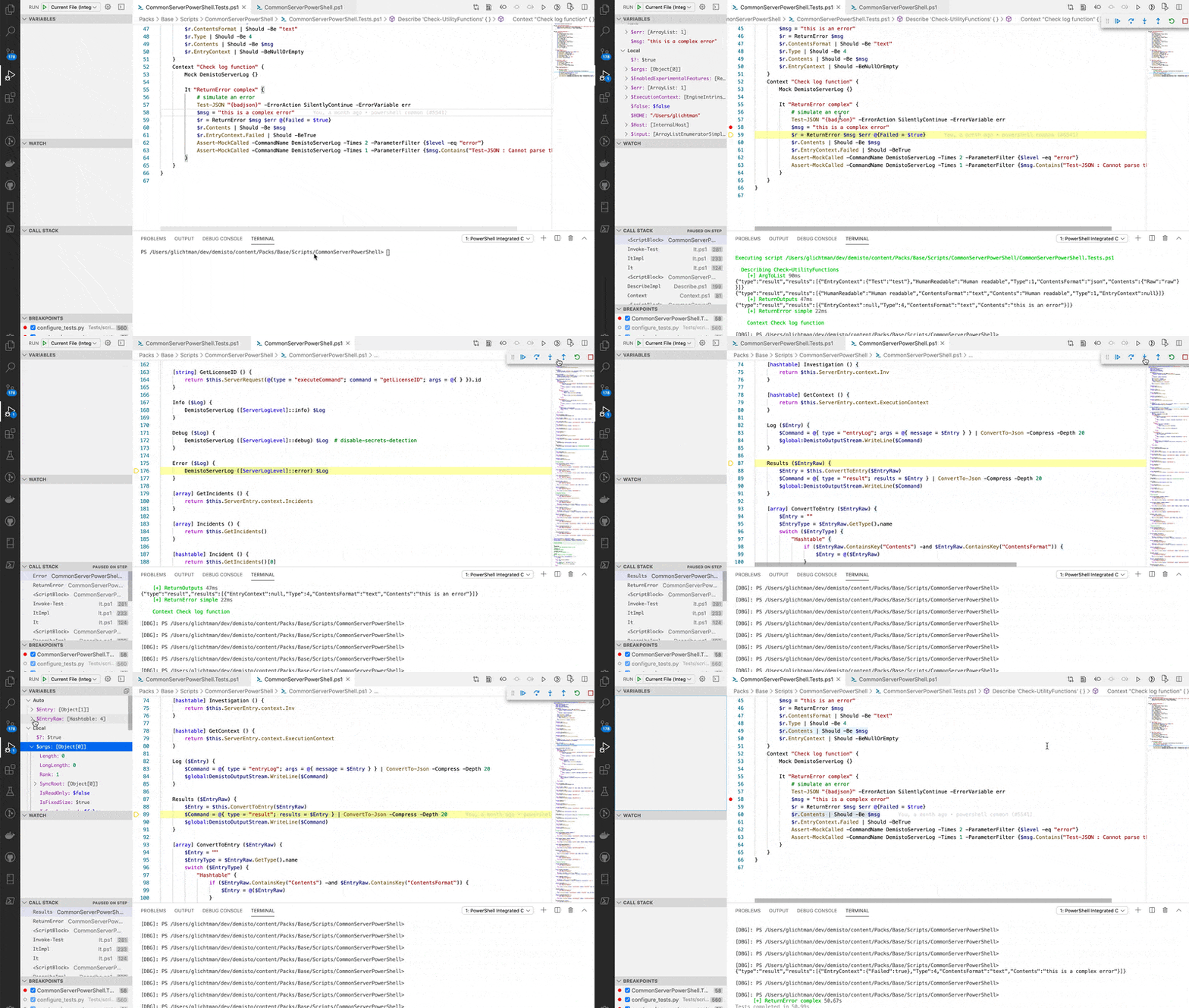
PowerShell integrations and scripts are executed using PowerShell Core. PowerShell Core v6.2 and higher is supported.
### PowerShell integration and script development
### PowerShell Docker images
Similar to Python, PowerShell integrations and scripts run in a Docker container. All of the Docker images that support PowerShell are named with a prefix of either `demisto/powershell` or `demisto/pwsh`. If you need to create a new image follow the instructions at demisto/dockerfiles project: [https://github.com/demisto/dockerfiles](https://github.com/demisto/dockerfiles).
### PowerShell integration directory structure
Similar to Python, PowerShell integrations and scripts should follow the same [directory structure](../components/integration-directory-structure) as Python integrations and scripts, with one difference: unit test files must be named: `<IntegrationFileName>.Tests.ps1`, following the [Pester unit testing](https://pester.dev/docs/quick-start) naming convention. You can use `demisto-sdk split` to convert an exported PowerShell integration or script to the correct directory structure. For more information, see the [Demisto SDK](https://app.gitbook.com/s/nozw5MT5S8KZD2eF8roV/demisto-sdk-commands/split).
### PowerShell linting with PSScriptAnalyzer
PSScriptAnalyzer is used for linting and static code analysis of PowerShell integrations and scripts. If you receive a false positive from the Analyzer, you can suppress the rule by decorating the function/script with `SuppressMessageAttribute`. Specify a `Justification` in the attribute as to why the suppression is necessary. An example usage of suppression can be seen in [CommonServerPowerShell.ps1](https://github.com/demisto/content/blob/master/Packs/Base/Scripts/CommonServerPowerShell/CommonServerPowerShell.ps1). For more information about PSScriptAnalyzer suppression, see the [PSScriptAnalyzer documentation](https://github.com/PowerShell/PSScriptAnalyzer) .
### PowerShell integration unit testing
The Python unit testing guidelines also apply for PowerShell. Unit tests should avoid performing communication with external APIs and should instead use mocking when possible. Testing actual interaction with external APIs should be performed via [Test Playbooks](../../testing/test-playbooks). For running unit tests we use [Pester](https://pester.dev/).
#### Import CommonServerPowerShell.ps1
Your code must import `CommonServerPowerShell.ps1` by adding the following to the beginning of the file:
```programlisting
. $PSScriptRoot\CommonServerPowerShell.ps1
```
When the integration or script code is unified by demisto-sdk for deployment to the instance the import line is automatically removed.
#### Use Main in integration and script code
When writing unit tests you import the integration or script file from the `*.Tests.ps1` file. Therefore, the file must be written so that it will not execute when it is imported. This can be done with a simple `Main` function which is called depending on how the file was executed. Adding the following code ensures the script is not run when imported by the unit tests:
```programlisting
# Execute Main when not in Tests
if ($MyInvocation.ScriptName -notlike "*.Tests.ps1") {
Main
}
```
#### Write PowerShell unit tests
All unit tests should be written in a separate PowerShell file named `<IntegrationFileName>.Tests.ps1`. The unit test file should import the integration or script code file by adding the following line at the beginning of the file:
```programlisting
. $PSScriptRoot\<IntegrationFileName>.ps1
```
Group related unit tests using the `Describe` block. Use `Context` for grouping tests that use the same mock logic. Write your tests using the `It` command. Example unit tests can be seen for the [VerifyJSON script](https://github.com/demisto/content/tree/master/Packs/CommonScripts/Scripts/VerifyJSON). For more details, see the [Pester documentation](https://pester.dev/docs/quick-start).
#### Mock PowerShell functions
Pester supports mocking PowerShell functions. You can mock any function defined in `CommonServerPowerShell.ps1` and functions included in standard PowerShell and imported modules. Pester doesn't support mocking object methods. This includes methods of the `$demisto` object. You can, however, modify the `$demisto` object properties in a test. For example, you can set the `ContextArgs` property to control the return of `$demisto.Args()` method. Example code:
```programlisting
$demisto.ContextArgs = @{arg1 = 'val1' }
```
In addition, you can mock functions called by the `$demisto` object. For example, you can mock `DemistoServerLog` which is called by the `$demisto` object methods: `Info, Debug, Error`. Example of mocking can be seen for the [VerifyJSON script](https://github.com/demisto/content/tree/master/Packs/CommonScripts/Scripts/VerifyJSON) script. See more information about [mocking with Pester](https://pester.dev/docs/usage/mocking).
### Run PowerShell linting and tests
#### Run with Docker and Demisto SDK
The build runs the unit tests within the Docker image that the integration/script runs with. We recommend using this method to run linting and test as it uses the same environment (Docker container) with all modules and operating system dependencies that are used by the integration/script. To run both linting and testing run: `demisto-sdk pre-commit -i <path to code directory>`.
For example: `demisto-sdk pre-commit -i Packs/Legacy/Scripts/VerifyJSON`
**Note**
You can skip PSScriptAnalyzer or unit testing using the command line parameters `--no-pwsh-analyze` and `--no-pwsh-test`.
#### Run from the PowerShell command line
As a prerequisite, verify you have installed [Pester](https://pester.dev/docs/introduction/installation), [PSScriptAnalyzer](https://github.com/PowerShell/PSScriptAnalyzer#installation) and all dependent modules.
Run `demisto-sdk pre-commit -i ...` to copy `CommonServerPowerShell.ps1` and `demistomock.ps1` to the integration/script directory. Enter the pwsh console and go to the integration/script directory.
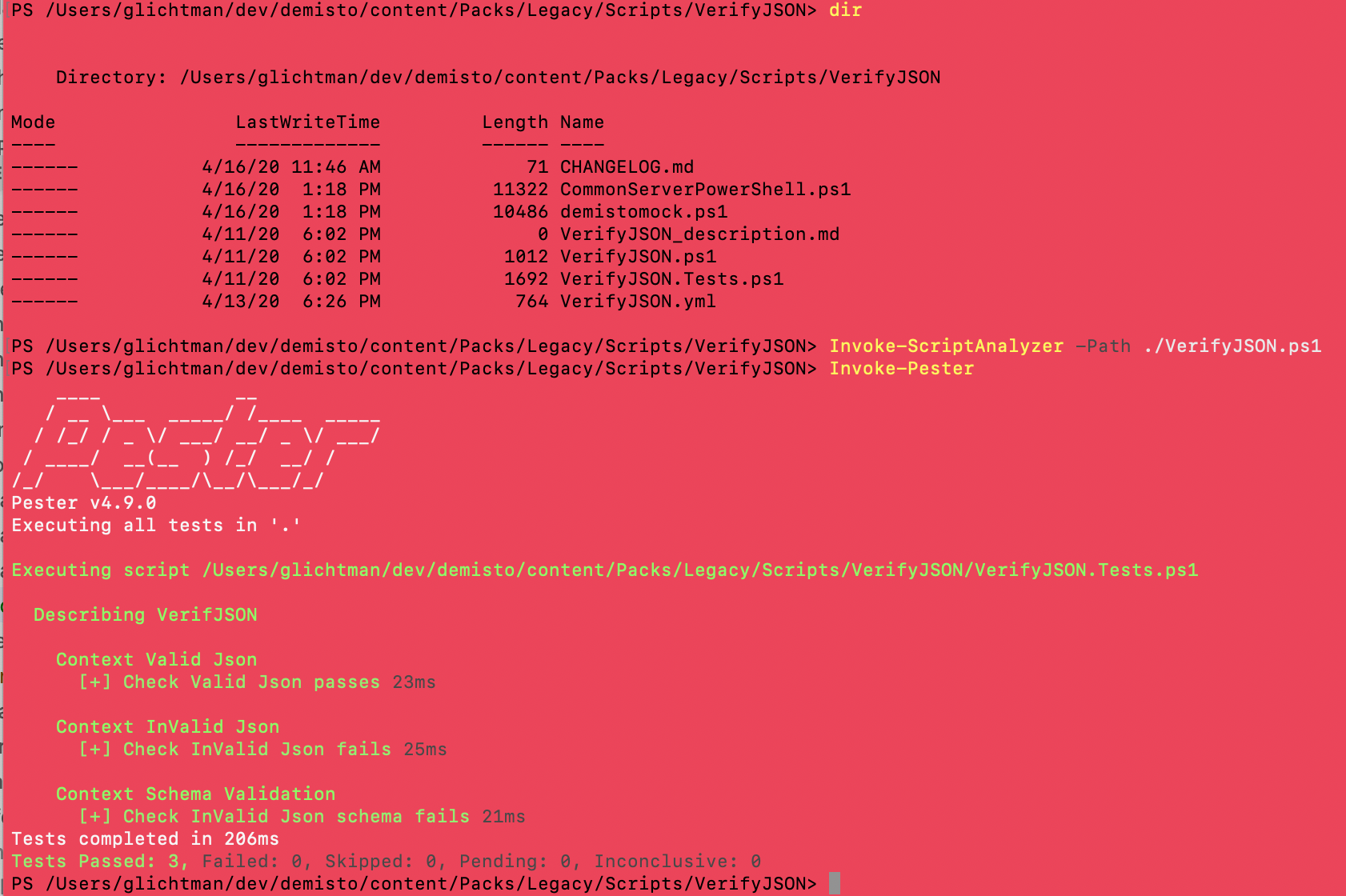
To run unit tests use Pester: `Invoke-Pester`.
To run PSScriptAnalyzer: `Invoke-ScriptAnalyzer -Path <code file>`
Check the command help for information on how to specify which tests to run.
Sample output:
### VS Code for PowerShell development
We recommend using VS Code as your PowerShell editor. The [PowerShell Extension](https://code.visualstudio.com/docs/languages/powershell) developed by Microsoft comes with built-in support for PSScriptAnalyzer and Pester unit testing (including debugging).
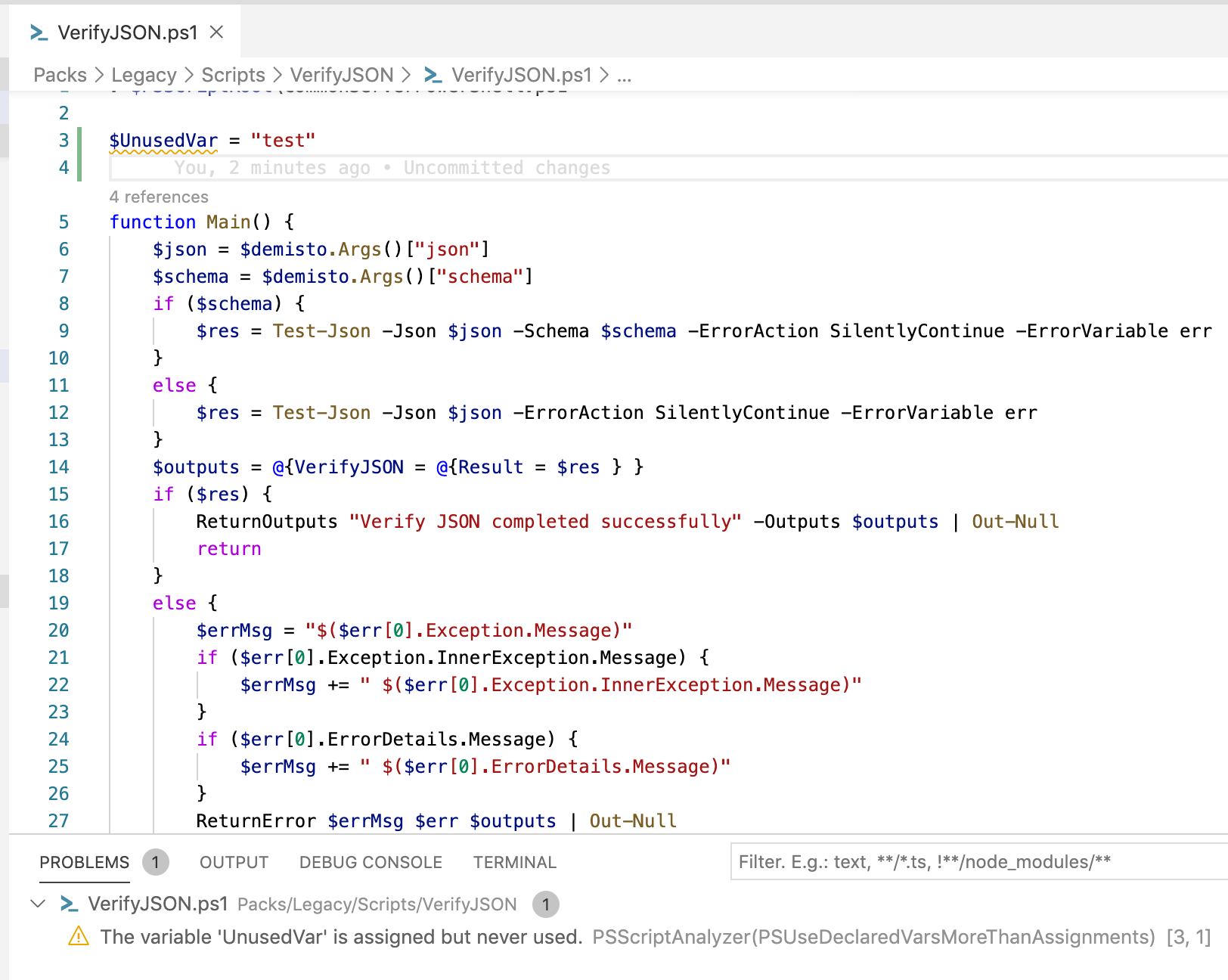
Sample output of PSScriptAnalyzer in VS Code alerting about an unused variable:
Sample debug session using VS Code: