Use the Cortex XSIAM built-in IDE to create and edit automation scripts. Open the script editor from **Incident Response** → **Automation** → **Scripts**.
The Cortex XSIAM IDE differs from other development environments. For example, it has no interpreter, whereas Visual Studio Code does.
### Note
For more complex development needs, we recommend instead using the [Visual Studio Code extension](visual-studio-code-extension). It simplifies third-party integration and script development by enabling users to author Python content for Cortex XSIAM directly in Visual Studio Code. This is also the most efficient way to develop Python [Unit Tests](../../testing/unit-testing).
### Script Helper for Cortex XSIAM script development
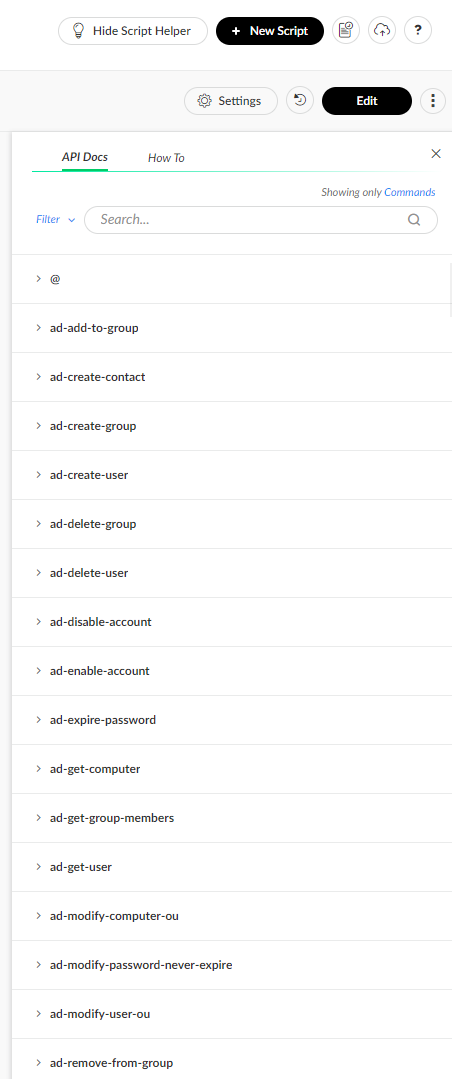
Script Helper provides commonly used functions for Cortex XSIAM automation script development.
To access the script helper, go to Cortex XSIAM under **Incident Response** → **Automation** → **Scripts** → **Script Helper**.
A list of the common server functions appears.
**Script Settings**
Clicking the **Settings** button opens the **Script Settings** dialog box, which contains configurations for **Basic**, **Arguments**, **Permissions**, **Advanced**, and **Depends on Commands** script settings.
For more information about the script settings, see [Scripts](https://app.gitbook.com/s/gHZkkpS9tCAU2tRJlYSx/playbooks/scripts).
**Keyboard Shortcuts**
The following are some useful keyboard shortcuts supported in the IDE.
### Select
| Action | Windows/Linux | Mac |
| ------------ | ------------- | ----------- |
| Select all | Ctrl-A | Command-A |
| Select left | Shift-Left | Shift-Left |
| Select right | Shift-Right | Shift-Right |
### Go to
| Action | Windows/Linux | Mac |
| ----------- | ------------- | ------------------------- |
| Go to start | Ctrl-Home | Command-Home, Command-Up |
| Go to end | Ctrl-End | Command-End, Command-Down |
### Find/replace
| Action | Windows/Linux | Mac |
| ------------- | ------------- | ---------------- |
| Find | Ctrl-F | Command-F |
| Replace | Ctrl-H | Command-Option-F |
| Find next | Ctrl-K | Command-G |
| Find previous | Ctrl-Shift-K | Command-Shift-G |
### Fold
| Action | Windows/Linux | Mac |
| -------------- | -------------------------- | ---------------------------------------- |
| Fold selection | Alt-L, Ctrl-F1 | Command-Option-L, Command-F1 |
| Unfold | Alt-Shift-L, Ctrl-Shift-F1 | Command-Option-Shift-L, Command-Shift-F1 |
| Fold all | Alt-0 | Command-Option-0 |
| Unfold all | Alt-Shift-0 | Command-Option-Shift-0 |
### Other
| Action | Windows/Linux | Mac |
| -------------- | -------------------- | -------------------------- |
| Indent | Tab | Tab |
| Outdent | Shift-Tab | Shift-Tab |
| Undo | Ctrl-Z | Command-Z |
| Redo | Ctrl-Shift-Z, Ctrl-Y | Command-Shift-Z, Command-Y |
| Toggle comment | Ctrl-/ | Command-/ |