You can add keys and values to an issue's context data to be used in playbooks or other automations.
To add context data to an issue, run the `Set` command in CLI, in a script, or in a playbook task. The Set command enables you to set a value under a specific key. For more information about the Set command, see [Set](https://xsoar.pan.dev/docs/reference/scripts/set).
### Use the CLI
Run the `!Set` command in the issue **War Room**.
1. Open an issue and select the **War Room** tab.
2. Run the `!Set` command.
**Example**
The following example adds the key and value `hello:world` to the issue context data.
```programlisting
!set key="hello" value="world"
```
### Use a script
In the JSON file, add `Set` to the `demisto.executeCommand` key.
Example
The following example adds the key and value `hello:world` to the issue context data.
```programlisting
demisto.executeCommand("Set", {"key":"hello", "value":"world"})
```
### Use a playbook
Use the `Set` script in a standard task.
Example
An issue's context data contains the following values:
```programlisting
{
"Account":
{
"firstName": "Bob",
"lastName": "Jones",
}
}
```
For an automation, you need to use the full name value. You can use the `Set` script to add an new `fullName` value to the JSON:
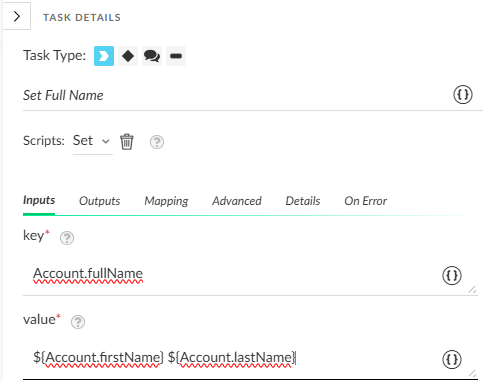
Result:
```programlisting
{
"Account":
{
"firstName": "Bob",
"fullName": "Bob Jones"
"lastName": "Jones",
}
}
```