Configuring registry scanning ensures that only verified and compliant images are deployed across your cloud environments. You can configure container registry scanning during the onboarding process for managed registries such as Amazon Elastic Container Registry (ECR), Azure Container Registry (ACR), Google Artifact Registry (GAR), and Oracle Cloud Infrastructure (OCI) Artifact Registry.
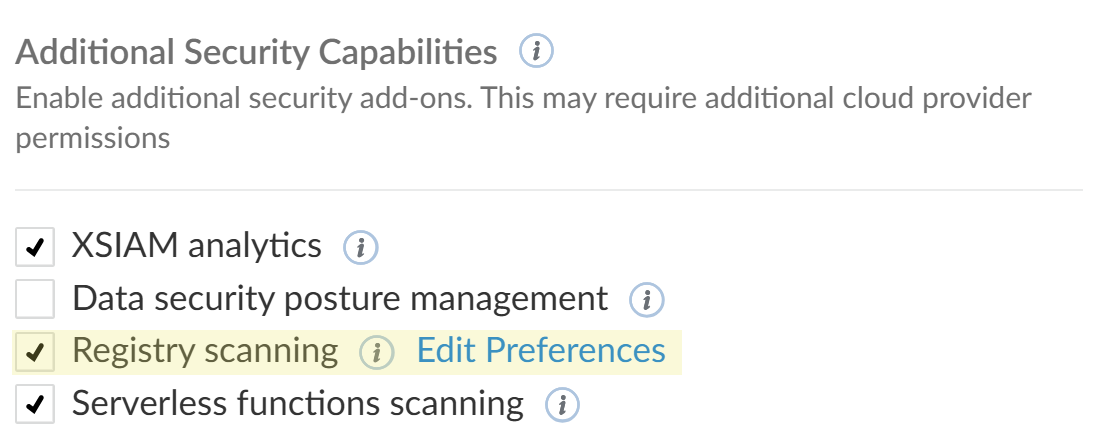
If an account is already onboarded, you can modify its configuration to enable registry scanning as an **Additional Security Capability** to scan images for vulnerabilities, malware, and secrets.
### Prerequisite:
Ensure that you have performed all the steps till **Additional Security Capabilities** as listed in the onboarding wizard for the required CSP:
* [Onboard Amazon Web Services](../../../cloud-service-provider-csp-onboarding/amazon-web-services-cloud-onboarding/how-to-onboard-amazon-web-services#configure-advanced-settings-optional)
* [Onboard Google Cloud Platform](../../../cloud-service-provider-csp-onboarding/google-cloud-platform-cloud-onboarding/how-to-onboard-google-cloud-platform#configure-advanced-settings-optional)
* [Onboard Microsoft Azure](../../../cloud-service-provider-csp-onboarding/microsoft-azure-cloud-onboarding/how-to-onboard-microsoft-azure#configure-advanced-settings-optional)
* [Onboard Oracle Cloud Infrastructure](../../../cloud-service-provider-csp-onboarding/oracle-cloud-infrastructure-cloud-onboarding/how-to-onboard-oracle-cloud-infrastructure#configure-advanced-settings-optional)
To configure registry scanning, do the following:
1. Under **Additional Security Capabilities**, select **Registry Scanning**, then click **Edit Preferences**.
2. In **Initial Scan Configuration**, set your scanning process to focus on recently added or modified container images and exclude older ones that do not align with your current scanning objectives. This setting helps avoid unnecessary scans. Choose one of the following options:
* **All**: Scans all container images, including all versions (tags), in all discovered repositories.
* **Latest Tags**: Scans only images tagged 'latest' in all discovered repositories.
* **Days Modified**: Scans container images created or modified in the last few days. You can select a range of up to **90** days for the scan.
3. When **Upload unknown files to WildFire** is enabled, eligible files detected during registry image scans are uploaded to WildFire for detonation analysis.
This option expands malware detection by allowing WildFire to analyze new samples found in your registry images. When a detonation result returns a malicious verdict, the system re-evaluates the relevant registry image and creates a malware finding.
<figure><img src="/docs/images/a60a13ad859a1ea0.png" alt=""><figcaption></figcaption></figure>
<div data-gb-custom-block data-tag="hint" data-style="info" class="hint hint-info"><h4>Notes</h4><ul><li>The file types sent for WildFire analysis depend on the platform type. WildFire accepts files up to 300 MB in size.</li><li>This setting applies only to registry image scans and is supported for Amazon Web Services (AWS), Google Cloud Platform (GCP), and Microsoft Azure cloud accounts.</li><li>This setting is enabled by default for new cloud instances. For existing instances, it is disabled by default to preserve the current behavior. You can enable it at any time by editing the instance configuration.</li><li>Your cloud provider may charge standard outbound data transfer (egress) fees when scanning with an <a href="../../cloud-service-provider-csp-onboarding/outpost-onboarding/outpost-fundamentals-and-planning">Outpost</a>.</li></ul></div>
4. Select **Save**.
After you configure your container registries, the system automatically starts a new scan. The connection process can take up to 15 minutes. To check the status of the data connector and view the registry scan results, go to the **Cloud Instances** page and select the relevant **Instance Name** from the list.
5. **Next Steps**.
* After the scan completes, you can view the scanned images in the **Container Image** page. For more details, see [Container Image assets](../../../../detect-investigate-and-respond-to-threats/asset-management/asset-classes/compute-assets/container-image-assets).
* You can also modify your cloud instances to manage them effectively. For more details, see [Manage Cloud Instances](../../administration-and-troubleshooting/manage-instances/manage-cloud-instances).