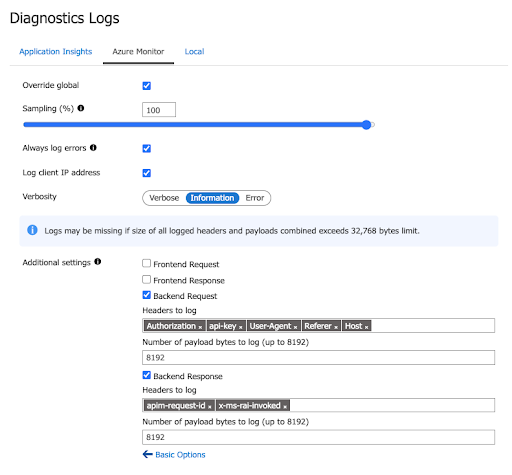
Configure logging request and response payloads in Azure API Management.
1. In your Azure API Management instance, navigate to **APIs** → **Select an API**.
2. In the **Settings** tab, under **Diagnostics Settings**, select **Azure Monitor** and select **Enable**.
3. In **Advanced Options** select the following: **Backend Request** and **Backend Response**.
4. For **Backend Request**, enter the following headers:
* Authorization
* Api-key
* User-Agent
* Referer
* Host
5. In **Number of payload bytes to log**, enter: **`8192`**. Click **Save**.
6. For **Backend Response**, enter the following headers:
* apim-request-id
* x-ms-rai-invoked
7. In **Number of payload bytes to log**, enter: **`8192`**. Click **Save**.