This feature is included with a Cloud Posture Security, Cloud Runtime Security, or Cortex XSIAM Premium license.
### Prerequisite
Graph Search requires **View** or **View/Edit** RBAC permissions for **Graph Search** under **Investigation & Response** → **Search**.
You can build Graph Search queries using the built-in query interface embedded in the Query Builder. Graph queries are composed of assets, findings, and relationship types that connect them. These data objects are represented by nodes and edges, and the paths are found based on the contextual data. Every query is structured to use a certain pattern and includes these default data objects that you define by selecting the available assets and findings that you want to query in the graph. The output is provided by default in a Graph format, but you can also view the results as a Table format. The resulting graph provides an illustration of the nodes, node attributes, and edges that can connect two nodes based on your selections in the query.
To support multi-cloud and hybrid environments efficiently and intuitively, Graph Search queries use a normalized data model that attempts to optimize finding categories of assets and findings. A subset of assets and finding types, referred to as nodes and edges, is supported. For more information, see [Supported assets and findings](supported-assets-and-findings).
You submit Graph Search queries using the **Investigation & Response** → **Search** → **Query Builder** → **Graph Search** built-in query interface.
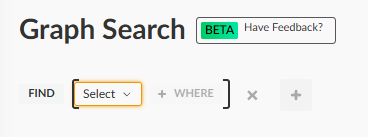
### Show me around the Graph Search built-in query interface
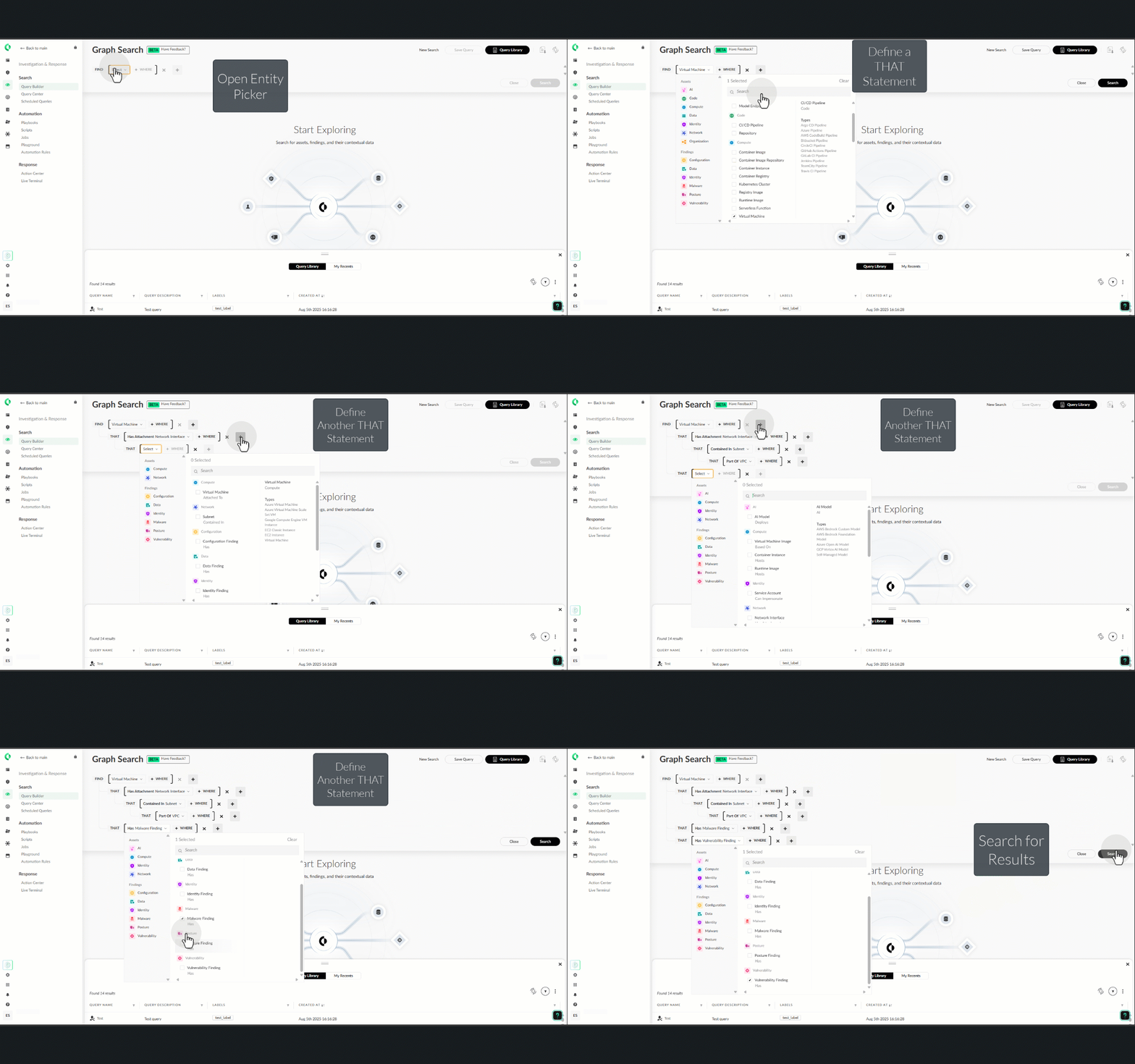
### Keywords in the query interface
There are different key words that are included in the Graph Search query interface, which, as you select them, guide you through the query-building process:
* **FIND**: Defines the start of any Graph Search query, which is followed by the relevant node (entity) types.
* **Select** (mandatory): Opens the node picker dialog box, where you can select the different node types. Multiple nodes are defined with an `OR` relationship between them. The top-level node selection acts as the root of the query. There are two different types of nodes, where each node has its own unique shape, icon, and color:
* **Asset nodes**: Each asset node is depicted as a circle in the resulting graph, where the color and icon displayed is dependent on the asset category and class types selected. There are multiple class types available for each asset node category selected. Once a class type is selected in the node picker dialog box, and you hover over it, all the available asset types are listed. For more information, see [All assets](../../detect-investigate-and-respond-to-threats/asset-management/all-assets).
* **Finding nodes**: Each finding node is depicted as a diamond in the resulting graph, where the color and icon displayed are dependent on the finding type selected. There is only one category type available for each finding selected.
* **WHERE**: List of conditions that apply to the node types that were selected following the `FIND`/`THAT` statements. The conditions are based on node attributes and their values. At each level of the query, the relationship between node attribute conditions is `AND`. No other logical operator is available.
For each attribute type, there is a defined behavior for filtering data:
* Array values with `OR` relationship.
* Multi-selection (`OR` relationship) from a predefined ENUM.
* Multi-selection (`OR` relationship) from a list of data objects that exist in the Graph Search database. For example, the scope of cloud accounts enables you to choose from the available cloud account object that exists in the database.
The attribute operators are used to define the standard operators, such as `Contains` and `Greater than`. Depending on the attribute selected, different attribute operators are available.
* **THAT**: Defines the relationship between nodes as every `THAT` marks an edge to the next node type. The possible edges are selected based on the graph schema. You can add a **THAT** statement to a Graph Search query by clicking the **+** icon available on each line of the query interface.
### Providing feedback
Use the **Have Feedback?** link in the Graph Search query interface to provide valuable feedback about the feature and any improvements you'd recommend.