Enable additional event logs using Event Viewer
For the following event IDs, the auditing setup is configured using the **Windows Event Viewer**. Access the **Event Viewer** through the search box in the **Start** menu.
### Event IDs 1511, 1518
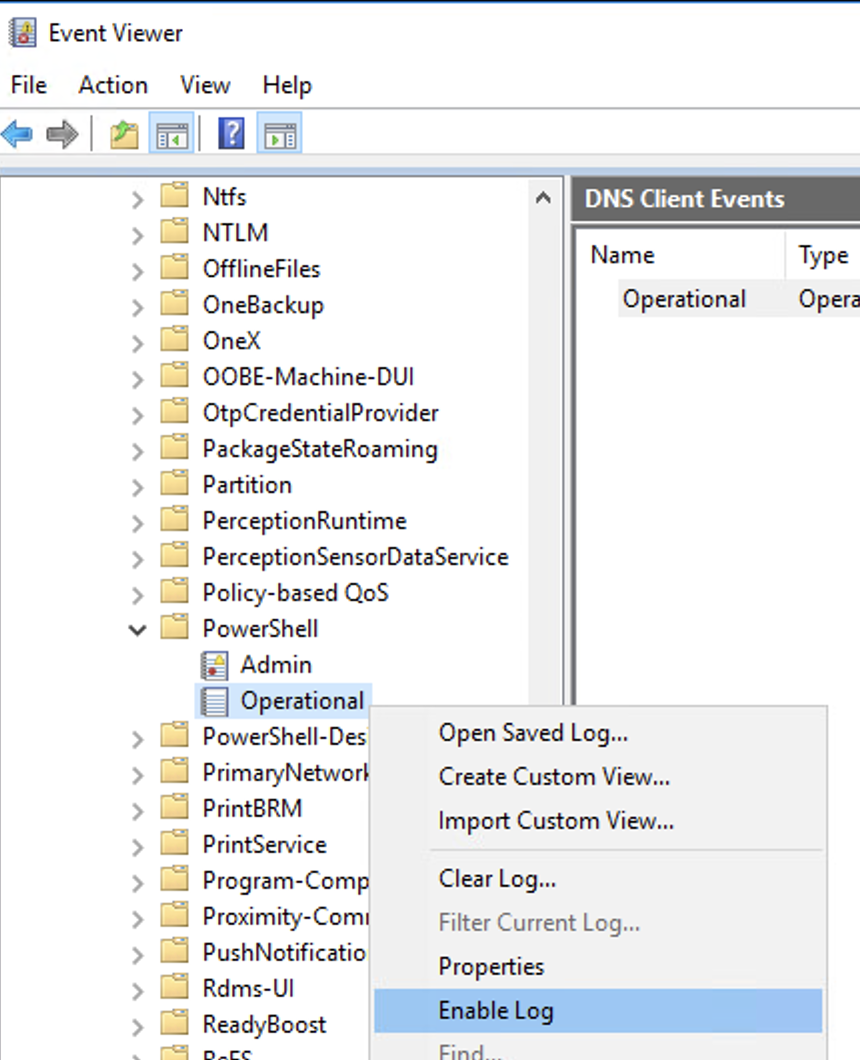
In **Event Viewer** → **Expand Applications and Services Logs** → **Microsoft** → **Windows** → **User Profile Service**, right click **Operational** and select **Enable Log**.
### Event IDs 11, 70, 90
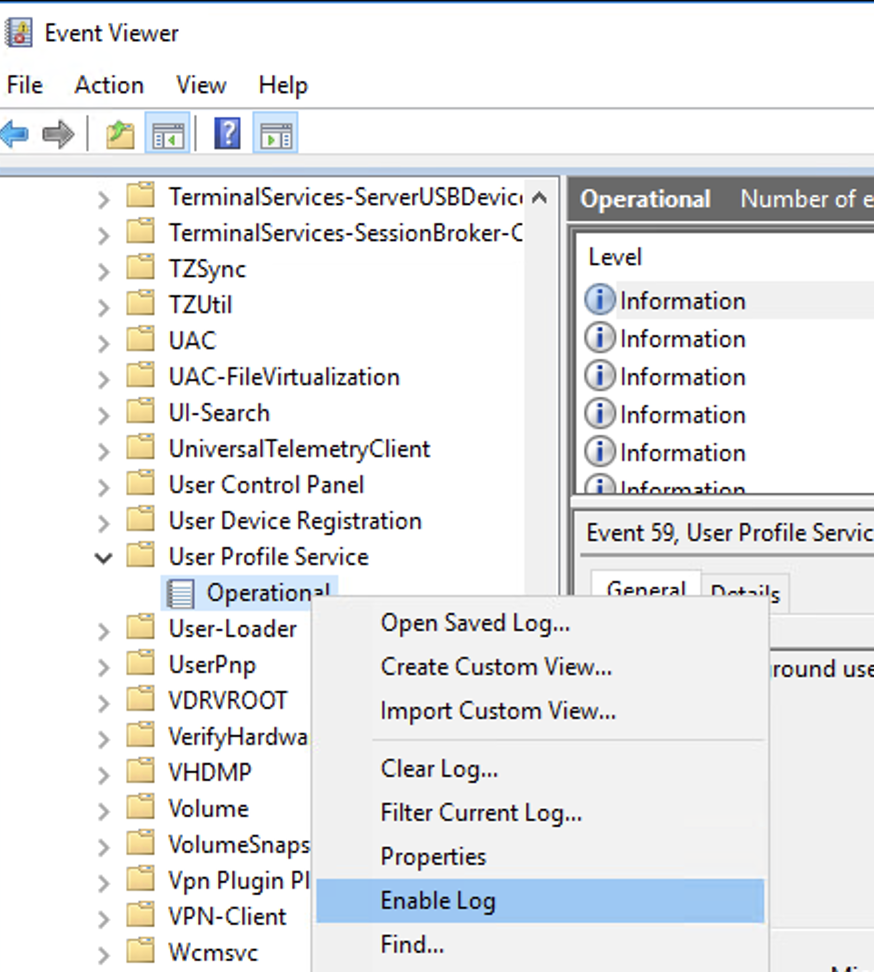
In **Event Viewer** → **Expand Applications and Services Logs** → **Microsoft** → **Windows** → **CAPI2**, right click **Operational** and select **Enable Log**.
### Event ID 3008
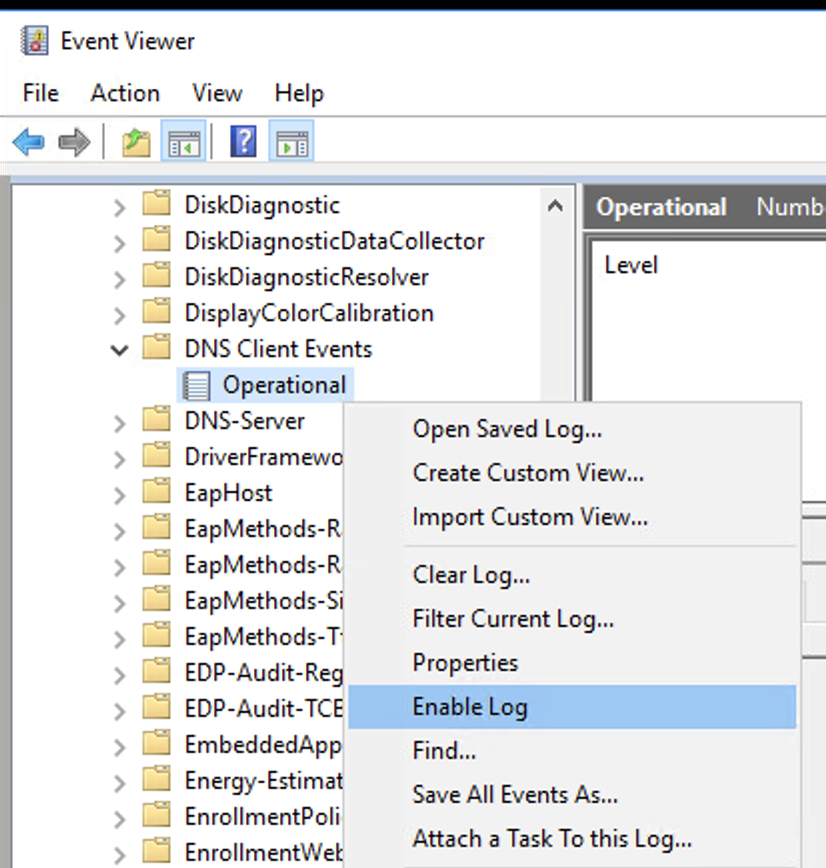
In **Event Viewer** → **Expand Applications and Services Logs** → **Microsoft** → **Windows** → **DNS Client Events**, right click **Operational** and select **Enable Log**.
### Event ID 2004
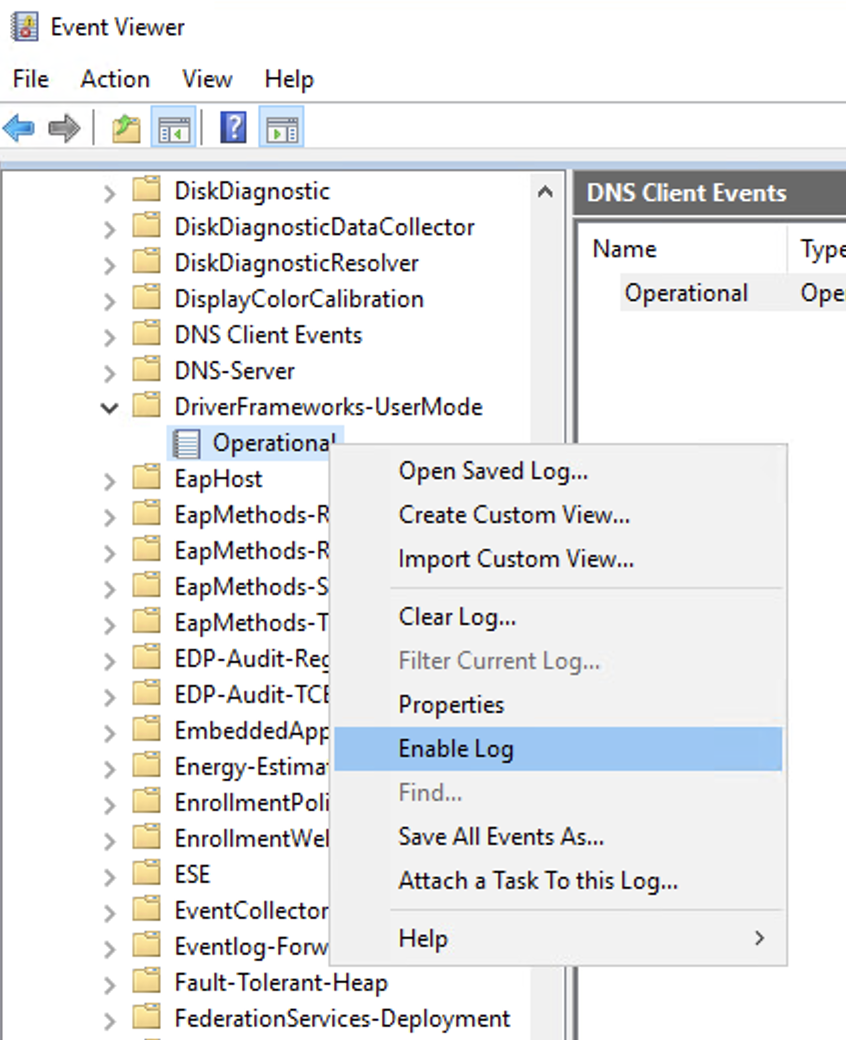
In **Event Viewer** → **Expand Applications and Services Logs** → **Microsoft** → **Windows** → **DriverFrameworks-UserMode**, right click **Operational** and select **Enable Log**.
### Event IDs 4103, 4104, 4105, 4106
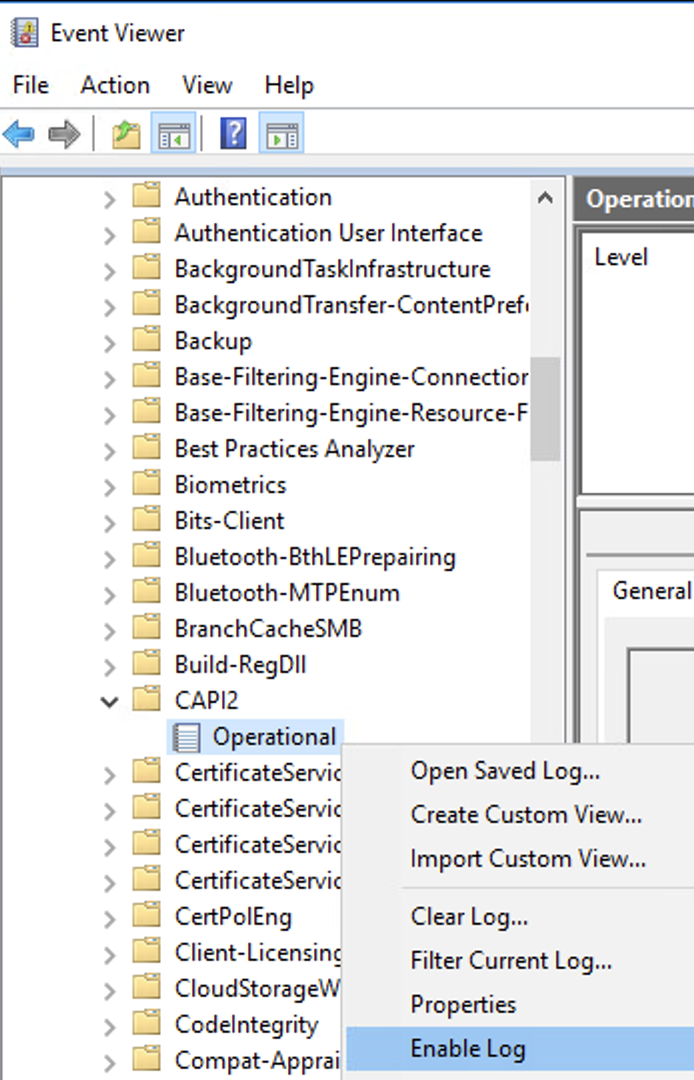
In **Event Viewer** → **Expand Applications and Services Logs** → **Microsoft** → **Windows** → **PowerShell**, right click **Operational** and select **Enable Log**.

### Event IDs 1006, 1009, 1116-1119
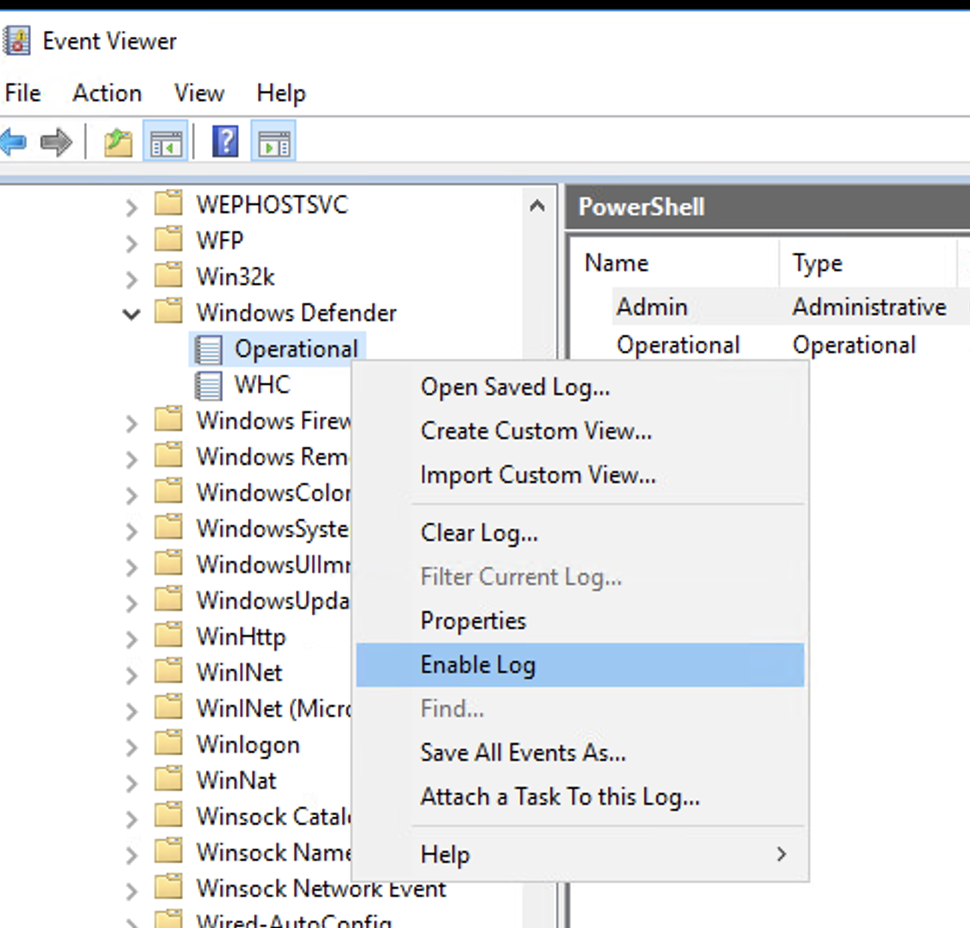
In **Event Viewer** → **Expand Applications and Services Logs** → **Microsoft** → **Windows** → **Windows Defender**, right click **Operational** and select **Enable Log**.
### Event ID 1024
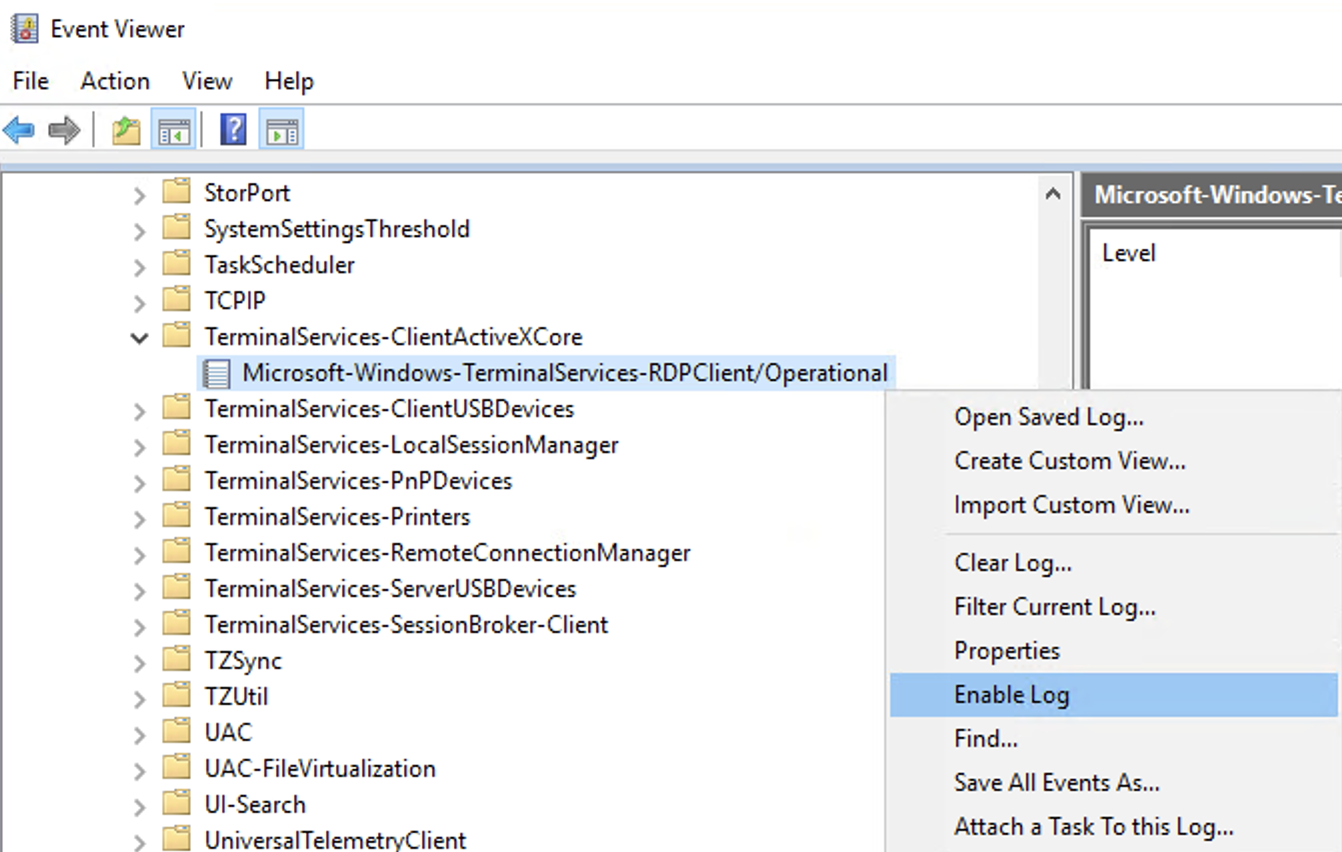
In **Event viewer** → **Application and Services Logs** → **Microsoft** → **Windows** → **TerminalServices-ClientActiveXCore** → **Microsoft-Windows-TerminalServices-RDPClient**, right click **Operational** and select **Enable Log**.
### Event IDs 2005, 2006, 2009, 2033
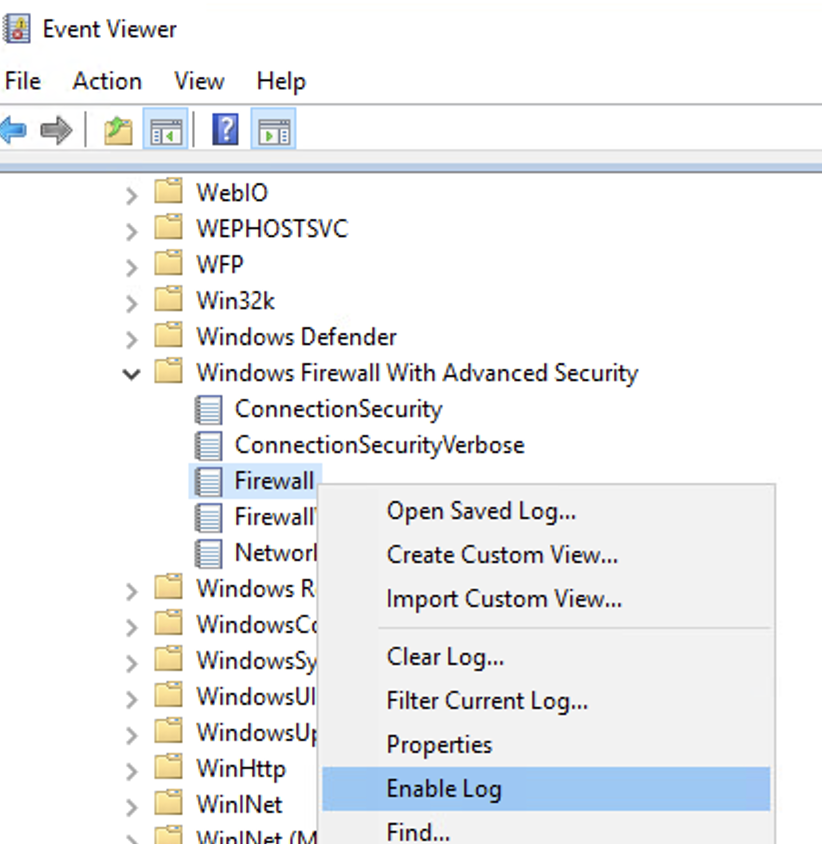
In **Event Viewer** → **Expand Applications and Services Logs** → **Microsoft** → **Windows** → **Windows Firewall With Advanced Security** → **Firewall**, right click **Operational** and select **Enable Log**.