Details
| ID | Rasterize |
|---|---|
| Provider | Open Source |
| Category | Utilities |
| From Version | 5.0.0 |
| Docker Image | demisto/chromium:151.0.7922.11855526 |
| Supported Modules | Agentix EDR Cortex Cloud Cloud Runtime Security XSIAM |
README
Converts URLs, PDF files, and emails to an image file or PDF file.
Docker Security Recommendations
If you are using the integration to rasterize un-trusted URLs or HTML content, such as those obtained via external emails, we recommend following the instructions at the Network Hardening Guide (Cortex XSOAR 6.13) or Docker network hardening Guide (Cortex XSOAR 8 Cloud) or Docker network hardening Guide (Cortex XSOAR 8.7 On-prem) under the Block Internal Network Access section.
Configure Rasterize in Cortex
| Parameter | Description | Required |
|---|---|---|
| with_error | Return Errors. | False |
| wait_time | Time to wait before taking a screenshot (in seconds). | False |
| max_page_load_time | Maximum amount of time to wait for a page to load (in seconds). | False |
| chrome_options | Chrome options (Advanced. See Configuration Notes.) |
False |
| is_https | Use secure requests protocol (HTTPS). | False |
| proxy | Use system proxy settings. | False |
| rasterize_mode | Rasterize Mode. (See Configuration Notes.) |
False |
Configuration Notes:
- Return Errors: If this checkbox is not selected, a warning will be returned instead of an error.
-
Chrome options: A comma-separated list of Chrome options to add or remove for rasterization. Use for advanced troubleshooting. If a value contains a comma (for example, when setting the user agent value), escape it with the backslash (\) character. To remove a default option that is used, put the option in square brackets. For example, to add the option –disable-auto-reload and remove the option –disable-dev-shm-usage, set the following value:
--disable-auto-reload,[--disable-dev-shm-usage]To set a language for the browser, add the –accept-lang argument followed by the desired language code in IETF BCP 47 format. For example,
--accept-lang=de-DE.
If you want to set the language to en-US, use en-GB instead. - Rasterize Mode: It is possible to rasterize either via Chrome WebDriver or Chrome Headless CLI. WebDriver supports more options than Headless CLI. Such as support for the
offlineoption in therasterize-emailscommand. There are some urls that do not rasterize well with WebDriver and may succeed with Headless CLI. Thus, it is recommended to use theWebDriver - Preferredmode, which will use WebDriver as a start and fallback to Headless CLI if it fails. - Use system proxy settings: Select this checkbox to use the system’s proxy settings. Important: this integration does not support proxies which require authentication.
Limitations
-
Rasterize does not support private network paths.
-
The default timeout is 5 minutes (300 seconds). If the rasterize command processes a large number of URLs, or even a smaller number of URLs that take a long time to load, it can result in a timeout error. For example, 100 URLs each taking 5 seconds to open would total 500 seconds, exceeding the default timeout limit.
In cases where you encounter timeout errors when processing many URLs, you can either:- Split the URLs into smaller batches to process.
- Increase the timeout setting for the specific task in the playbook that runs the rasterize command. To increase the timeout for a playbook task, modify the task’s configuration by accessing the task settings, clicking the Advanced section, and adjusting the Execution timeout (seconds) field to a higher value appropriate for the workload.
Commands
You can execute these commands from the CLI, as part of an automation, or in a playbook.
After you successfully execute a command, a DBot message appears in the War Room with the command details.
rasterize
Converts the contents of a URL to an image file or a PDF file.
Base Command
rasterize
Input
| Argument Name | Description | Required |
|---|---|---|
| wait_time | Time to wait before taking a screenshot (in seconds ). | Optional |
| max_page_load_time | Maximum time to wait for a page to load (in seconds). | Optional |
| url | The URL to rasterize. Must be the full URL, including the http prefix. | Required |
| width | The page width, for example, 1024px. Specify with or without the px suffix. | Optional |
| height | The page height, for example, 800px. Specify with or without the px suffix. | Optional |
| type | The file type to which to convert the contents of the URL. Can be “pdf” or “png”. Default is “png”. | Optional |
| file_name | The name the file will be saved as. Default is “url”. | Optional |
| full_screen | Get the full page. The actual page width and height will be auto calculated up to a max value of 8000px. (Marking full_screen as true means that the values for width and height arguments might not be respected). | Optional |
| mode | Rasterize mode to use (WebDriver or Headless CLI). If not specified, will use according to the integration instance settings. | Optional |
Context Output
| Path | Type | Description |
|---|---|---|
| InfoFile.Name | string | File name. |
| InfoFile.EntryID | string | File entry ID. |
| InfoFile.Size | number | File size. |
| InfoFile.Type | string | File type, e.g., “PE” |
| InfoFile.Info | string | Basic information of the file. |
| InfoFile.Extension | string | File extension. |
Command Example
!rasterize url=http://google.com
Context Example
{
    "InfoFile": {
        "EntryID": "922@6e069bc4-2a1e-43ea-8ed3-ea558e377751",
        "Extension": "png",
        "Info": "image/png",
        "Name": "url.png",
        "Size": 29909,
        "Type": "PNG image data, 1024 x 800, 8-bit/color RGBA, non-interlaced"
    }
}
Passing Multiple URLs
To pass multiple URLs as an argument when one or more URL contains a comma, use a JSON list formatted as a string as follows:
"[\"https://www.a.com\", \"https://www.b.com\"]"
Alternatively, you can wrap the entire list in backticks () so it is interpreted as a single argument. If you do this, make sure to:
-Only use double quotes (") to enclose each URL string.
-Replace any double quotes in a URL with single quotes (') or%22, or pass the URL separately to ensure proper parsing and avoid conflicts caused by nested quotation marks.
for example:
`["https://www.a.com", "https://www.b.com/?q='test_arg'/search"]``
Human Readable Output
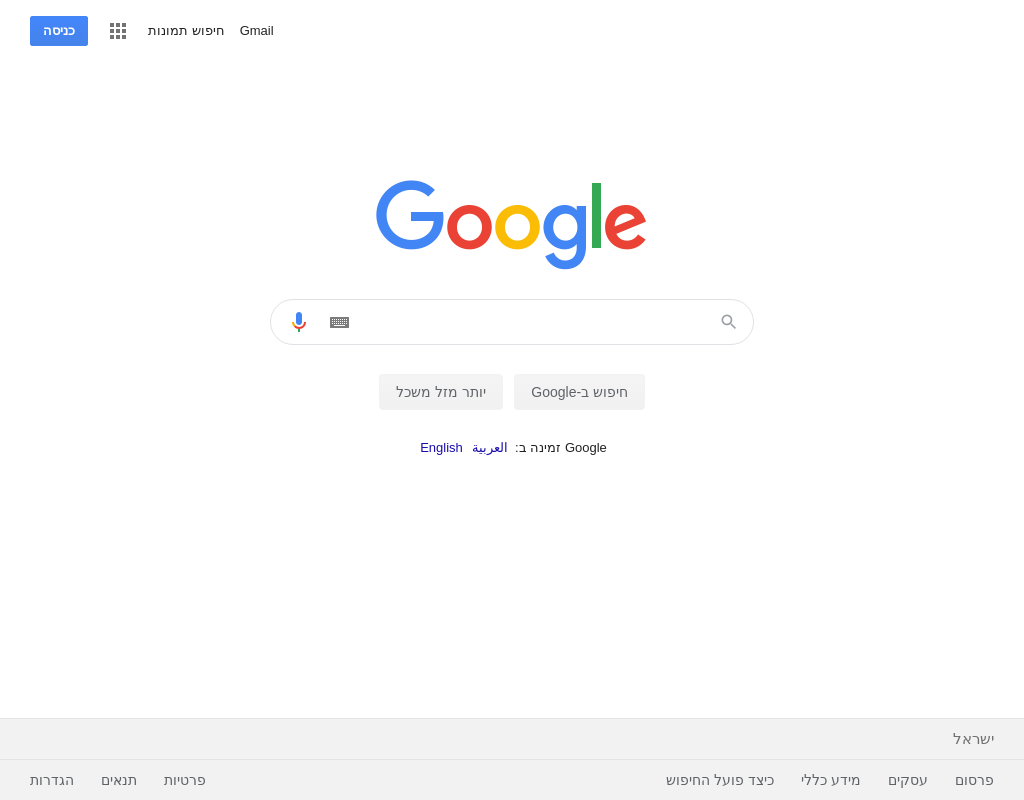
rasterize-email
Converts the body of an email to an image file or a PDF file.
Base Command
rasterize-email
Input
| Argument Name | Description | Required |
|---|---|---|
| htmlBody | The HTML body of the email. | Required |
| width | The HTML page width, for example, 600px. Specify with or without the px suffix. | Optional |
| height | The HTML page height, for example, 800px. Specify with or without the px suffix. | Optional |
| type | The file type to which to convert the email body. Can be “pdf” or “png”. Default is “png”. | Optional |
| offline | If “true”, will block all outgoing communication. | Optional |
| file_name | The name the file will be saved as. Default is “email”. | Optional |
| full_screen | Get the full page. The actual page width and height will be auto calculated up to a max value of 8000px. (Marking full_screen as true means that the values for width and height arguments might not be respected). | Optional |
| mode | Rasterize mode to use (WebDriver or Headless CLI). If not specified, will use according to the integration instance settings. | Optional |
Context Output
| Path | Type | Description |
|---|---|---|
| InfoFile.Name | string | File name. |
| InfoFile.EntryID | string | File entry ID. |
| InfoFile.Size | number | File size. |
| InfoFile.Type | string | File type, e.g., “PE” |
| InfoFile.Info | string | Basic information of the file. |
| InfoFile.Extension | string | File extension. |
Command Example
!rasterize-email htmlBody="<html><head><meta http-equiv=\"Content-Type\" content=\"text/html;charset=utf-8\"></head><body><br>---------- TEST FILE ----------<br></body></html>"
Context Example
{
    "InfoFile": {
        "EntryID": "926@6e069bc4-2a1e-43ea-8ed3-ea558e377751",
        "Extension": "png",
        "Info": "image/png",
        "Name": "email.png",
        "Size": 5243,
        "Type": "PNG image data, 600 x 800, 8-bit/color RGBA, non-interlaced"
    }
}
Human Readable Output

rasterize-image
Converts an image file to a PDF file.
Base Command
rasterize-image
Input
| Argument Name | Description | Required |
|---|---|---|
| EntryID | The entry ID of the image file. | Required |
| width | The image width, for example, 600px. Specify with or without the px suffix. | Optional |
| height | The image height, for example, 800px. Specify with or without the px suffix. If empty, the height is the entire image. | Optional |
| file_name | The name the file will be saved as. Default is the EntryID. | Optional |
| full_screen | Get the full page. The actual page width and height will be auto calculated up to a max value of 8000px. (Marking full_screen as true means that the values for width and height arguments might not be respected). | Optional |
| mode | Rasterize mode to use (WebDriver or Headless CLI). If not specified, will use according to the integration instance settings. | Optional |
Context Output
| Path | Type | Description |
|---|---|---|
| InfoFile.Name | string | File name. |
| InfoFile.EntryID | string | File entry ID. |
| InfoFile.Size | number | File size. |
| InfoFile.Type | string | File type, e.g., “PE” |
| InfoFile.Info | string | Basic information of the file. |
| InfoFile.Extension | string | File extension. |
Command Example
!rasterize-image EntryID=889@6e069bc4-2a1e-43ea-8ed3-ea558e377751
Context Example
{
    "InfoFile": {
        "EntryID": "930@6e069bc4-2a1e-43ea-8ed3-ea558e377751",
        "Extension": "pdf",
        "Info": "application/pdf",
        "Name": "889@6e069bc4-2a1e-43ea-8ed3-ea558e377751.pdf",
        "Size": 21856,
        "Type": "PDF document, version 1.4"
    }
}
Human Readable Output
rasterize-pdf
Converts a PDF file to an image file.
Base Command
rasterize-pdf
Input
| Argument Name | Description | Required |
|---|---|---|
| EntryID | The entry ID of PDF file. | Required |
| maxPages | The maximum number of pages to render. Default is “3”. | Optional |
| pdfPassword | The password to access the PDF. | Optional |
| horizontal | Whether to stack the pages horizontally. If “true”, will stack the pages horizontally. If “false”, will stack the pages vertically. Default is “false”. | Optional |
| file_name | The name the file will be saved as. Default is “image”. | Optional |
Context Output
| Path | Type | Description |
|---|---|---|
| InfoFile.Name | string | File name. |
| InfoFile.EntryID | string | File entry ID. |
| InfoFile.Size | number | File size. |
| InfoFile.Type | string | File type, e.g., “PE” |
| InfoFile.Info | string | Basic information of the file. |
| InfoFile.Extension | string | File extension. |
Command Example
!rasterize-pdf EntryID=897@6e069bc4-2a1e-43ea-8ed3-ea558e377751
Context Example
{
    "InfoFile": {
        "EntryID": "934@6e069bc4-2a1e-43ea-8ed3-ea558e377751",
        "Extension": "jpeg",
        "Info": "image/jpeg",
        "Name": "image.jpeg",
        "Size": 77514,
        "Type": "JPEG image data, JFIF standard 1.01, aspect ratio, density 1x1, segment length 16, baseline, precision 8, 1700x2200, components 3"
    }
}
Human Readable Output
rasterize-html
Converts an html file to a PDF or PNG file.
Base Command
rasterize-html
Input
| Argument Name | Description | Required |
|---|---|---|
| EntryID | The entry ID of the html file. | Required |
| width | The html file width, for example, 600px. Specify with or without the px suffix. | Optional |
| height | The html file height, for example, 800px. Specify with or without the px suffix. If empty, the height is the entire image. | Optional |
| file_name | The name the file will be saved as. Default is the EntryID. | Optional |
| type | The file type to which to convert the html file. Can be “pdf” or “png”. Default is “png”. | Optional |
| full_screen | Get the full page. The actual page width and height will be auto calculated up to a max value of 8000px. (Marking full_screen as true means that the values for width and height arguments might not be respected). | Optional |
| wait_time | Time to wait before taking a screenshot (in seconds ). | Optional |
Context Output
| Path | Type | Description |
|---|---|---|
| InfoFile.Name | string | File name. |
| InfoFile.EntryID | string | File entry ID. |
| InfoFile.Size | number | File size. |
| InfoFile.Type | string | File type, e.g., “PE” |
| InfoFile.Info | string | Basic information of the file. |
| InfoFile.Extension | string | File extension. |
Command Example
!rasterize-html EntryID=889@6e069bc4-2a1e-43ea-8ed3-ea558e4586751
Context Example
{
    "InfoFile": {
        "EntryID": "930@6e069bc4-2a1e-43ea-8ed3-ea558e458651",
        "Extension": "png",
        "Info": "application/png",
        "Name": "image.png",
        "Size": 21856,
        "Type": "png document, version 1.4"
    }
}
Human Readable Output
Configuration parameters
with_error— Return Errorswait_time— Time to wait before taking a screenshot (in seconds)max_page_load_time— Maximum time to wait for a page to load (in seconds)chrome_options— Chrome options (Advanced. See [?])max_chromes_count— Number of maximum Chrome instances to keep running simultaneously.max_chrome_tabs_count— Number of maximum tabs each Chrome will be allowed to open.is_https— Use secure requests protocol (HTTPS).rasterize_mode— Rasterize Modeblocked_urls— List of domains to blockproxy— Use system proxy settingslightweight— Lightweight
Commands (6)
-
rasterizeConverts the contents of a URL to an image file or a PDF file.
-
rasterize-emailConverts the body of an email to an image file or a PDF file.
-
rasterize-extractExtracts structured text content from web pages in markdown format.
-
rasterize-htmlConverts an HTML file to an image file or a PDF file.
-
rasterize-imageConverts an image file to a PDF file.
-
rasterize-pdfConverts a PDF file to an image file.
## Rasterize
Create an image or PDF file from a URL or HTML body.

**Security Note:**
If you are using the integration to rasterize un-trusted URLs or HTML content, such as those obtained via external emails, we recommend following the instructions at the [Network Hardening Guide (Cortex XSOAR 6.13)](https://docs-cortex.paloaltonetworks.com/r/Cortex-XSOAR/6.13/Cortex-XSOAR-Administrator-Guide/Docker-Network-Hardening) or [Docker network hardening Guide (Cortex XSOAR 8 Cloud)](https://docs-cortex.paloaltonetworks.com/r/Cortex-XSOAR/8/Cortex-XSOAR-Cloud-Documentation/Docker-hardening-guide) or [Docker network hardening Guide (Cortex XSOAR 8.7 On-prem)](https://docs-cortex.paloaltonetworks.com/r/Cortex-XSOAR/8.7/Cortex-XSOAR-On-prem-Documentation/Docker-hardening-guide) under the Block Internal Network Access section.


**Configuration Notes:**
* Return Errors: If this checkbox is not selected, a warning will be returned instead of an error entry.
* Chrome options: Add or remove Chrome options used to rasterize. Use for advanced troubleshooting. Supports a comma-separated list. If a value contains a comma (for example, when setting the user agent value), escape it with the backslash (**\\**) character. To remove a default option being used, put the option in square brackets. For example, to add the option *--disable-auto-reload* and remove the option *--disable-dev-shm-usage*, set the following value:
    ```
    --disable-auto-reload,[--disable-dev-shm-usage]
    ```
    To set a language for the browser, add the *--accept-lang* argument followed by the desired language code in IETF BCP 47 format. For example, `--accept-lang=de-DE`.
    If you want to set the language to en-US, use en-GB instead.
* Rasterize Mode: It is possible to rasterize either via Chrome WebDriver or Chrome Headless CLI. WebDriver supports more options than Headless CLI. Such as support for the `offline` option in the `rasterize-emails` command. There are some urls that do not rasterize well with WebDriver and may succeed with Headless CLI. Thus, it is recommended to use the `WebDriver - Preferred` mode, which will use WebDriver as a start and fallback to Headless CLI if it fails.
* Use system proxy settings: Select this checkbox to use the system's proxy settings. **Important**: this integration does not support proxies which require authentication.