Use cases: JSON lists ↗
Manage JSON lists in Cortex XSIAM that can be accessed by automations, playbooks, etc. List commands, lists arrays separators delimiters
List data can be stored in various structures, including JSON format. When accessing a valid JSON file from within a playbook, it is automatically parsed as a JSON object (list). Depending on how you store the data, you may need to transform a list into an array. For example, when using non-built-in commands in a script or looping over items in a list, we recommend converting the list into an array. Working with JSON files in playbooks typically involves the following:
Extract the data from a JSON object
Extract a subset of the data
Filter extracted data
Apply transformers to extracted data.
Create a JSON list and use the Set automation to create a new context key that can extract the data from the list.
Create a List:
In the Name field, type
Test1.Select → → → → .
In the Content Type field, select JSON and add the following content:
{
    "domain": {
        "name": "mwidomain",
        "prod_mode": "prod",
        "user": "weblogic",
        "admin": {
            "servername": "AdminServer",
            "listenport": "8001"
        },
        "machines": [
            {
                "refname": "Machine1",
                "name": "MWINODE01"
            },
            {
                "refname": "Machine2",
                "name": "MWINODE02"
            }
        ],
        "clusters": [
            {
                "refname": "Cluster1",
                "name": "App1Cluster",
                "machine": "Box1"
            },
            {
                "refname": "Cluster1",
                "name": "App2Cluster",
                "machine": "Box2"
            }
        ],
        "servers": [
            {
                "name": "ms1",
                "port": 9001,
                "machine": "Box1",
                "clusterrefname": "Cluster1"
            },
            {
                "name": "ms2",
                "port": 9002,
                "machine": "Box2",
                "clusterrefname": "Cluster2"
            }
        ]
    }
}
Save the list.
Create a playbook task with the Set automation:
Select → → → .
Name the playbook, and click .
Click and provide a task name.
In the Choose Script field, select .
The Set script sets a value in context under the key entered.
In the key field, define a context key name for the data. For example, JSONData.
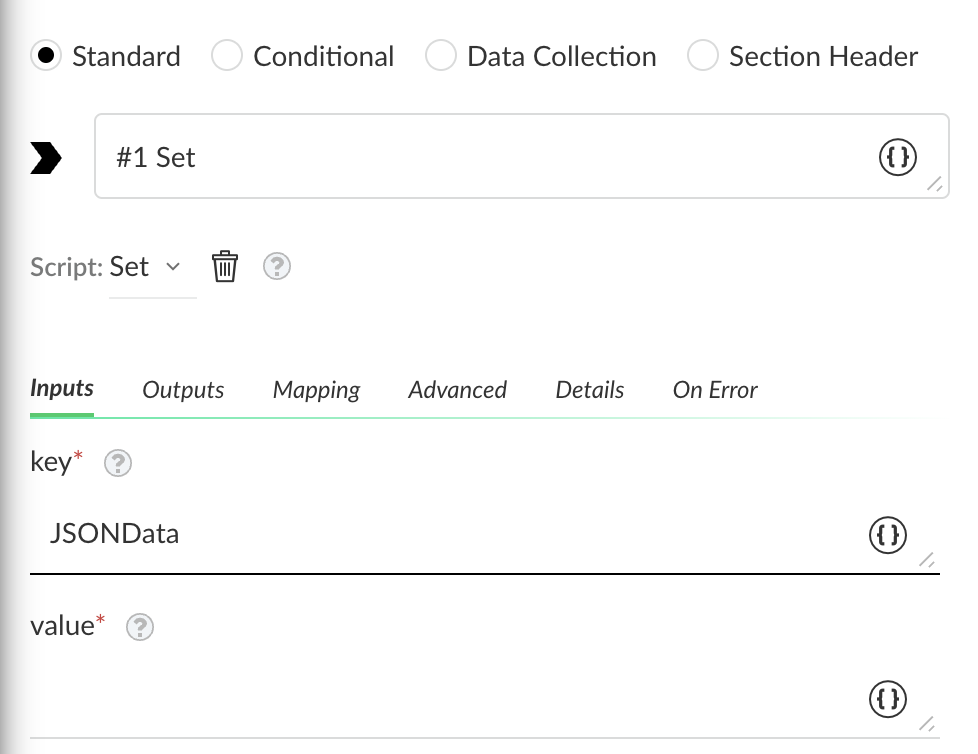
In the value field, set the list you want to extract by clicking the curly brackets.
Click Filters And Transformers.
In the Get field, click the curly brackets, and in the Select source for value section, select the list you created in step 1: Test1.
In the Fetch data field, select an issue to test the data.
Click Test.
In this example, the test results have found the list data.
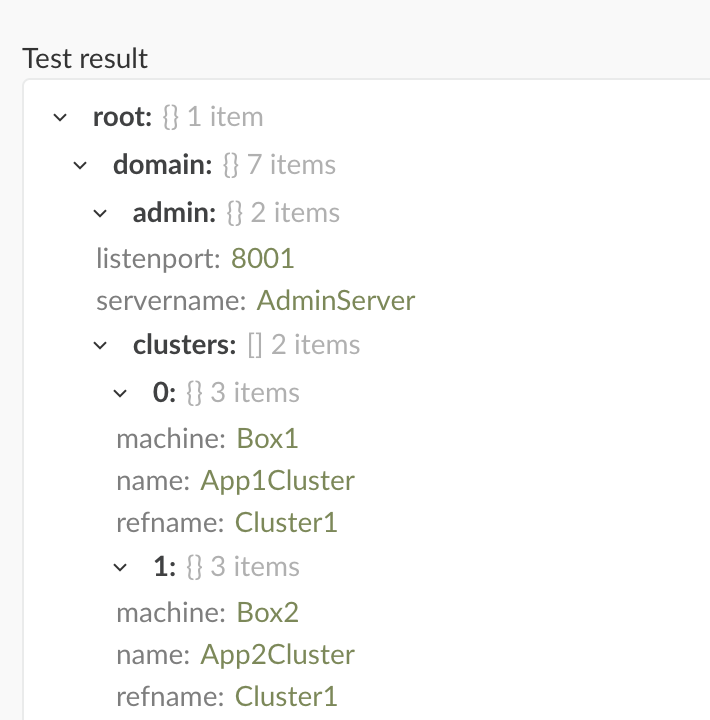
When the test completes, click Save.
Save the task and playbook.
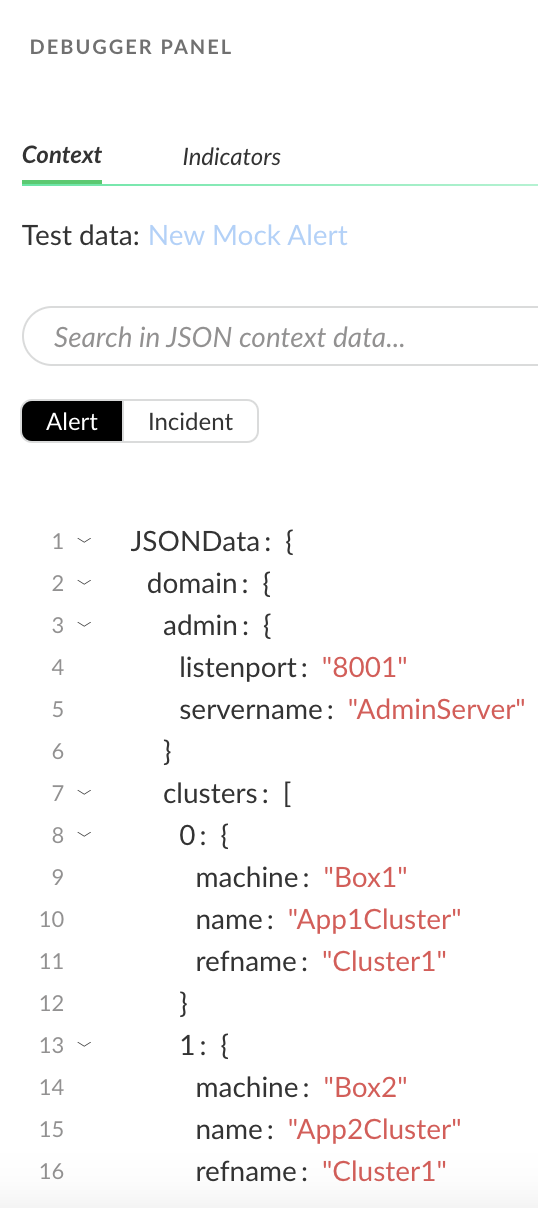
Check all the data is stored in the context key you defined by testing the playbook using the debugger:
Click Run.
Open the Debugger Panel.
The key you defined, JSONData, holds the data in context from the JSON object.
In a playbook, you can extract subsets of context data to analyze a specific information set. This approach also applies when working with lists, such as extracting a subset of data from a JSON object. In this example, we extract server information from the list created above.
In a playbook, create a task.
In the Choose Script field, select .
In the key field, define a context key name for the data; for example, JSONDataSubset.
In the value field, set the list you want to extract by clicking the curly brackets.
Click Filters And Transformers.
In the Get field, enter
lists.Test1.domain.servers.In the Fetch data field, select an issue to test the data.
Click Test.
When the test completes, click Save.
Save the task and the playbook.
Check that all the data is stored in the context key you defined by testing the playbook using the debugger.
Click
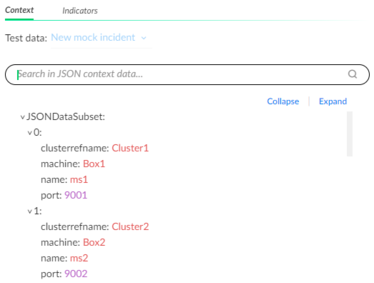
Run.The key you defined (JSONDataSubset) holds the subset of the data in context from the JSON object.
You can filter the extracted data subset to analyze it on a more granular level. In this example, we filter Box1 information from the list created in Extract the data from a JSON Object above.
Re-open the task you created above.
Click the value field.
Under Filter, click Add Filter.
Set the condition you want to filter.
In this example, retrieve the list of machines named
Box1fromTest1list by setting the filterlists.Test1.domain.servers.machine Equals Box1.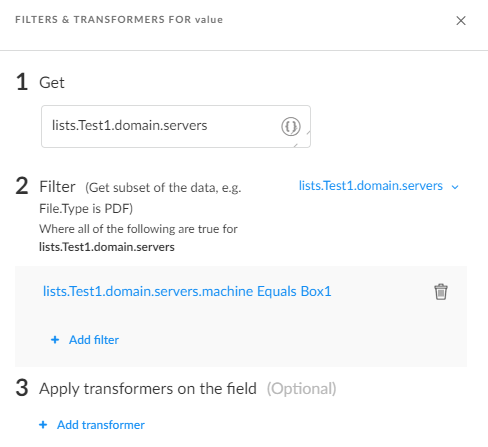
Click Test.
Check whether the data subset was accessed successfully by selecting the data source from an issue. You can see the results returned
machine: Box1.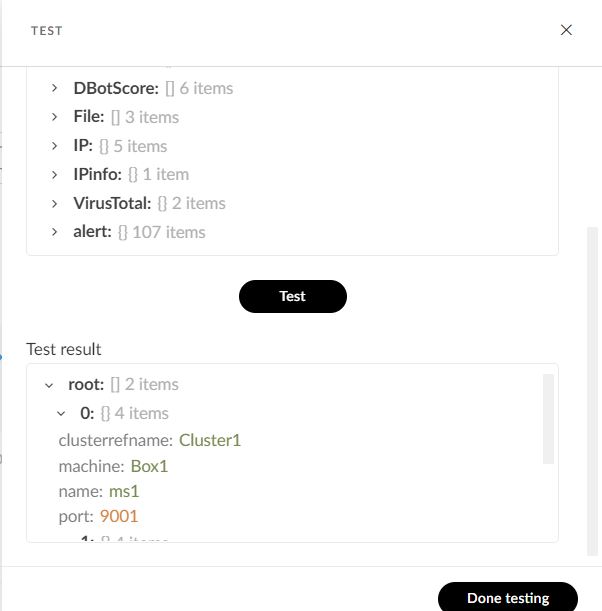
In general, in a playbook task, you can transform (apply changes) to the data extracted. This also applies to working with lists ,such as transforming extracted data from a JSON object. In this example, we extract the first element from the list created in the 'Extract Data from a JSON Object' section above and transform it to uppercase.
Re-open the task, click the contents of the value field, and keep the current filters.
In the Apply transformers on the field, click Add transformer.
Add the following transformers to the extracted data:
Add the
Get index (General)transformer to extract a specific machine element.Set
index: 0to extract the first element from the list.Add the
To upper case (String) transformer.The
To upper case (String)transformer does not work on lists, only on individual elements. Therefore, theGet index (General)transformer should be applied before adding theTo upper case (String)transformer.
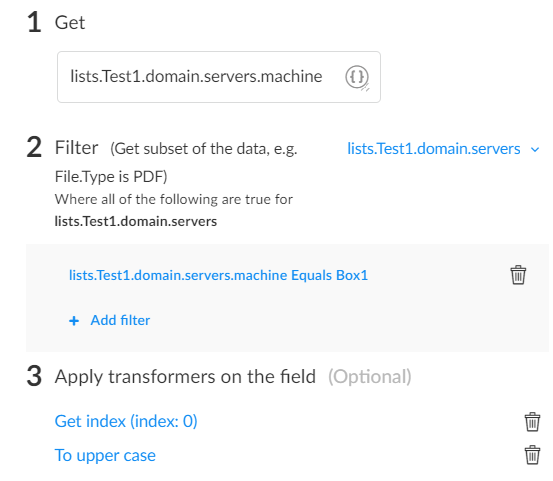
In the Fetch Data field, select an issue to test and click Test.