Best Practices ↗
The following guidelines are best practices for creating a DLP workflow to optimize DLP design and performance. Whether you are starting or building a new rule, we recommend reviewing these recommendations carefully so your DLP plan has a clear, logical flow and runs correctly and efficiently.
When defining a data-in-motion rule, start with a couple of endpoints to verify that the rule you created is working before implementing it for a wider audience.
Use clear rule names and descriptions
Describe rules clearly. Rules should be clear to someone not familiar with the DLP workflow. This applies to rule names and the rule description. When naming a data-in-motion rule, the guideline should be that users can understand what the rule does by reading the rule name alone, without needing to open the rule to view its details.
Clear | Unclear |
|---|---|
Block files classified as PII to Google Drive | Block PII file |
NoteA good example would be to add the description from the Raised Issue Name of the specific Data-in-Motion rule. Block uploads to social networks | Block social network |
Select the appropriate action
Choosing to BLOCK a source will prevent it from reaching its destination. Be sure to consider the consequences before you decide to BLOCK or ALLOW. You can always use the REPORT action before to test that the rule is properly configured to identify the correct conditions and data.
Consider the source, destination, and data scope
If no source is defined, you must select the data scope. The data scope defines the data profile, which constitutes sensitive data for your organization and applies to both files and tables.
The source refers to the data we want to protect. When selecting the source, select the web application from which the file originated. The DLP process inspects data as it's being transmitted and takes action based on the policy.
Endpoint type | Setting | Example |
|---|---|---|
Source | Custom web application group | Add a custom web application (should be configured before creating the rule) called Sensitive sources , which contains the following URLs:
NoteWhen adding a source, it becomes a mandatory requirement that must be met for the rule to trigger. You should only apply this setting if you want the rule to take action exclusively when files originate from those specific locations. |
Destination |
|
|
Data scope | Data profiles | Financial |
Block files originating from the internal company portal (source) that are moving to the web application WhatsApp web (destination).
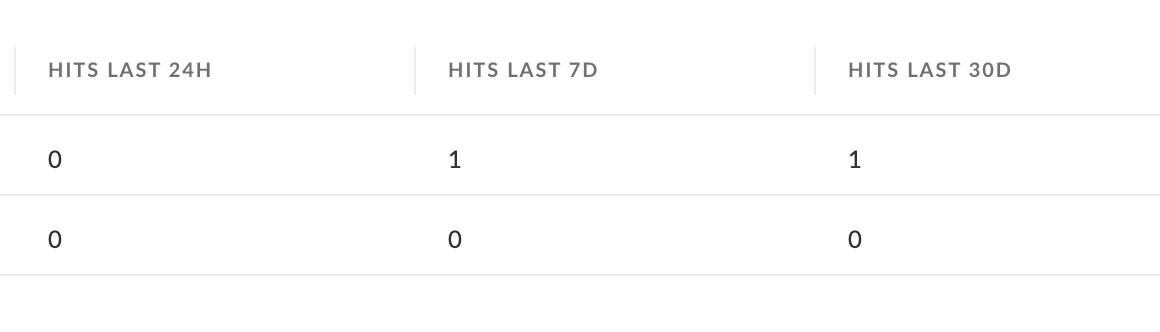
Refer to HITS in the data-in-motion table to understand the impact of the rules
HITS show the number of raised issues. This only appears when the BLOCK or REPORT action rules are matched.
Refer to Modules → Data Security → Data Security Issues → Threats, to view the details of the alert or incident that the DLP system has flagged. The issue is raised when a user action or system event matches the conditions of the data-in-motion rule.
A raised issue from DLP is an alert triggered by a DLP system. This alert indicates that someone has performed an action that violates a policy designed to protect sensitive data.
The DLP system automatically detects a policy violation, such as a user trying to download a document containing credit card information from Google Drive. This raises an issue. The issue includes details about the user, the type of data involved, and the action that was attempted.
Depending on the policy, the system might block the action, prompt the user with details on why it was blocked, and allow them to override the action or to add justification, or simply log and send the event to the XDR DLP console. Security teams then investigate these issues to determine if the activity was malicious, accidental, or a legitimate business need.
Verify Endpoint DLP settings
Go to Modules → Data Security → Endpoint Data-in-Motion Rules → Endpoint DLP Settings to configure the tenant settings for DLP.
DLP rule/s can override the End User Dialog settings with more specific definitions and texts.