Videos in documentation ↗
A video can provide a strong addition to the documentation either as a demo video or tutorial. The preferred video format is MP4.
Store documentation videos in the content-assets repository
Because of their size and to keep the main content repository small, large media files are stored in a separate repository.
To add a video file, open a pull request with the video file at content-assets repository. The file should be placed in the directory: Assets/<PackName>/.
All videos should be included with absolute URLs. To obtain a URL to a video from GitHub follow the same steps as detailed for images, but use the content-assets repository.
Include the video using the HTML <video> tag, such as:
<video controls>
    <source src="https://github.com/demisto/content-assets/raw/7982404664dc68c2035b7c701d093ec026628802/Assets/FeedJSON/Json_generic_feed_demo.mp4"
            type="video/mp4"/>
    Sorry, your browser doesn't support embedded videos. You can download the video at: https://github.com/demisto/content-assets/blob/7982404664dc68c2035b7c701d093ec026628802/Assets/FeedJSON/Json_generic_feed_demo.mp4
</video>
Note
GitHub markdown preview does not display the video (it shows the browser not supported message). The xsoar.pan.dev site does display the video properly. You can see an example video in the JSON Feed integration documentation.
Add documentation videos larger than 50 MB with Git LFS
For files larger than 50MB, we require using git-lfs to add these files to the content repo. See the GIT LFS Tutorial at the GithHub site for more details.
To add a large file:
- Clone or fork the content-assets repository.
- Verify you have git-lfs installed. See instructions here.
- Install git-lfs in the repo:
git lfs install. - Copy the video file to the correct directory:
Assets/<PackName>. - Add the video as a tracked file:
git lfs track Assets/<PackName>/<video_file_name>.mp4. - Add the file to git:
git add Assets/<PackName>/<video_file_name>.mp4. - Add the
.gitattributesfile:git add .gitattributes. - Commit and push using:
git commitandgit push. - Open a pull request.
Embed externally hosted documentation videos from YouTube
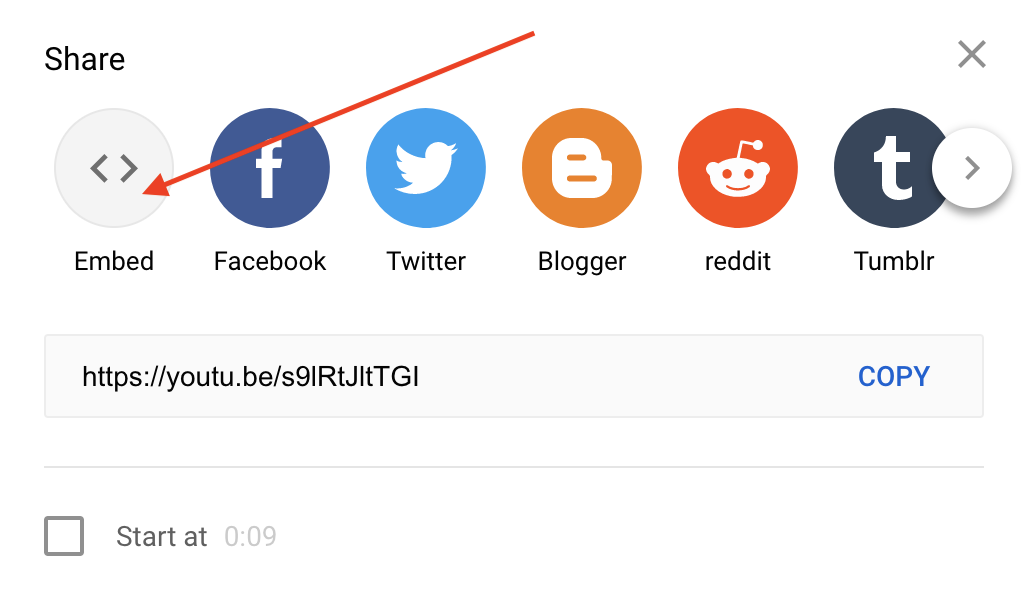
You can also embed videos from external services such as YouTube via an iframe. From the external service choose to share the video and choose the Embed option. Then choose to Copy the embed snippet.
Share Dialog
Embed Dialog
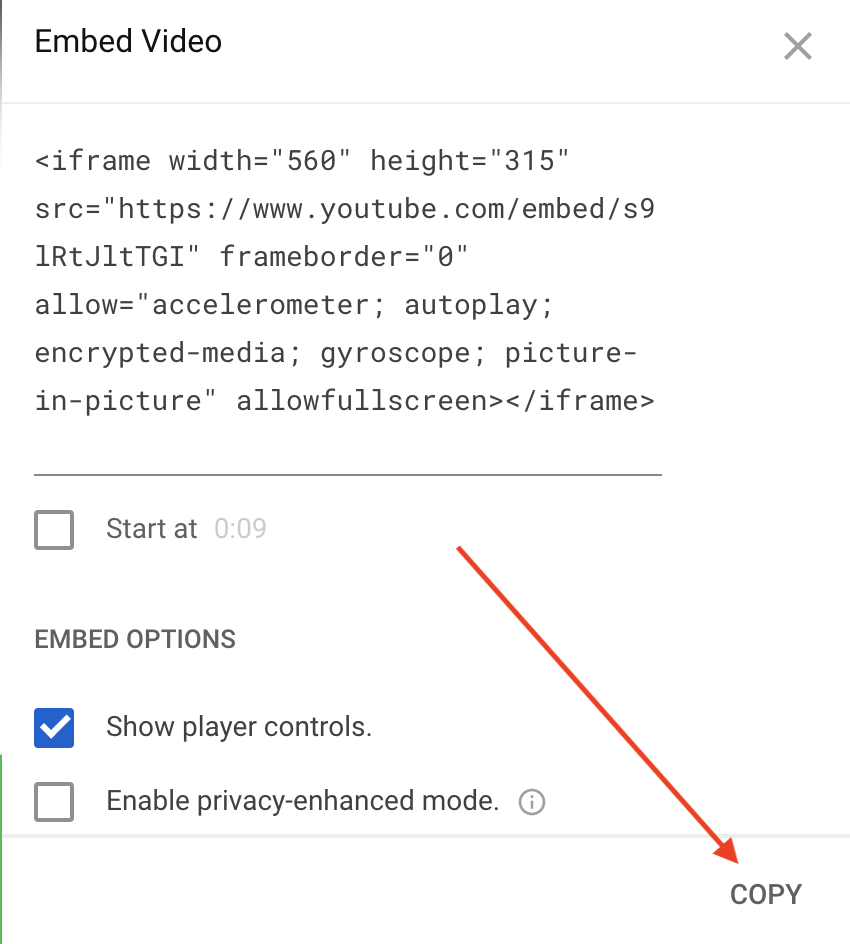
Paste the embed snippet in the README file. Change the allowfullscreen option to include allowfullscreen="true". For example:
<iframe width="560" height="315" src="https://www.YouTube.com/embed/s9lRtJltTGI" frameborder="0"
allow="accelerometer; autoplay; encrypted-media; gyroscope; picture-in-picture"
allowfullscreen="true"></iframe>