Enable additional event logs using Event Viewer ↗
For the following event IDs, the auditing setup is configured using the Windows Event Viewer. Access the Event Viewer through the search box in the Start menu.
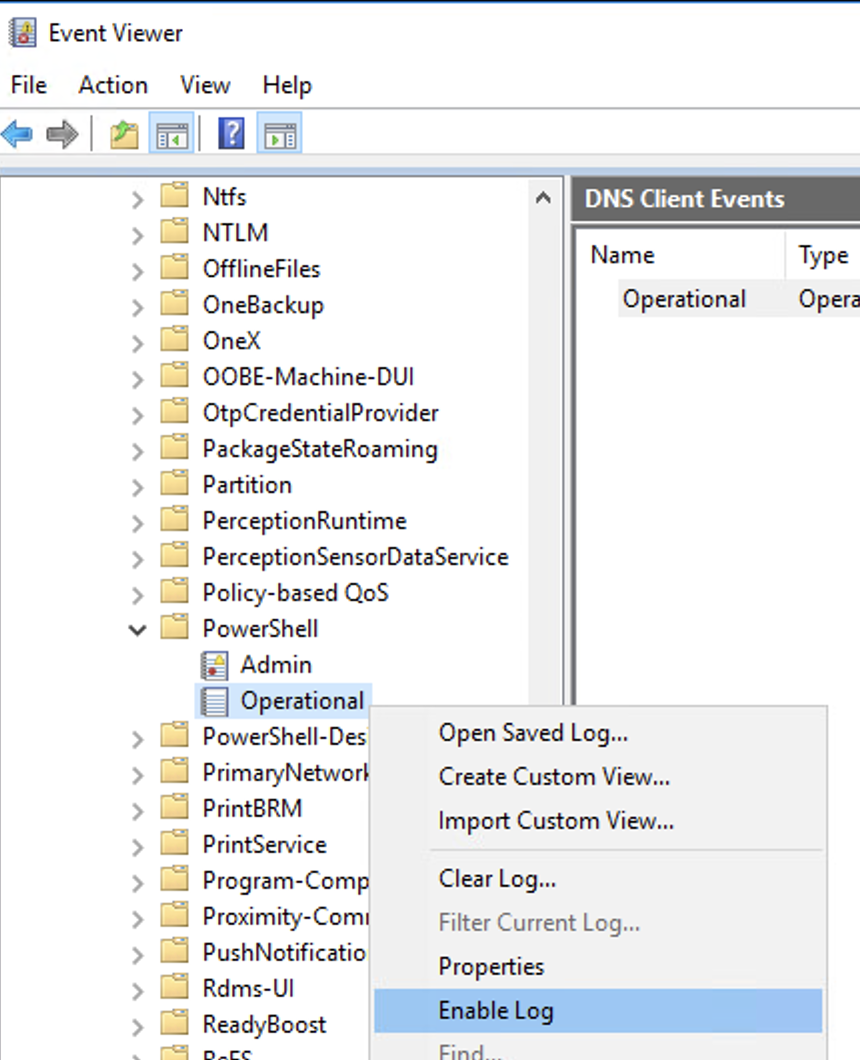
Event IDs 1511, 1518
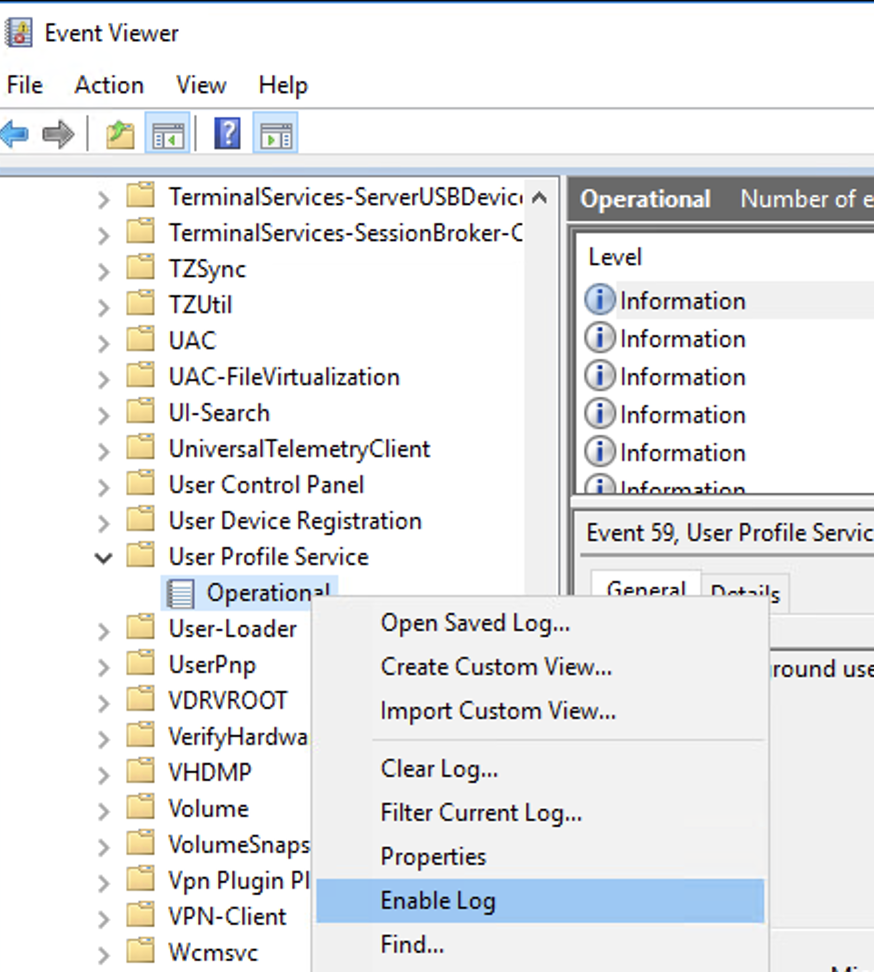
In Event Viewer → Expand Applications and Services Logs → Microsoft → Windows → User Profile Service, right click Operational and select Enable Log.
Event IDs 11, 70, 90
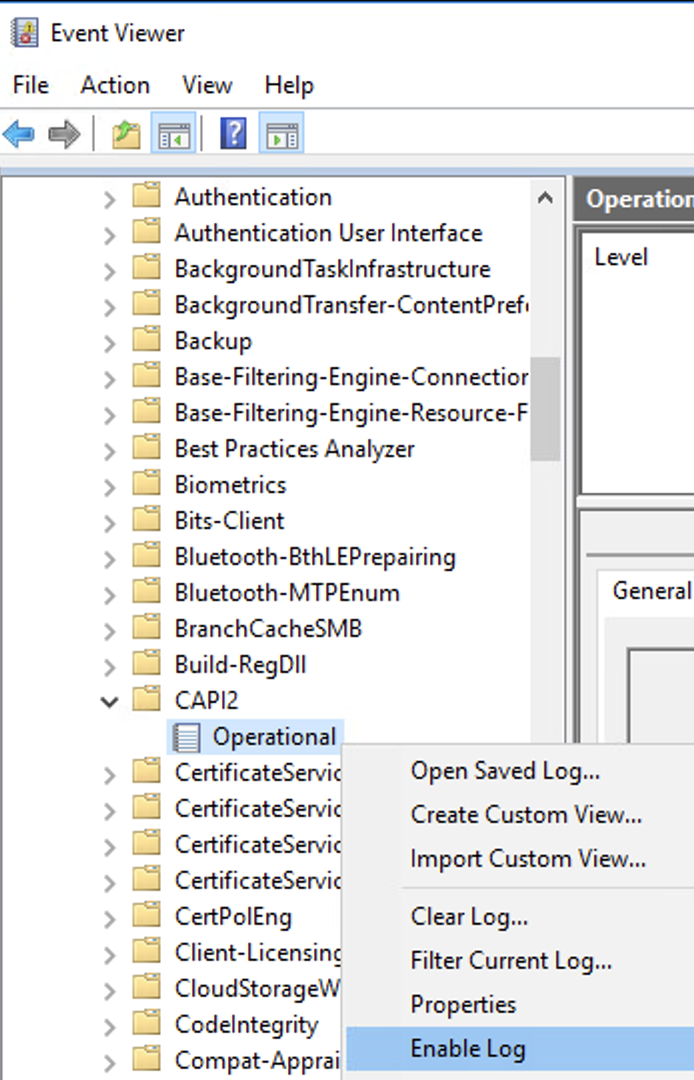
In Event Viewer → Expand Applications and Services Logs → Microsoft → Windows → CAPI2, right click Operational and select Enable Log.
Event ID 3008
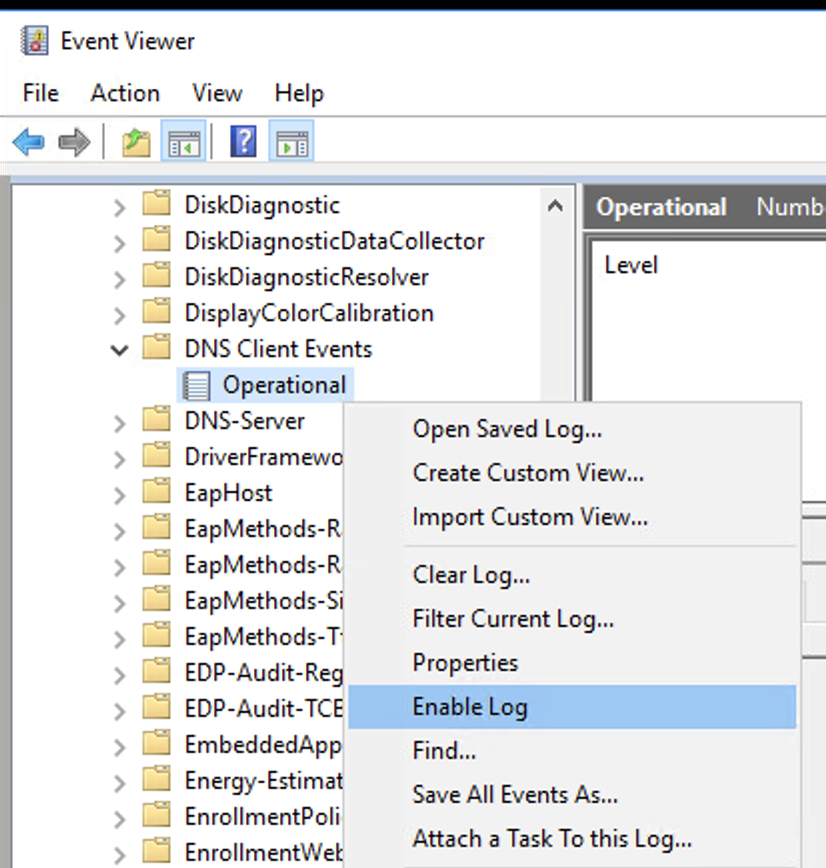
In Event Viewer → Expand Applications and Services Logs → Microsoft → Windows → DNS Client Events, right click Operational and select Enable Log.
Event ID 2004
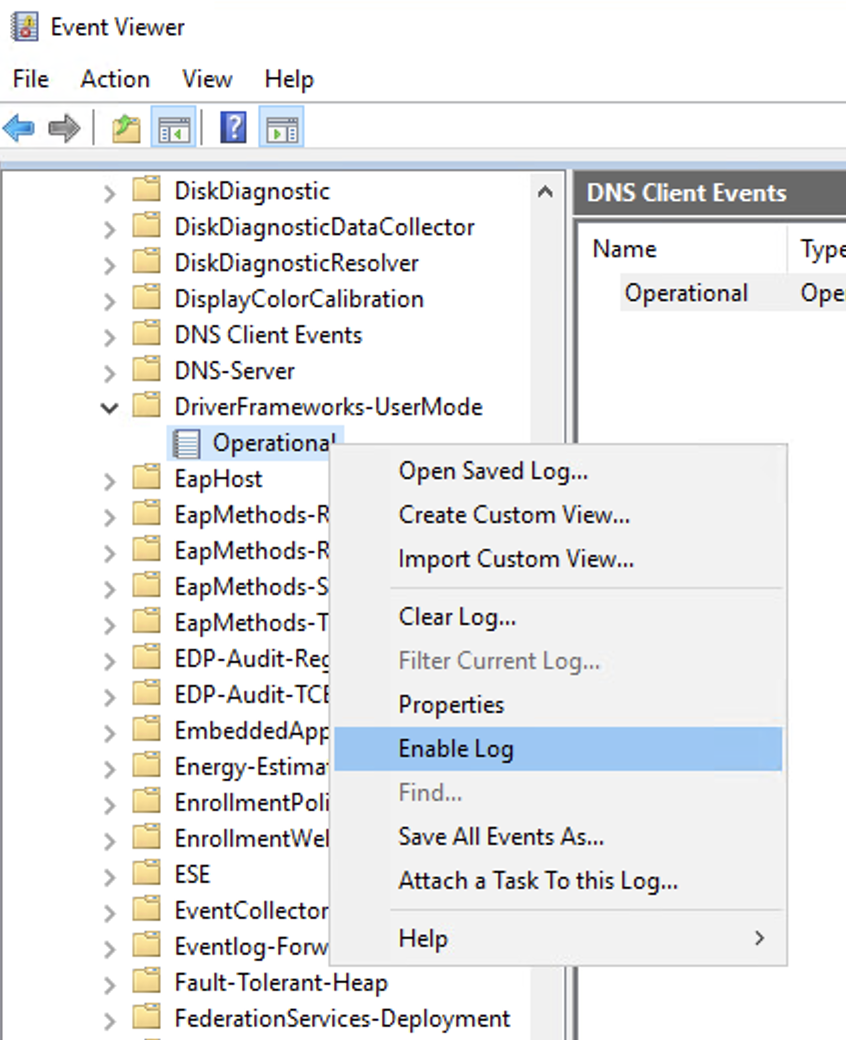
In Event Viewer → Expand Applications and Services Logs → Microsoft → Windows → DriverFrameworks-UserMode, right click Operational and select Enable Log.
Event IDs 4103, 4104, 4105, 4106
In Event Viewer → Expand Applications and Services Logs → Microsoft → Windows → PowerShell, right click Operational and select Enable Log.
Event IDs 1006, 1009, 1116-1119
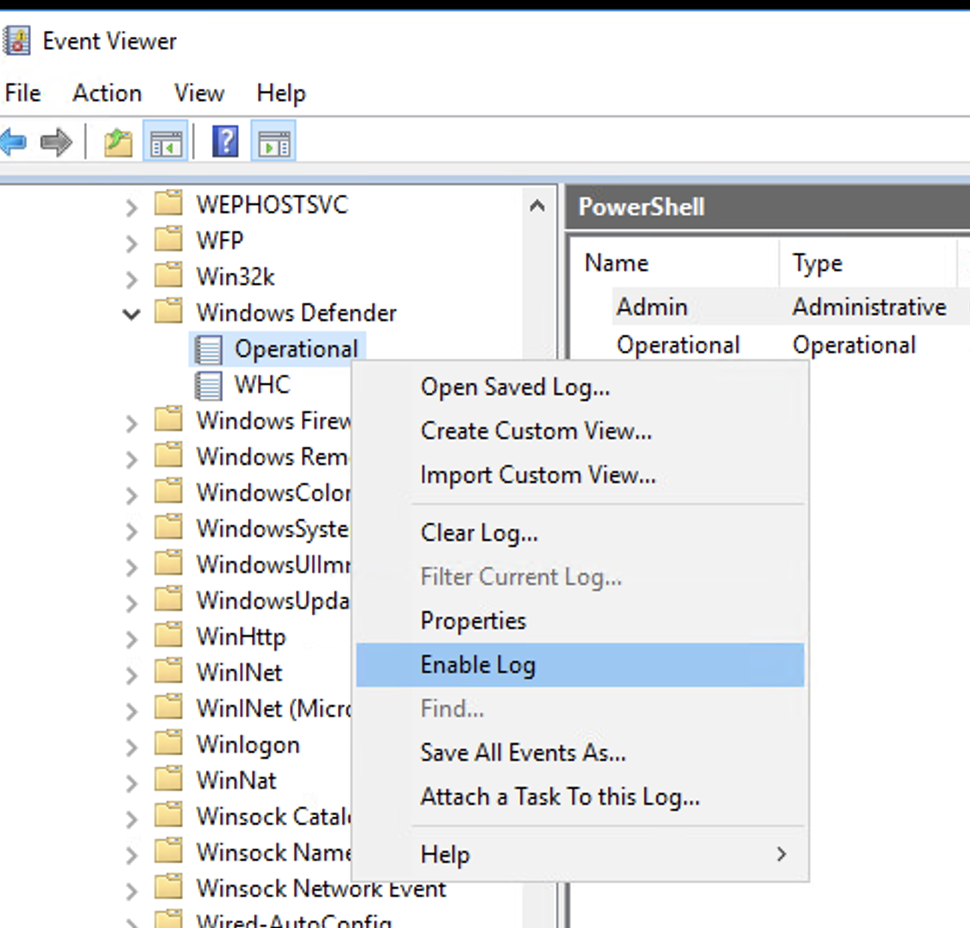
In Event Viewer → Expand Applications and Services Logs → Microsoft → Windows → Windows Defender, right click Operational and select Enable Log.
Event ID 1024
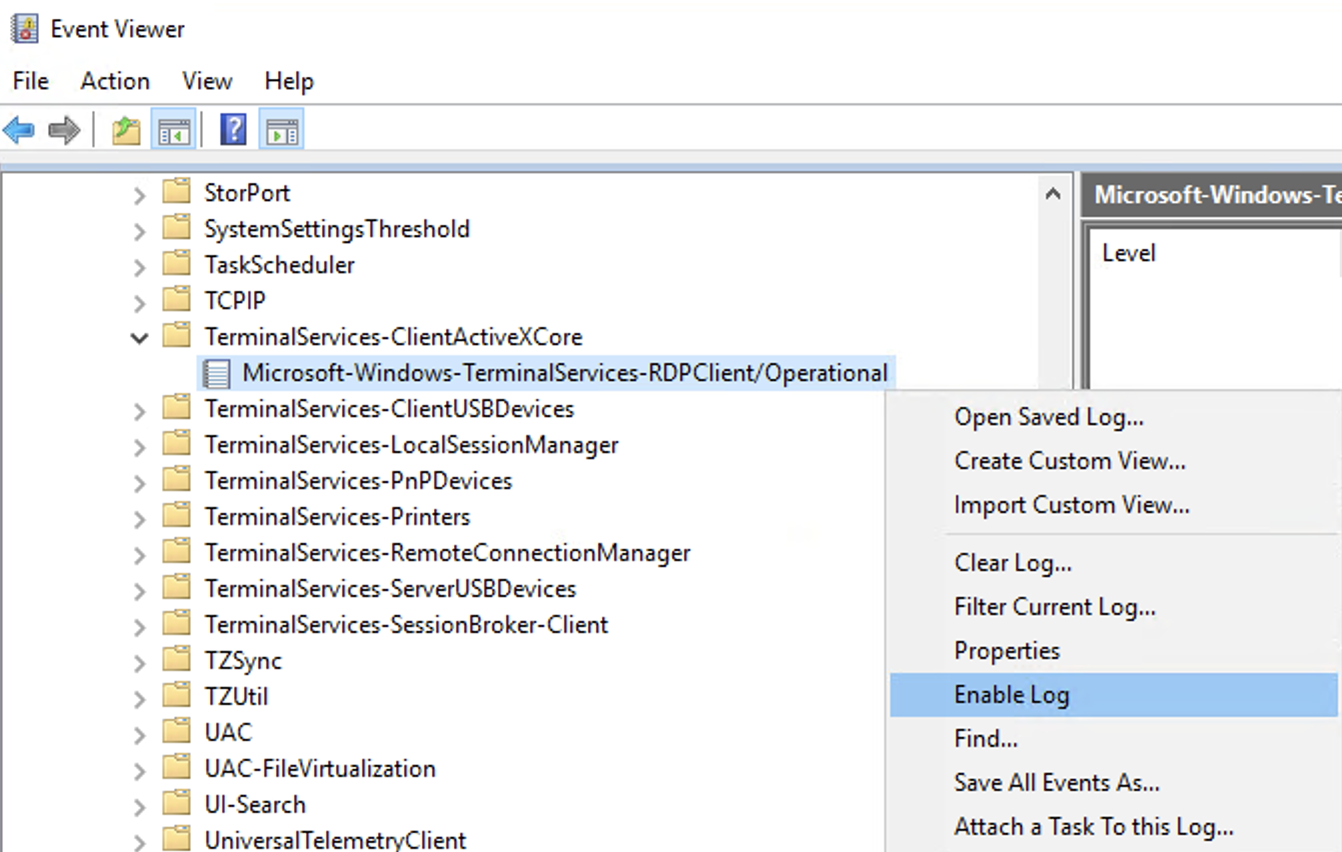
In Event viewer → Application and Services Logs → Microsoft → Windows → TerminalServices-ClientActiveXCore → Microsoft-Windows-TerminalServices-RDPClient, right click Operational and select Enable Log.
Event IDs 2005, 2006, 2009, 2033
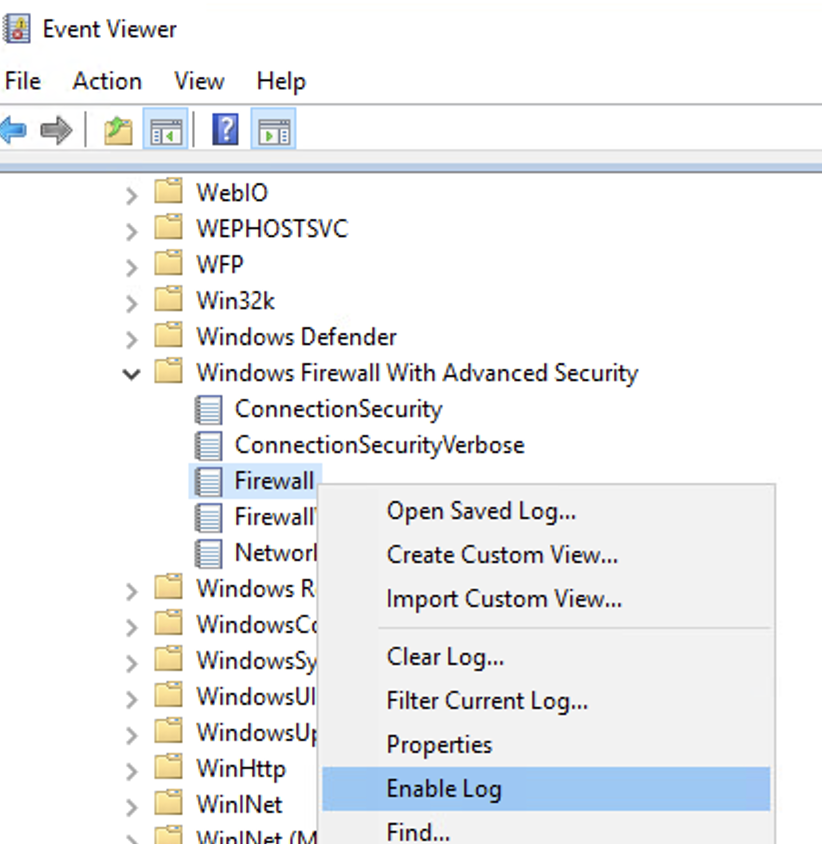
In Event Viewer → Expand Applications and Services Logs → Microsoft → Windows → Windows Firewall With Advanced Security → Firewall, right click Operational and select Enable Log.