Extract data from a JSON object ↗
Create a JSON list and use the Set automation to create a context key from its data.
- Create a List:
- In the Name field, type
Test1. - Select Settings → Configurations → Object Setup → Lists → Add a List.
-
In the Content Type field, select JSON and add the following content:
{
    "domain": {
        "name": "mwidomain",
        "prod_mode": "prod",
        "user": "weblogic",
        "admin": {
            "servername": "AdminServer",
            "listenport": "8001"
        },
        "machines": [
            {
                "refname": "Machine1",
                "name": "MWINODE01"
            },
            {
                "refname": "Machine2",
                "name": "MWINODE02"
            }
        ],
        "clusters": [
            {
                "refname": "Cluster1",
                "name": "App1Cluster",
                "machine": "Box1"
            },
            {
                "refname": "Cluster1",
                "name": "App2Cluster",
                "machine": "Box2"
            }
        ],
        "servers": [
            {
                "name": "ms1",
                "port": 9001,
                "machine": "Box1",
                "clusterrefname": "Cluster1"
            },
            {
                "name": "ms2",
                "port": 9002,
                "machine": "Box2",
                "clusterrefname": "Cluster2"
            }
        ]
    }
}
- Save the list.
- In the Name field, type
- Create a playbook task with the Set automation:
- Select Investigation & Response → Automation → Playbooks → New Playbook.
- Name the playbook, and click Save.
- Click Create Task and provide a task name.
-
In the Choose Script field, select Set .
The Set script sets a value in context under the key entered.
-
In the key field, define a context key name for the data. For example, JSONData.
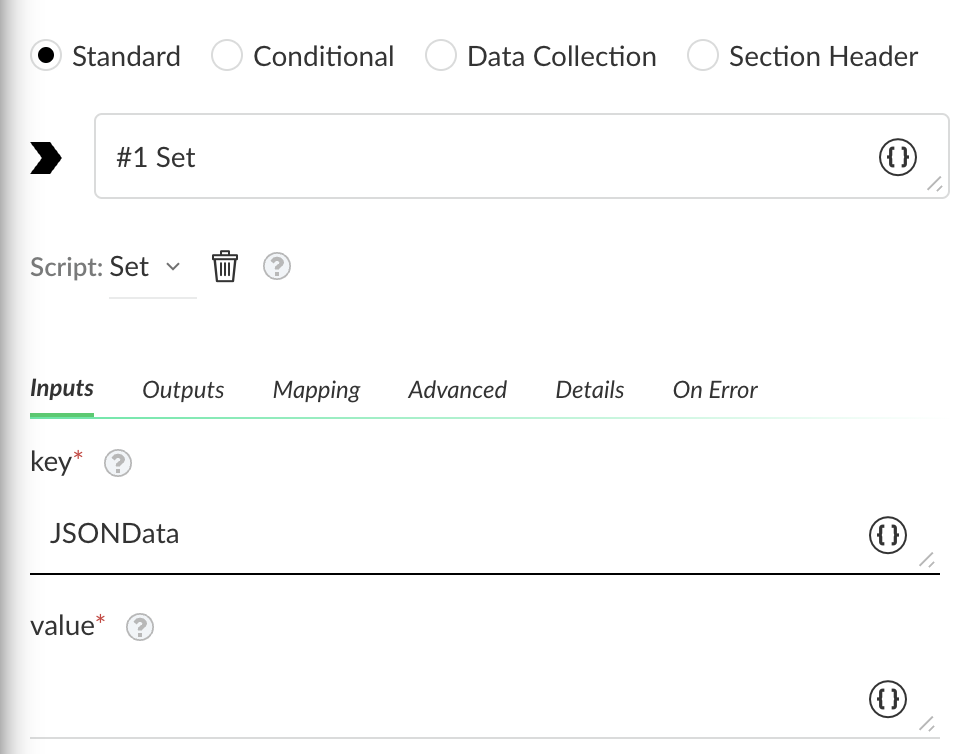
- In the value field, set the list you want to extract by clicking the curly brackets.
- Click Filters And Transformers.
- In the Get field, click the curly brackets, and in the Select source for value section, select the list you created in step 1: Test1.
- In the Fetch data field, select an issue to test the data.
-
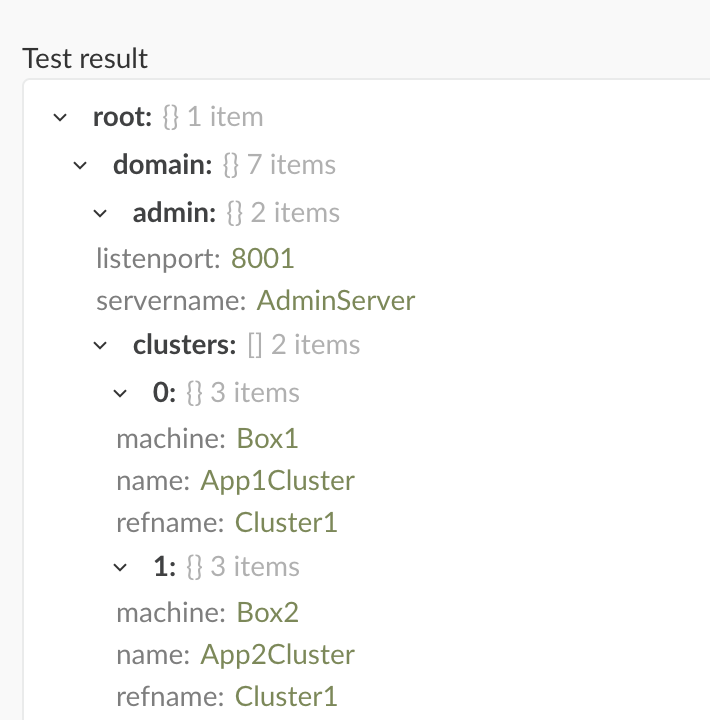
Click Test.
In this example, the test results have found the list data.
- When the test completes, click Save.
- Save the task and playbook.
- Check all the data is stored in the context key you defined by testing the playbook using the debugger:
- Click Run.
-
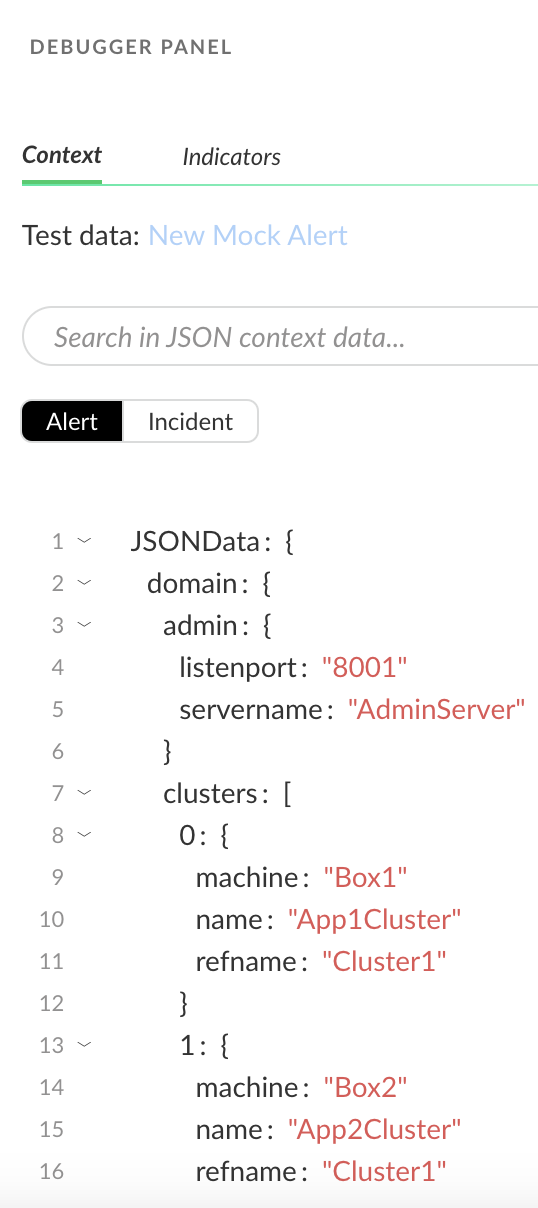
Open the Debugger Panel.
The key you defined, JSONData, holds the data in context from the JSON object.