Enable LDAP server events logging using GPO ↗
- On a domain controller or a system with Remote Server Administration Tools (RSAT) installed, open the Group Policy Management Console (GPMC).
- Create a new Group Policy Object (GPO): Right-click on the domain or organizational unit (OU) where your domain controllers reside, then select Create a GPO in this domain, and Link it here.... Give it a descriptive name, e.g. Domain Controller Registry Settings.
- Edit the GPO.
-
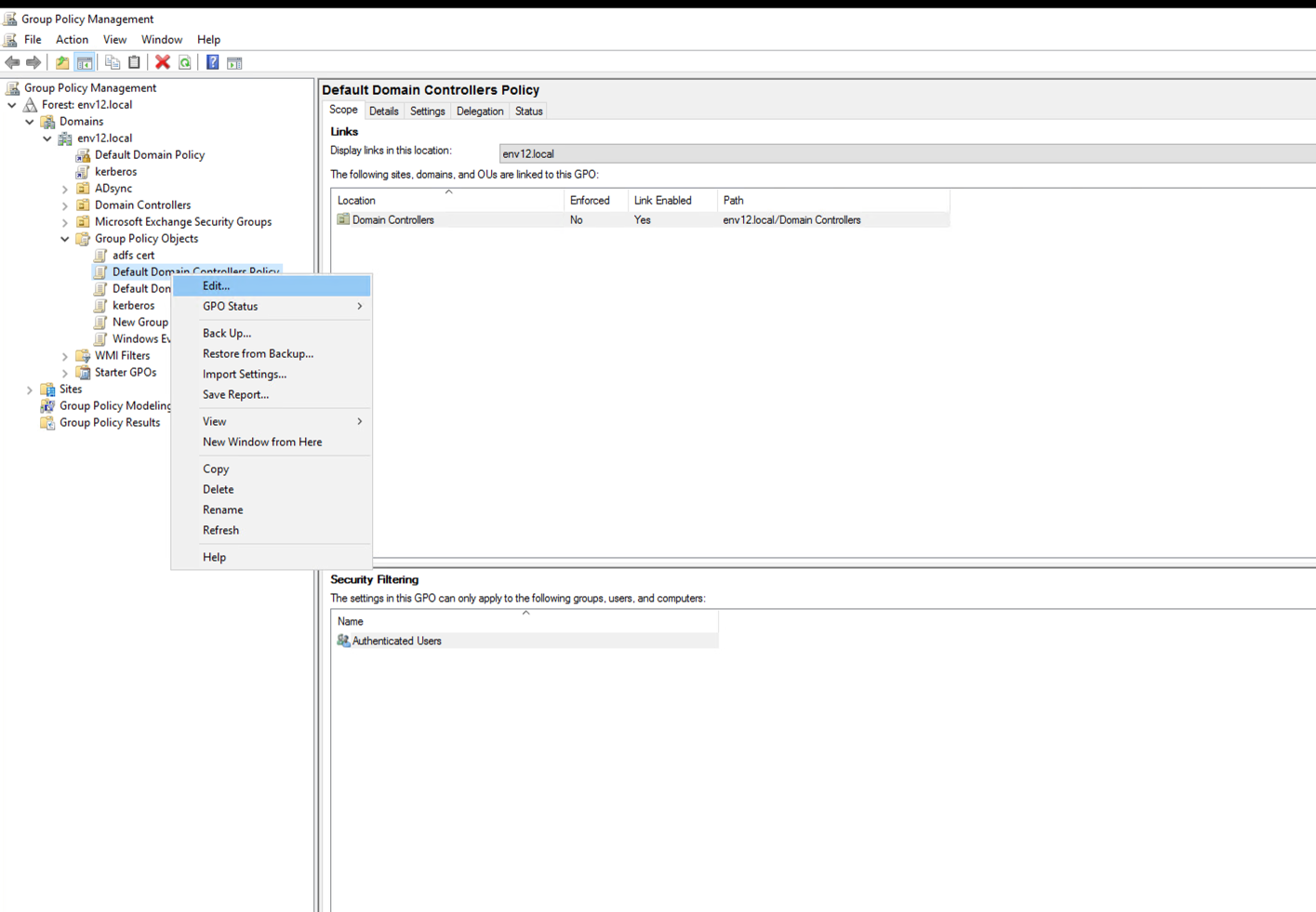
Right-click on the newly created GPO and select Edit.
-
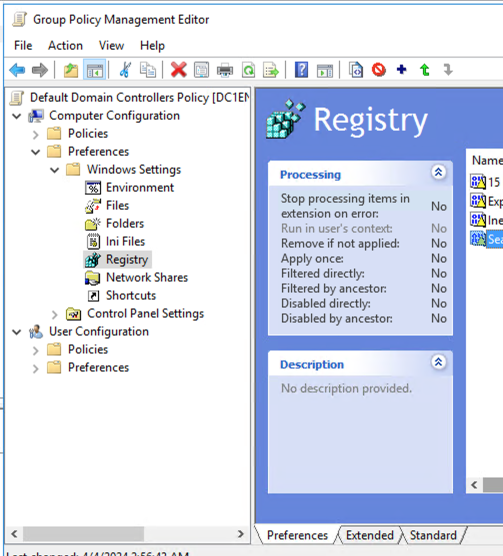
In the Group Policy Management Editor, navigate to Computer Configuration → Preferences → Windows Settings → Registry.
-
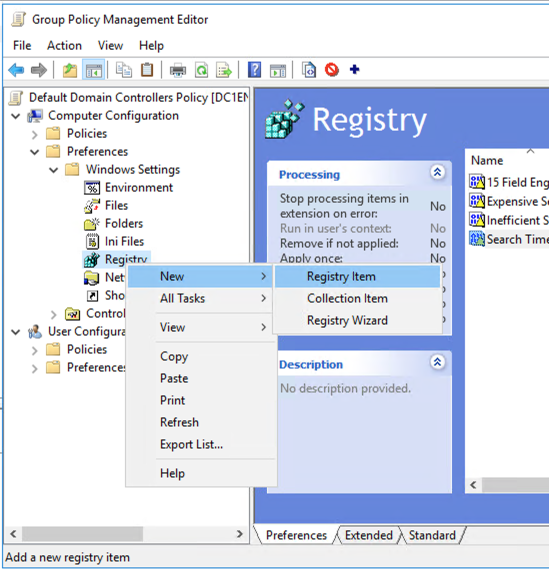
Add Registry Items: Right-click on Registry and select New → Registry Item.
-
Configure Registry Keys: For each of the registry keys you want to set, create a new Registry Item.
-
[HKEY_LOCAL_MACHINE\SYSTEM\CurrentControlSet\Services\NTDS\Diagnostics]
Create the following Registry item:
15 Field Engineering
- Action: Update
- Hive: HKEY_LOCAL_MACHINE
- Key Path: SYSTEM\CurrentControlSet\Services\NTDS\Diagnostics
- Value name: 15 Field Engineering
- Value type: REG_DWORD
- Value data: 5
| |
| ----------------------------------------------------------------------------------------------------------------------------------------------------------------------------------------------------------------------------------------------------------------------------------------------------------------------------------------------------- |
[HKEY_LOCAL_MACHINE\SYSTEM\CurrentControlSet\Services\NTDS\Parameters]
Create the following Registry items:
Expensive Search Results Threshold
- Action: Update
- Hive: HKEY_LOCAL_MACHINE
- Key Path: SYSTEM\CurrentControlSet\Services\NTDS\Parameters
- Value name: Expensive Search Results Threshold
- Value type: REG_DWORD
- Value data: 1
| |
| ----------------------------------------------------------------------------------------------------------------------------------------------------------------------------------------------------------------------------------------------------------------------------------------------------------------------------------------------------- |
Inefficient Search Results Threshold
- Action: Update
- Hive: HKEY_LOCAL_MACHINE
- Key Path: SYSTEM\CurrentControlSet\Services\NTDS\Parameters
- Value name: Inefficient Search Results Threshold
- Value type: REG_DWORD
- Value data: 1
| |
| ---------------------------------------------------------------------------------------------------------------------------------------------------------------------------------------------------------------------------------------------------------------------------------------------------------------------------------------------------- |
Search Time Threshold (msecs)
- Action: Update
- Hive: HKEY_LOCAL_MACHINE
- Key Path: SYSTEM\CurrentControlSet\Services\NTDS\Parameters
- Value name: Search Time Threshold (msecs)
- Value type: REG_DWORD
- Value data: 1
| |
| ----------------------------------------------------------------------------------------------------------------------------------------------------------------------------------------------------------------------------------------------------------------------------------------------------------------------------------------------------- |
- Close the Group Policy Management Editor.
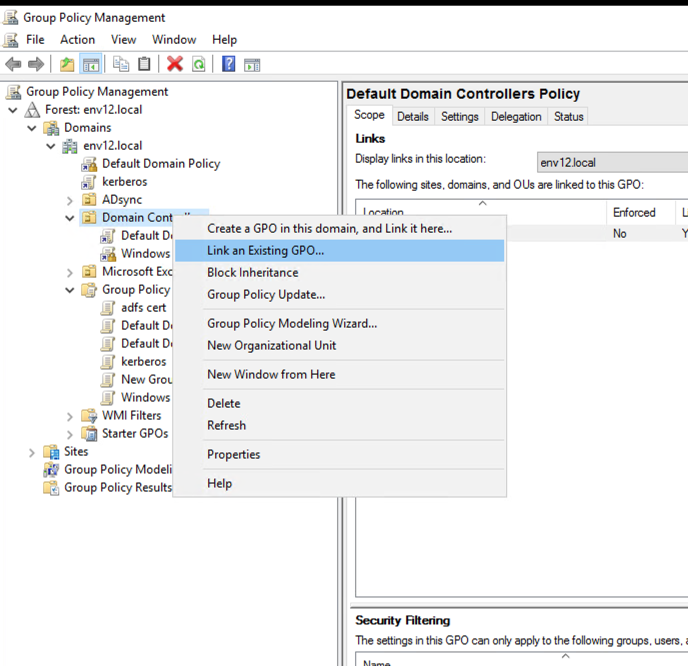
- To link the GPO to the OU where your domain controllers reside, in Group Policy Management, right-click the OU, select Link an Existing GPO, then select the GPO you just created.\
- Force Group Policy Update: Force a Group Policy update using the
gpupdate /forcecommand on each domain controller or by restarting them.