Add context data to a case ↗
You can add keys and values to a case's context data to be used in playbooks or other automations. By default, context data is added to cases only. To run automations on a case, add context data to the case from its related issues.
To add context data to a case, run the setParentIncidentContext command in the CLI, in a script, or in a playbook task.
Use the CLI
Run the !setParentIncidentContext command in the issue War Room or the Case War Room.
If you run the command in the issue War Room, the data is added to the following places:
- The case context data.
- The issue context data under the case tab.
If you run the command in the Case War Room, the data is added to the case context data only.
Run the command in the issue War Room
- Open an issue and select the War Room tab.
-
Run the
!setParentIncidentContextcommand.The following example adds the key and value
hello:worldto the case and issue context data.!setParentIncidentContext key="hello" value="world"
Run the command in the case War Room
- Open a case and switch to the Detailed view.
- Select the Case War Room tab.
-
Run the
!setParentIncidentContextcommand.The following example adds the key and value
hello:worldto the case context data.!setParentIncidentContext key="hello" value="world"
Use a script
In any script that runs in an issue, the data is written to the issue context data. If you want to add the data to the case context from your script, run the setParentIncidentContext using the demisto.executeCommand key, as follows:
demisto.executeCommand("setParentIncidentContext", {"key":"<key>", "value":"<value>"})
The following example creates a new key name AuditID with a 90210 value to your script.
demisto.executeCommand("setParentIncidentContext", {"key":"AuditID", "value":"90210"})
Use a playbook
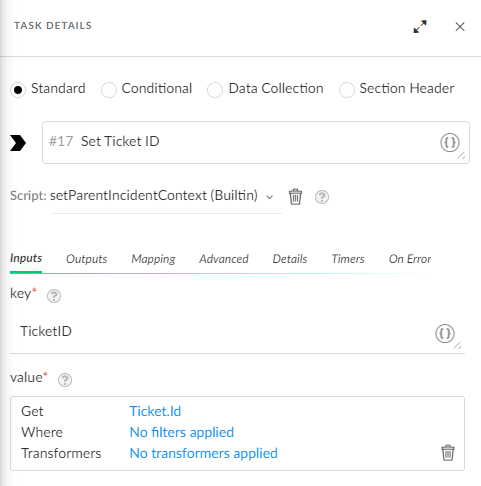
When a playbook runs, the playbook data is written to the issue context data. To write the data to the parent case context data, use the setParentIncidentContext script in a standard task.
The following example adds the TicketID to the case context. To see a full use case that includes this standard task, see Use context data in a playbook.