Integration metadata YAML file ↗
All the metadata of your integration is included in the YAML file. It is a key value set for your integration. When pushing content for public release, your YAML file must follow certain structural requirements to work properly. Scripts also have a metadata YAML file that follows a similar structure.
Cortex XSIAM integration YAML common fields
The commonfields section contains information the Cortex XSIAM server uses to identify your integration.
commonfields:
  id: New Integration
  version: -1
This section contains the following information.
| Name | Description |
|---|---|
| id | A unique identifier for your integration. |
| version | Setting the value to -1 locks the integration from being modified. |
Basic integration metadata
This section contains integration metadata.
name: MaxMind GeoIP2
display: MaxMind GeoIP2
category: Data Enrichment & Threat Intelligence
image: data:image/png;base64,**Base64 of Image Here**
description: Enriches IP addresses
detaileddescription: 'The MaxMind GeoIP2 integration allows you to query the MaxMind
  API service and retrieve a JSON of all details. '
It includes the following parameters:
| Name | Description |
|---|---|
| sectionOrder | A key to organize collection and connection related parameters in separate sections in the integration settings configuration page. Applied to each parameter as relevant. |
| name | The name of your integration. This may be different than the display name. |
| display | The display name for your integration. |
| category | The applicable pack category. See all available values. |
| image | The icon used for the integration. This image must be in Base64. |
| description | A brief description of what your integration does. |
| detaileddescription | More details about how your integration works.. |
Integration settings configuration
The configuration section specifies the integration settings configuration requirements that are necessary for the integration to operate.
configuration:
- display: API Key
  name: apikey
  defaultvalue: ""
  type: 0
  required: true
- display: Use system proxy
  name: proxy
  defaultvalue: ""
  type: 8
  required: false
It includes the following parameters.
| Name | Description |
|---|---|
| display | The display name for the setting field. |
| name | The setting field name used within the integration. |
| defaultvalue | If there is a default for the field, it is indicated here. |
| type | <p>An Integer representing the field type.</p><p>Possible values</p><ul><li>0 - Short text field</li><li>4 - Encrypted text field</li><li>8 - Boolean checkbox</li><li>9 - Authentication text - allows switching to credentials</li><li>12 - Long text block</li><li>13 - special use - automatically added - Incident type single select dropdown</li><li>15 - Single select dropdown</li><li>16 - Multiple select dropdown</li></ul> |
| required | Boolean value indicating whether the parameter is required. |
| additionalinfo | Additional info about the field, appears when clicking a question mark in the settings configuration panel. |
| fromlicense | Specifies to take the credentials from the Cortex XSIAM license. This is relevant for type 9 - Authentication text. |
| advanced | Whether to expose the configuration under the advanced settings. Possible values are true or false. |
| section | Which section the configuration setting will be under. Possible values are Collect or Connect. |
Hide integration settings parameters
To hide integration parameters from the UI in all Marketplaces, set the optional hidden field to true.
To hide the parameter in specific content Marketplace versions, provide a list of marketplace version names.
xsoar- Cortex XSOAR 6 and 8xsoar_on_prem- Cortex XSOAR 6xsoar_saas- Cortex XSOAR 8 Cloud and On-premmarketplacev2- Cortex XSIARMxpanse- Cortex XPANSE
Integration configuration sections
An integration's configuration display is divided into the following sections to help users easily find parameters.
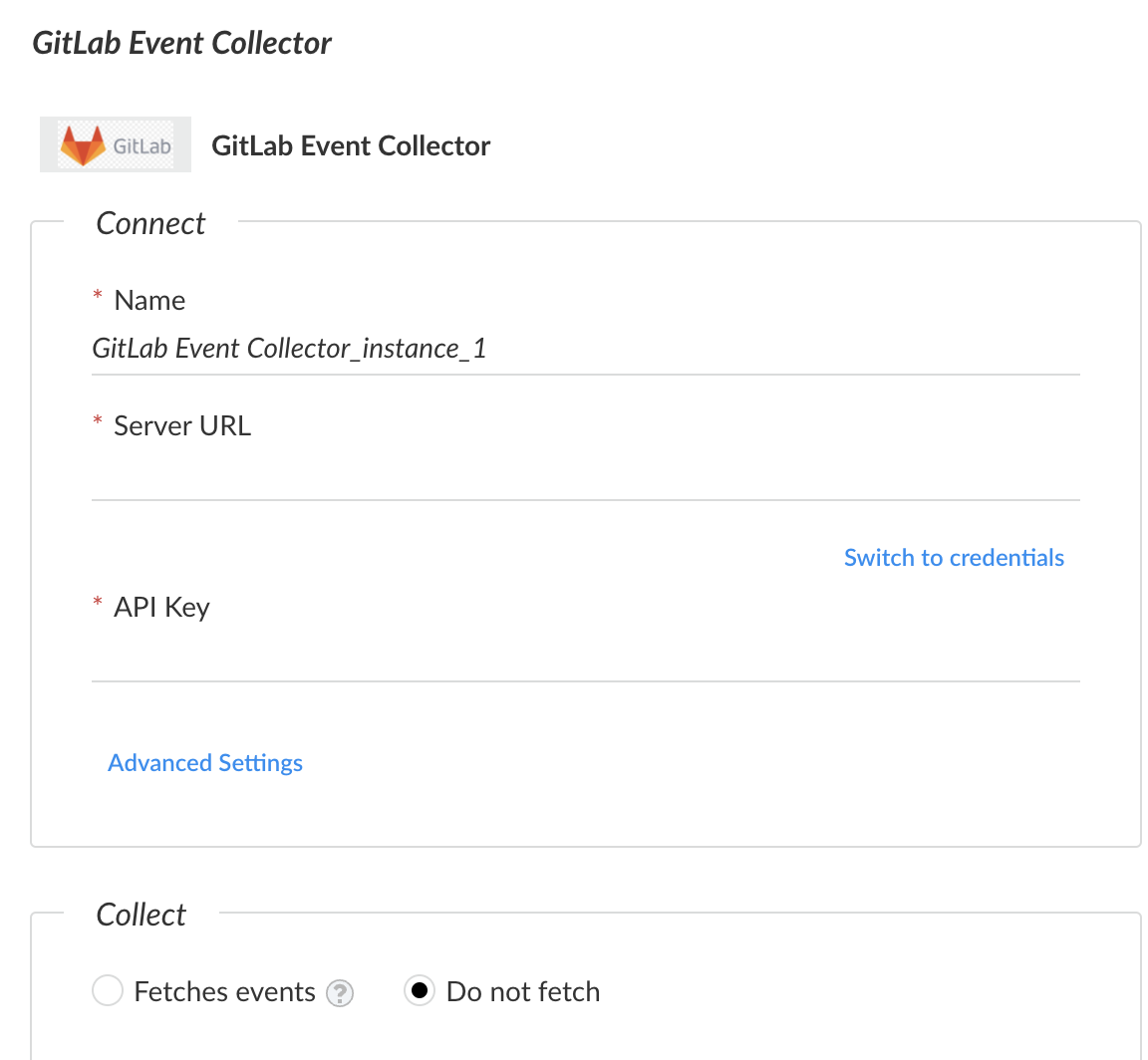
Connect parameters
Parameters required to connect to the product
- Name
- Server URL / URL address
- Classifier / Incident Type / Mapper section
- Username
- Password
- API key
- Other mandatory parameters
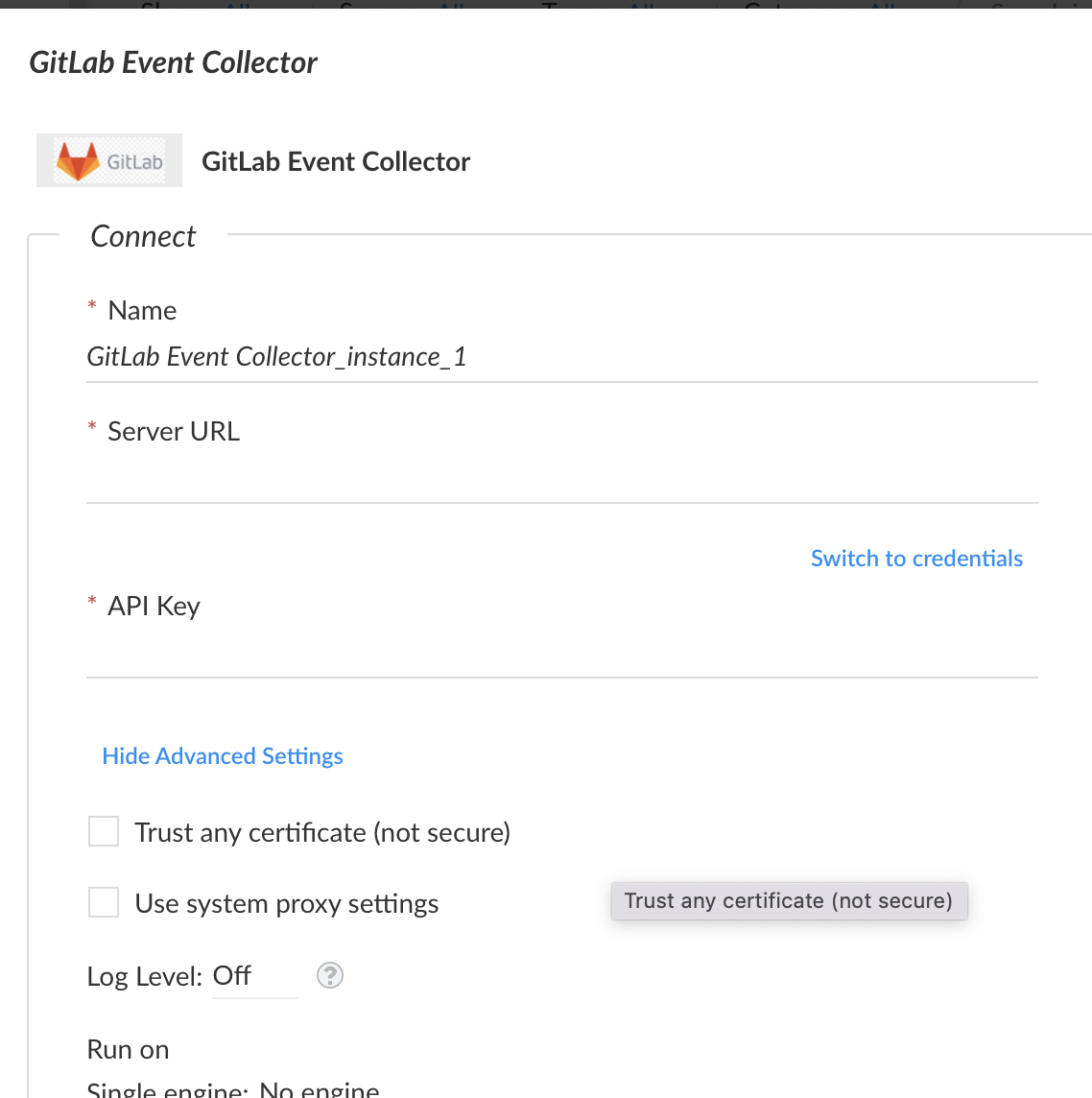
Advanced Connect parameters
Additional connect parameters
- Trust any certificate (not secure)
- Use system proxy settings
- Log level
- Run on single engine
- Any additional filters or non-mandatory parameters
Collect parameters
Parameters required to collect information from the product
- Fetch events / Do not fetch radio buttons or Fetch/Do not fetch indicators
- First fetch timestamp
- Number of events to fetch per fetch
- Do not use by default
- Indicator reputation
- Source reliability
- Traffic light protocol color
Advanced Collect parameters
Additional collect parameters
- Events fetch interval
- Indicator expiration method
- Feed fetch interval
- Bypass exclusion list
- Create relationships
- Any additional filters or non-mandatory parameters
Optimize parameters
This section contains parameters that do not belong to the Connect or Collect sections, such as Advanced Thresholds and Advanced Queries.
Add configuration sections to an integration YAML file
To add sections to your integrations:
- Add the
sectionOrderkey to the YAML's root. This key should contain a list of sections available. Currently, the only supported section types areConnect,Collect, andOptimize. - Add the
sectionkey to each parameter in the configuration, with one of the sections listed above. - If the parameter should only be shown in the advanced settings, add the
advanced:truekey and value to it.
category: Analytics & SIEM
sectionOrder:
- Connect
- Collect
commonfields:
  id: GitLab Event Collector
  version: -1
configuration:
- display: Server URL
  name: url
  required: true
  type: 0
  section: Connect
- displaypassword: API Key
  additionalinfo: The API Key to use for connection.
  name: api_key
  required: true
  hiddenusername: true
  type: 9
  section: Connect
- display: Groups IDs
  name: group_ids
  required: false
  type: 0
  section: Collect
- display: First fetch timestamp (<number> <time unit>, for example, 12 hours, 7 days, 3 months, 1 year)
  name: after
  required: true
  defaultvalue: 1 day
  type: 0
  section: Collect
- display: Trust any certificate (not secure)
  name: insecure
  required: false
  type: 8
  section: Connect
  advanced: true
- display: Use system proxy settings
  name: proxy
  type: 8
  required: false
  section: Connect
  advanced: true
Configuration sections example
In the following example, you can see the advanced parameters remain hidden until the user expands the Advanced Settings section.
Integration script configuration
The script section is where the code resides.
script:
  script: |
    import requests
    import collections

    def explain_yaml():
        if user.understands is False:
            re_read_documentation()

  type: python
  subtype: python3
  dockerimage: demisto/python3:3.7.5.3066
It includes the following parameters.
| Name | Description |
|---|---|
| type | Indicates the language your integration is written in. Cortex XSIAM currently supports Python.t |
| subtype | When using Python, specifying subtype field is required. Use python3. |
| dockerimage | <p>When using Python, dockerimage should be specified. If dockerimage is not specified a default python3 image is used.</p><p>You can also specify any publicly available image found in DockerHub demisto account.</p><p>If you need to need to generate a custom image with your own Python packages installed, see https://github.com/demisto/dockerfiles.</p> |
Integration command configuration
The command section tells Cortex XSIAM what arguments are required for your command as well as what the outputs are.
  commands:
  - name: command-name
    arguments:
    - name: command-argument
      required: true
      default: false
      isArray: false
      secret: true
      description: This is a description for the argument
    outputs:
    - contextPath: Example.Sample.Name
      description: The name of the sample
      type: string
    - contextPath: Example.Sample.ID
      description: The ID for the sample
      type: string
    description: Sample description for the command-name function
  runonce: false
It includes the following parameters.
Command fields
| Name | Description | Standard |
|---|---|---|
| name | The name of the command. | vendorname-command |
| description | A description for the command. | |
| runonce | Boolean. Whether the command runs repeatedly. |
Command argument fields
| Name | Description | Standard |
|---|---|---|
| name | The name of the argument. | argument_name |
| required | Boolean. Whether the argument is required. | |
| default | <p>Boolean. If set to true, the user can pass a value for this argument without specifying the argument name. For example if an argument called ip is marked as default, running !ip 1.1.1.1 will be equivalent to running !ip ip=1.1.1.1.</p><div data-gb-custom-block data-tag="hint" data-style="info" class="hint hint-info"><p>Note</p><p>Only one argument per command can be set as the default.</p></div> |
|
| isArray | Boolean. Whether the argument accepts a CSV list of input values. If set to true, the command will run once instead for each input. | |
| secret | Boolean. If set to true, the argument value will not be printed in the War Room when the command runs. | |
| execution | Boolean. If set to true, the command will be marked as Potentially harmful. |
|
| description | A description of the argument. | |
| type | The type of the argument. For example keyValue is a valid argument type. If used, the argument received by your code is a python dictionary. |
Command output fields
| Name | Description | Standard |
|---|---|---|
| contextPath | The dot notation representation of the context. | Product.Entity.EntityDetails |
| description | Description of the context item. | |
| type | The type the context item will be formatted as. | Available options are: Unknown, String, Number, Date, Boolean. |
Integration version compatibility and tests
The last section of the YAML file provides Cortex XSIAM with information regarding what version is supported and tests.
fromversion: 6.5.0
tests:
  - Sample Integration Test
It includes the following parameters.
| Name | Description |
|---|---|
| fromversion | Indicates the server version that is supported with the integration. If the server version is below the fromversion, the integration will not display in the Settings area. |
| tests | <p>Instructs the Cortex XSIAM build which test to run to verify that the integration is working.</p><p>To run all of the tests, set tests to Run all tests.</p><p>To not run any tests (not recommended), set tests to No test - <reason> .</p><div data-gb-custom-block data-tag="hint" data-style="info" class="hint hint-info"><p>Note</p><p>Both the automatic and the manual mechanisms run in parallel and do not override each other, and will not cause the same test to run more than once.</p></div> |
War Room entry types
| ID | Name | Details |
|---|---|---|
| 1 | Note | A text entry in the War Room. |
| 2 | Download Agent | Internal use only. |
| 3 | File | Displays a file and its metadata. |
| 4 | Error | Displayed with a red background, this indicates that a command did not run successfully. |
| 5 | Pinned | Internal use only. |
| 6 | User Management | Internal use only. |
| 7 | Image | Displays an image in the War Room. |
| 8 | Playground Error | Indicates an error has occurred in the playground. |
| 9 | Entry Info File | Used in the FileResult function in ServerCommon. Similar to the file entry type. |
| 10-14 | Reserved | For future entry types. |
| 15 | Map | Posts a map location in the War Room. This requires an API key from Google maps. |