Enable auditing access to AD domain objects - 4662 ↗
- Log in to a Domain Controller as a domain admin.
- In the Start menu, under Administrative Tools, open Active Directory Users and Computers.
- In the left pane, locate the domain you want to audit. This will typically be the name of your network.
-
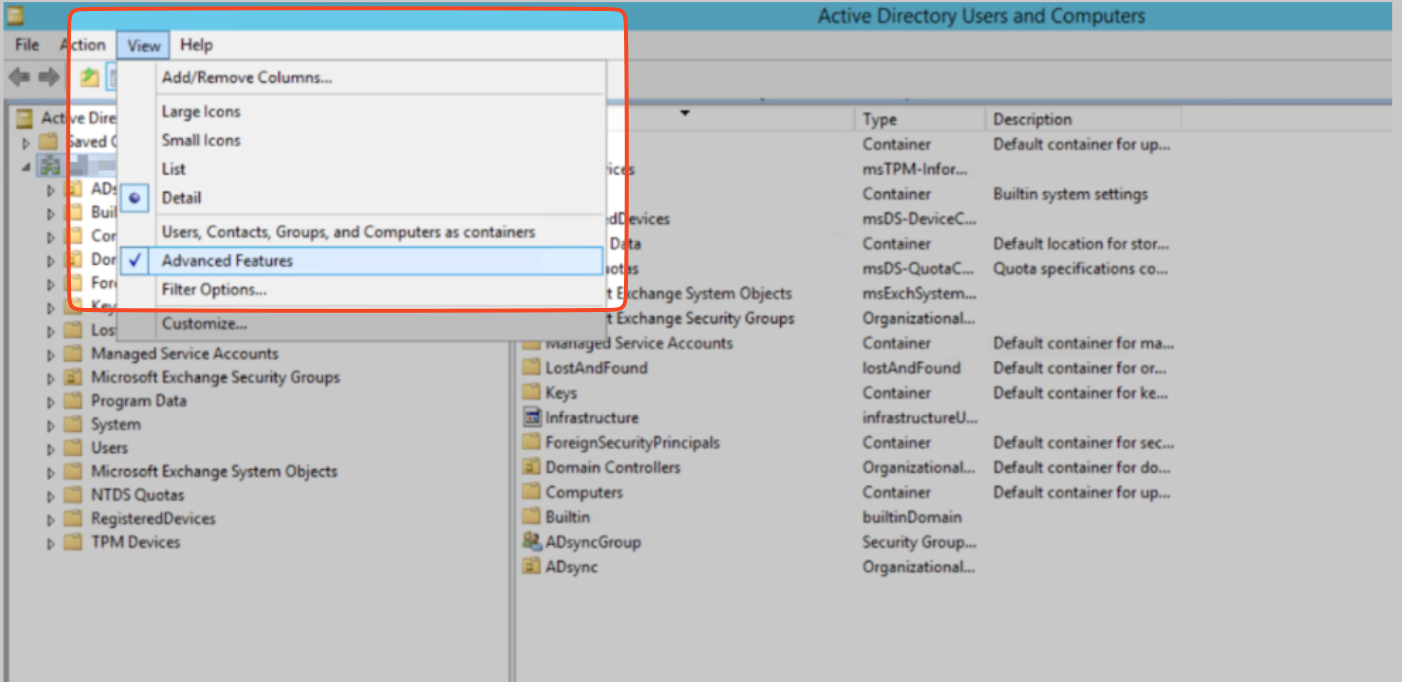
To see more details, in the View menu, select Advanced Features.
 {width=70%}
 -
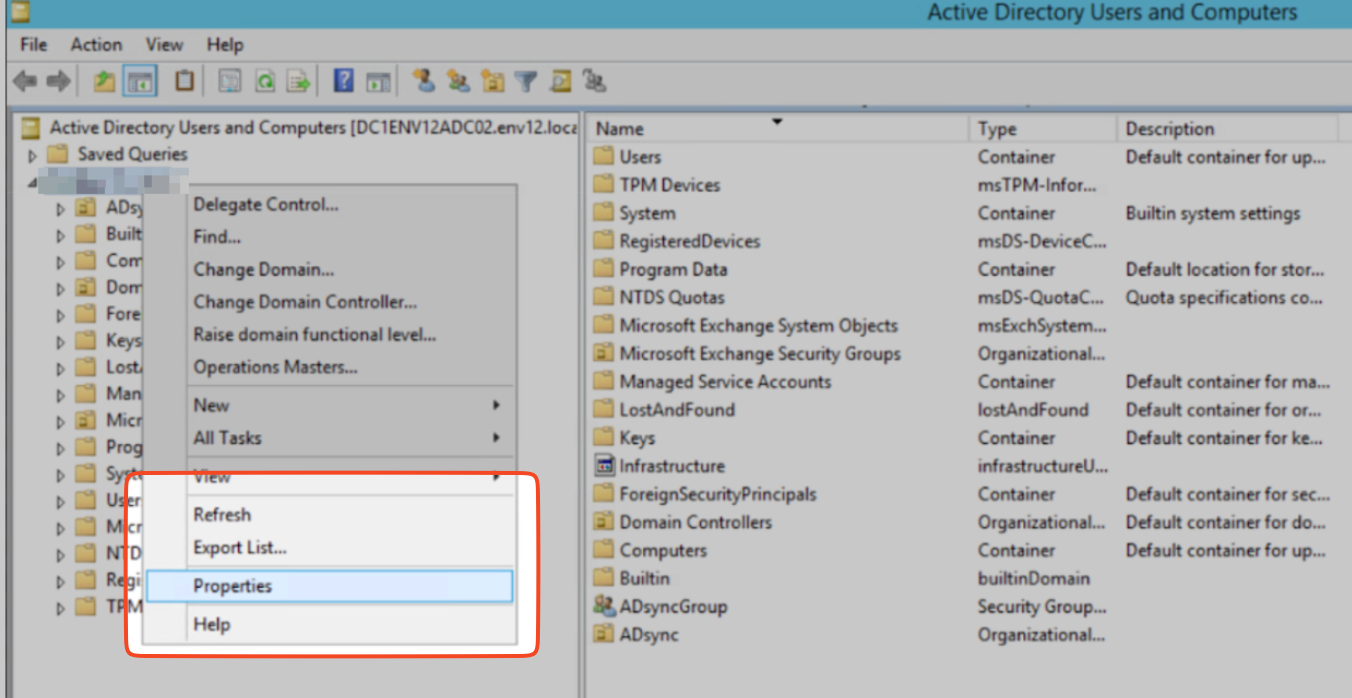
To view detailed information about your domain, right-click its name and select Properties.
 {width=70%}
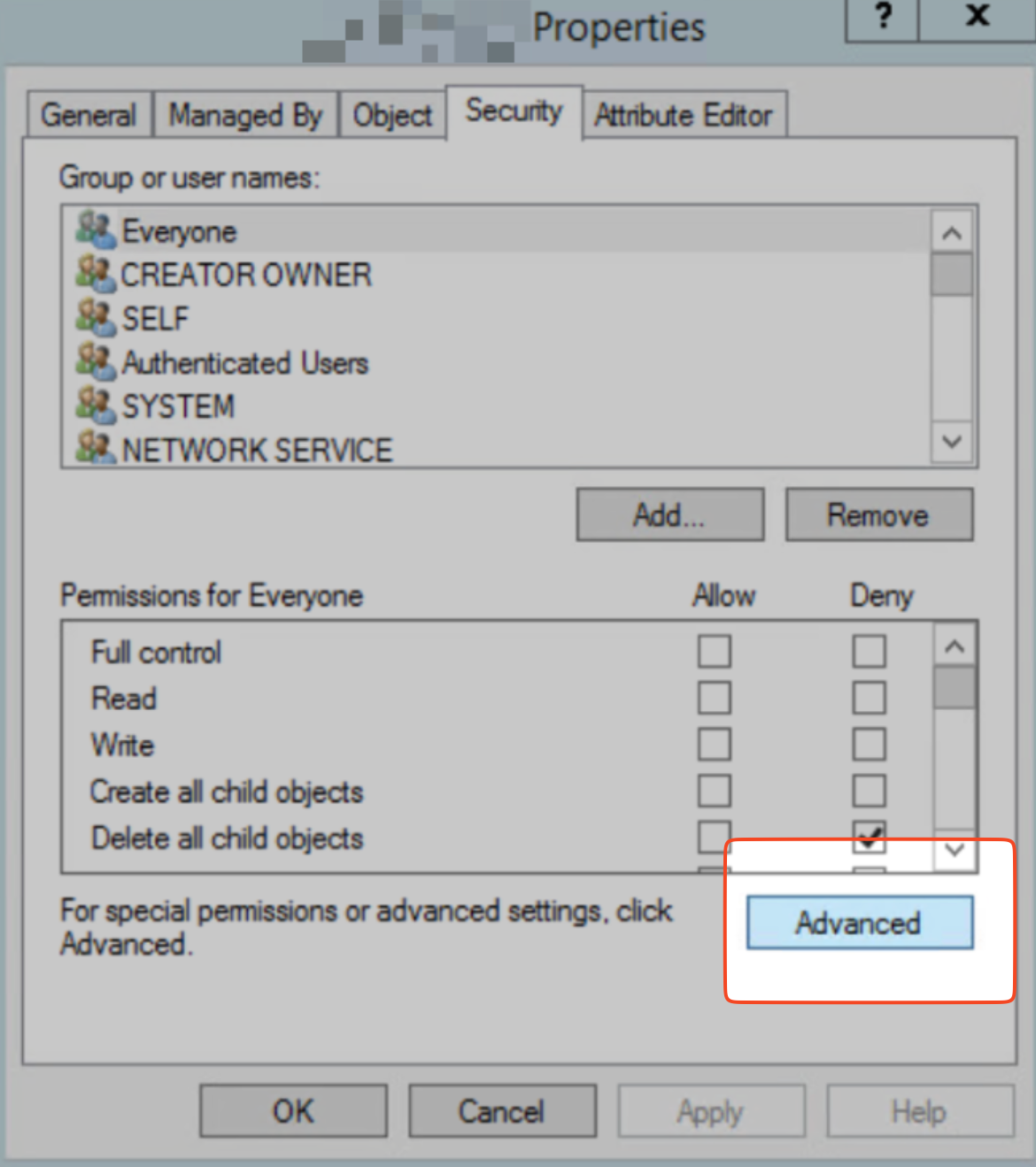
 - Click the Security tab, usually located near the top of the Properties window.
-
Click Advanced which is located within the Security tab or near the bottom of the window.
 {width=70%}
 -
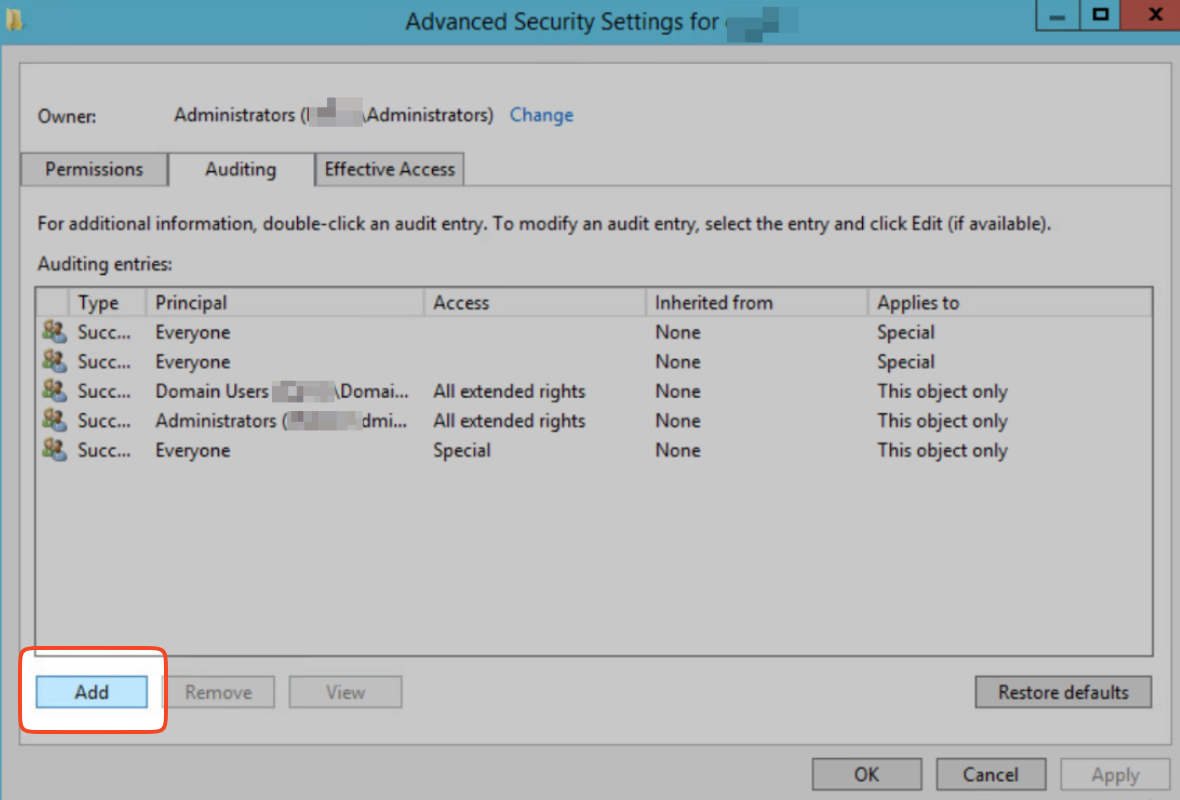
In the Advanced Security Settings window that opens, select the Auditing tab and click Add.
 {width=70%}
 -
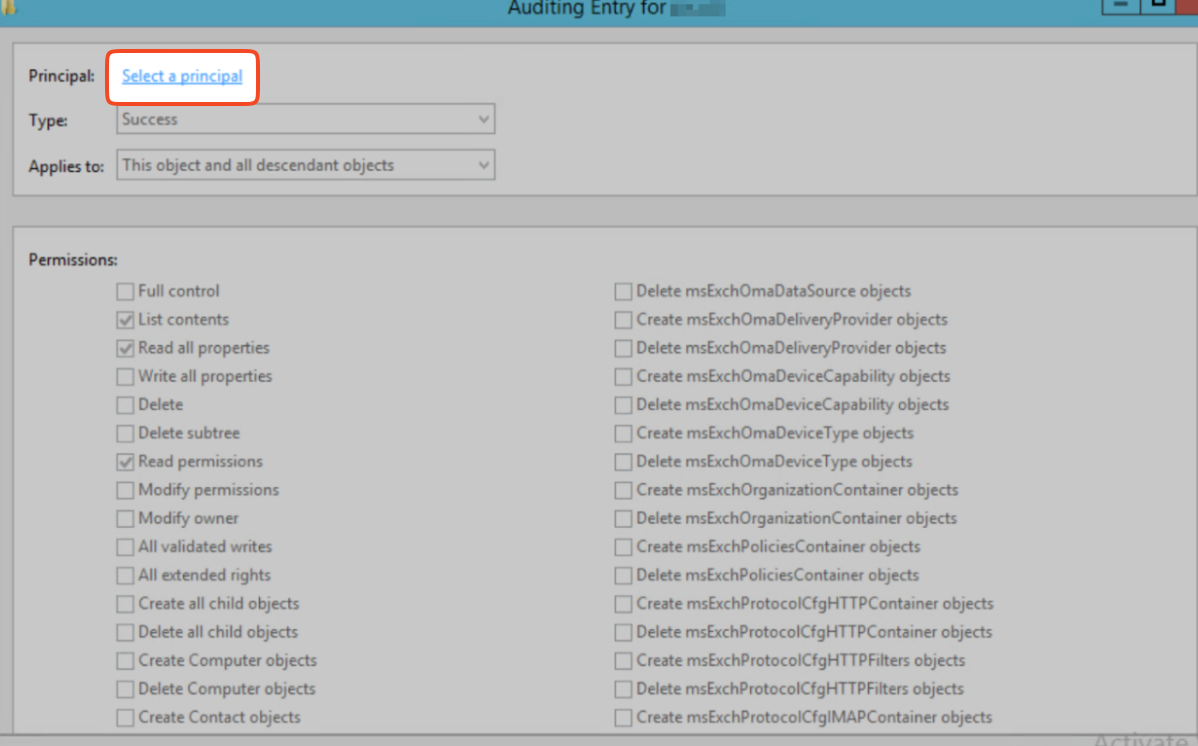
Click Select a principal.
 {width=70%}
 -
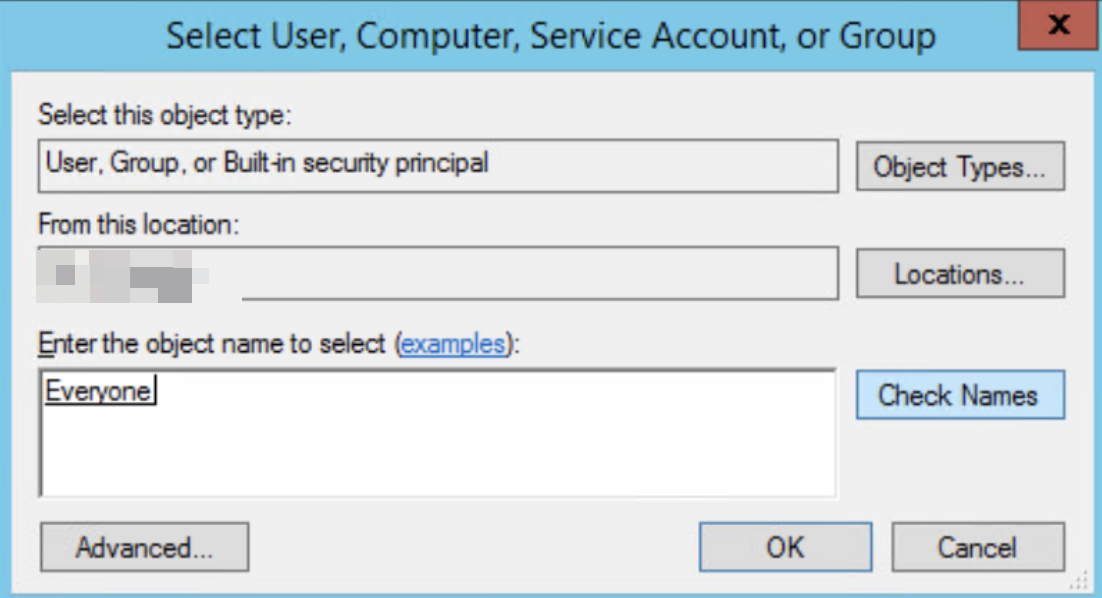
In the window that opens, under Enter the object name to select, type Everyone, click Check Names, and then OK.
 {width=70%}
 - In the Auditing Entry window, do the following:
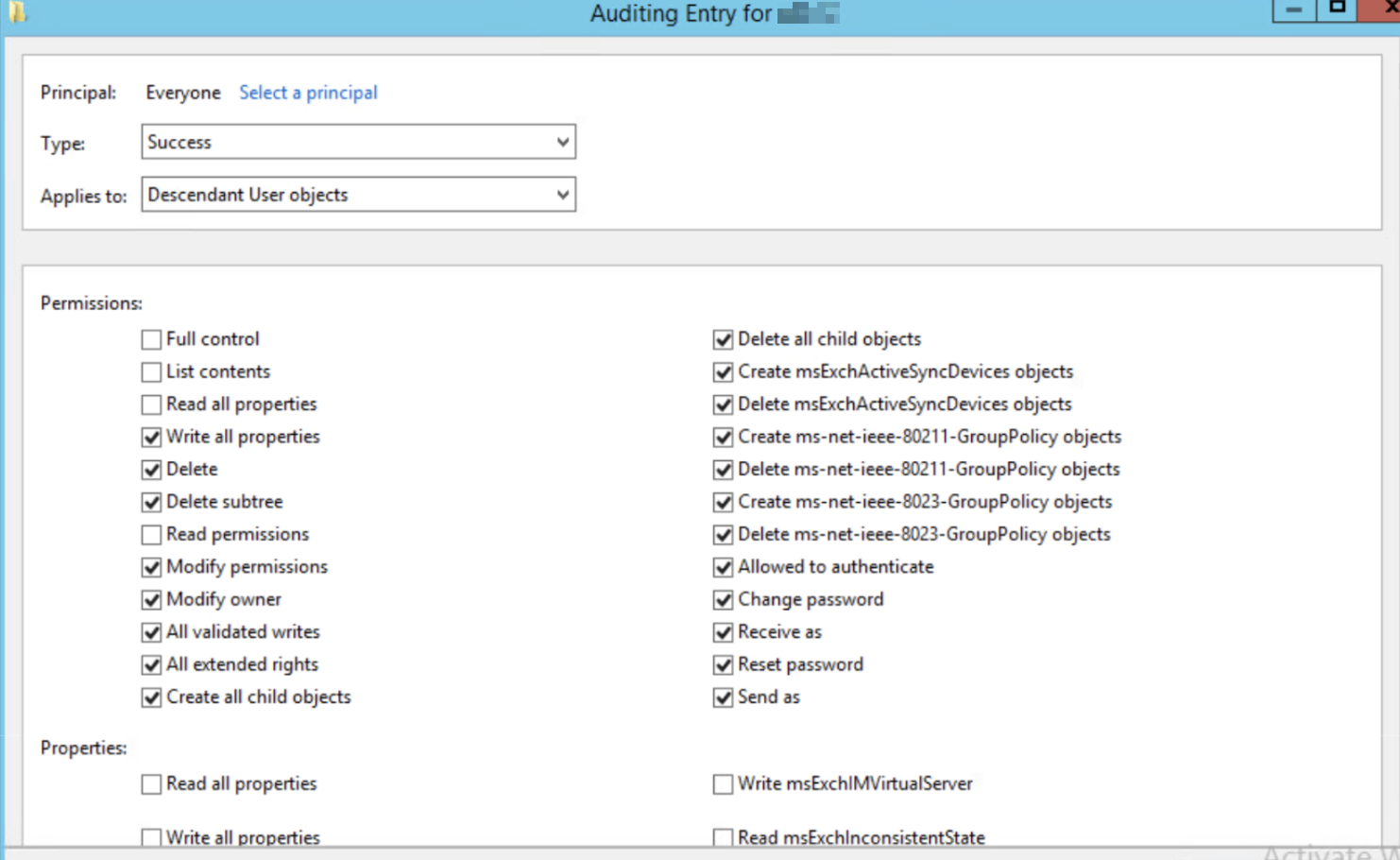
- Type: To track only successful attempts, select Success.
-
Applies to: To monitor actions by users within this group and any subgroups, select Descendant User objects.
 {width=70%}
 -
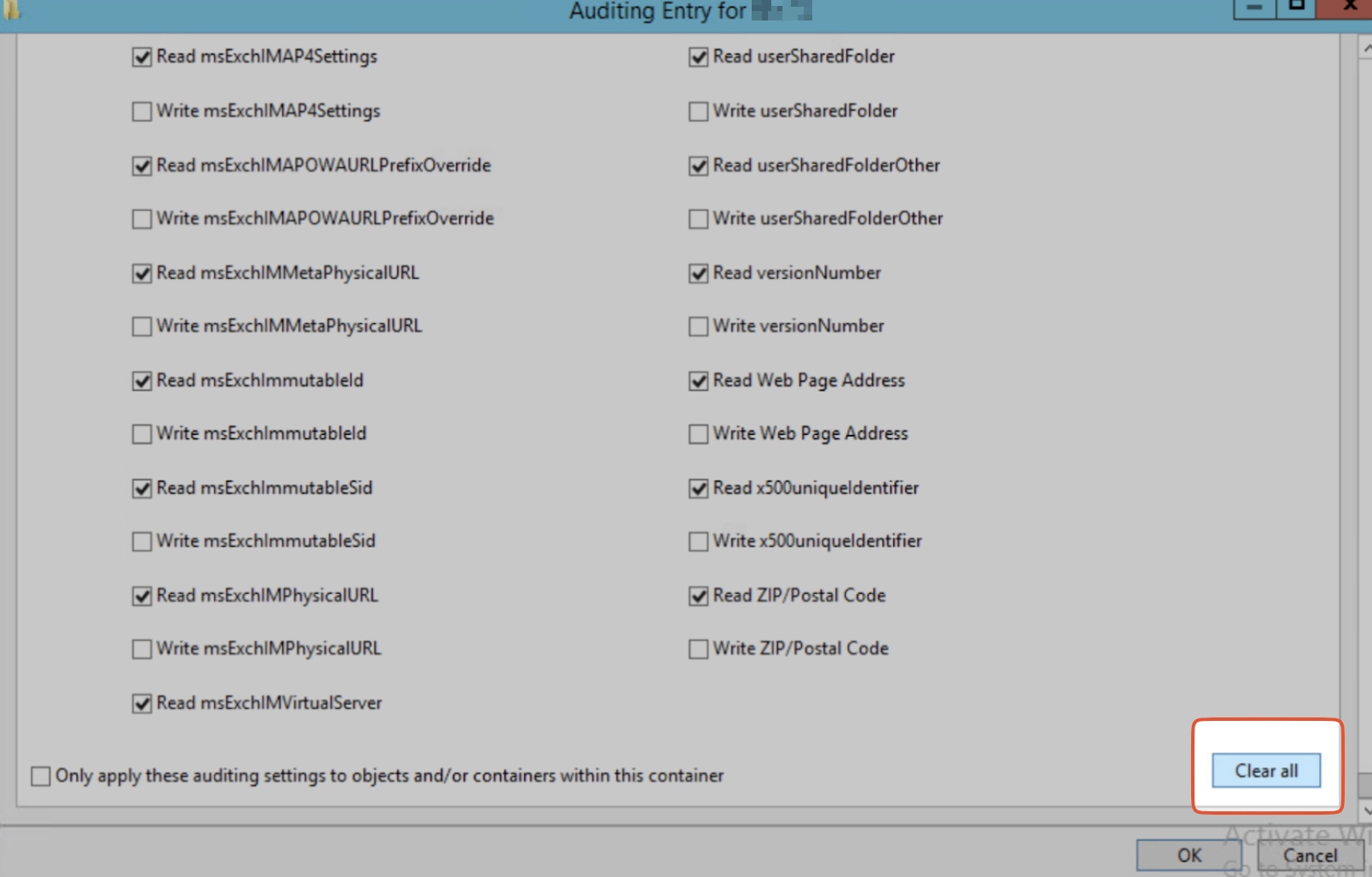
Permissions: To remove any existing permissions from this audit entry, click Clear all.
 {width=70%}
 - Scroll up to Permissions to see view the list of permissions. Click the checkbox next to Full Control which automatically selects all the individual permissions below it.
-
Uncheck the boxes next to the following:
- List contents
- Read all properties
- Read permissions
 {width=70%}
 - Click OK to save the changes.
- Repeat step 11, with the following values in Applies to:
- Descendant Group Objects
- Descendant Computer Objects
- Descendant msDS-GroupManagedServiceAccount Objects
- Descendant msDS-ManagedServiceAccount Objects
-
Descendant msDS-DelegatedManagedServiceAccount Objects
Note
The Descendant msDS-DelegatedManagedServiceAccount Objects configuration is relevant only for Windows Server 2025.