Configure drilldowns ↗
Enable users to dive deeper into data by configuring dashboard drilldowns on individual widgets. Clicking a configured widget can trigger contextual changes, or seamlessly link users to:
- An XQL search
- A custom URL
- Another dashboard
- A report
Once configured, these drilldowns are instantly available to any authorized user.
Prerequisite: Some drilldown options require one or more parameters to be configured within the XQL widget query. For more information see Add parameters to a custom XQL widget.
Open the dashboard builder.
Select a dashboard from the Dashboard Manager and click Edit.
Add the drilldown action.
Identify the widget on which you want to configure a drilldown, click its options menu (the three vertical dots in the widget frame), and select Add drilldown.
Configure your drilldown action.
Choose one of the following configuration options under Action on Click:
- In-Dashboard Drilldown: Interactively filters the active dashboard using parameters defined in your custom XQL widgets.\
&#xNAN;(Requires parameters to be configured within the XQL widget query).
| Field | Action/Description |
|---|---|
| Parameters | Select the parameter to filter by. You can choose any parameter defined in the widget's XQL query. |
| Value | Define the data point that will trigger the filter when a user clicks the widget. You can:
|
Note: Any other XQL widgets on the dashboard sharing this parameter will also filter automatically.
- Link to Dashboard: Navigates the user to a separate target dashboard.
Note: If linking to a Restricted dashboard, users must have at least Viewer access to view it.
| Field | Action/Description |
|---|---|
| Dashboard | Select your target dashboard from the list. |
| Parameters (Optional) | Select parameters to filter the target dashboard. (Available only if the target dashboard's widgets contain defined parameters.) |
| Value (Optional) | If configuring parameters, select values for filtering the target dashboard. You can:
|
- Open XQL Search: Runs a specific XQL query based on the clicked value.
| Field | Action/Description |
|---|---|
| XQL Query | Enter the query you want to execute upon drilldown. Type $ to open the autocomplete menu for available widget variables (e.g., in a table widget, |
Example XQL: This example passes two parameters from a table widget into an XQL query: the specific cell value clicked, and the cell value from the request_url column in that same row.
dataset=xdr_data

|filter event_type=$y_axis.value and requestUri=$row.request_url

|fields action_download, action_remote_ip as remote_ip,

actor_process_image_name as process_name

|comp count_distinct(action_download) as total_download by process_name,

remote_ip, remote_hostname

|sort desc total_download

|limit 10

|view graph type=single subtype=standard xaxis=remote_ip yaxis=total_download
- Open Custom URL: Opens an external web page based on the clicked value.
| Field | Action/Description |
|---|---|
| URL Address | Enter the destination URL. To make the link dynamic, insert variables from the Available parameters list. |
Example URL: In this URL, the $x_axis.value variable represents Cortex product names. Clicking a slice in a pie chart replaces the variable with the specific product name:
https://www.paloaltonetworks.com/cortex/cortex-$x_axis.value
- Generate Report: Instantly runs a report using data from the clicked value.
Save the widget.
Click Save on the widget dialog, and ensure you save your overall changes to the dashboard before exiting the editor.
Variables in drilldowns
The following tabs are organized according to widget type and describes the widget variables that are available in drilldowns. The variable defines the value to capture in the drilldown, according to the element that is clicked. The captured value is then configured as a parameter by which to filter data on drilldown.
(Area, Bubble, Column, Funnel, Line, Map, Pie, Scatter, or Word Cloud)
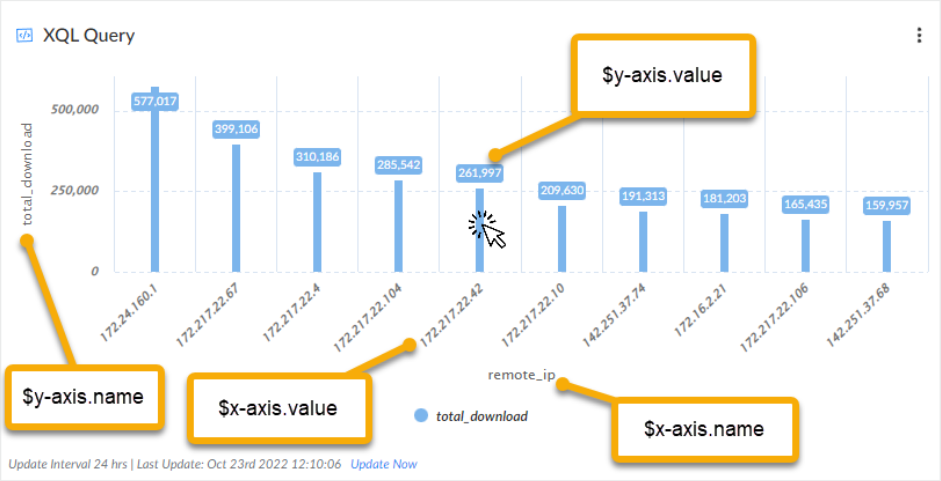
$x_axis.name: Selects the x-axis name.$x_axis.value: Selects the x-axis value for the clicked value.$y_axis.name: Selects the y-axis name.$y_axis.value: Selects the y-axis value for the clicked value.
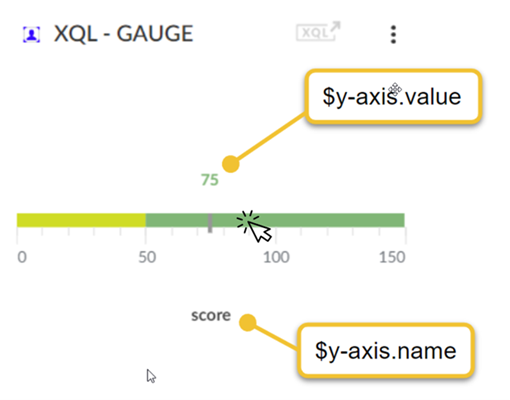
$y_axis.name: Selects the y-axis name that the single value represents.$y_axis.value: Selects the y-axis value for the clicked value.
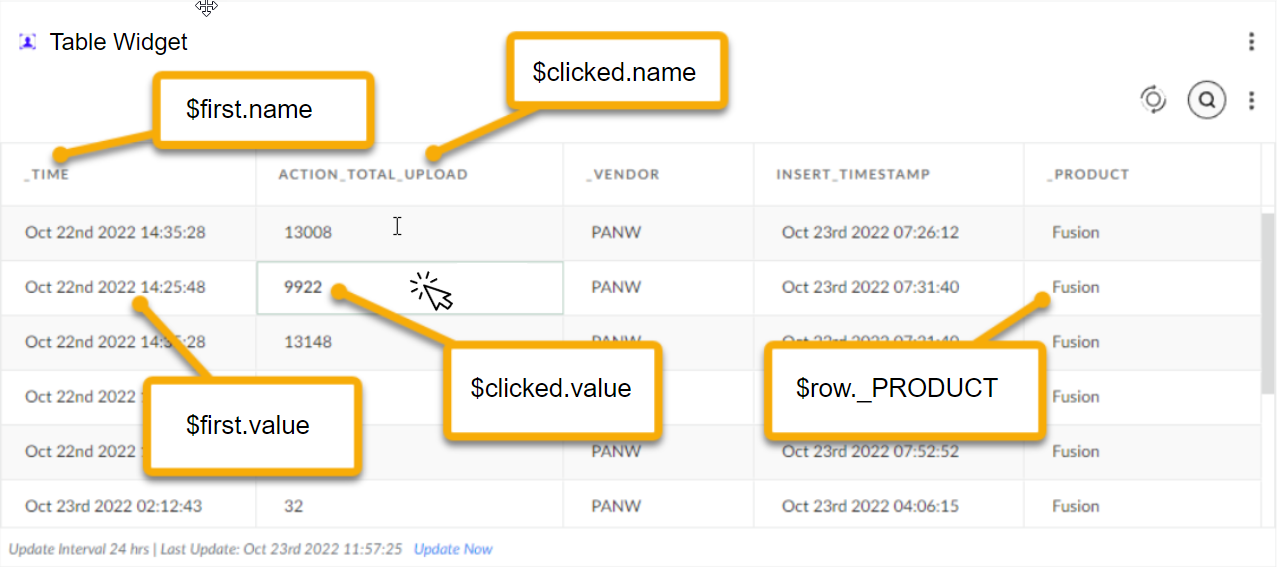
$first.name: Selects the leftmost column name in the table.$first.value: Selects the leftmost value in the clicked table row.$clicked.name: Selects the column name of the clicked value.$clicked.value: Selects the value in the clicked table cell.$row.<field_name>: Selects the field (column) from the clicked table row.
c