Choose from existing playbooks or create your own ↗
Open the Investigation & Response → Automation → Playbooks page to find an existing playbook, customize it, or create a playbook.
Find an existing playbook in Cortex XSIAM
Playbooks in your Org Repository have already been adopted by your organization and are available to run. The Playbook Catalog contains all available playbooks in the Marketplace that you can adopt into your Org Repository. You can preview before adopting.
-
View the list of playbooks on the main Playbooks page in the Org Repository table. You can also search for a playbook that exists in the Org Repository by clicking Add Filter.
Use free text in the search box, entering part or all of the playbooks' names or descriptions. You can also search for an exact match of the playbook name by putting quotation marks around the search text. For example, searching for
"Block Account - Generic",returns the playbook with that name.Search for more than one exact match by including the logical operator "or" in-between your search texts in quotation marks. For example, searching for
"Block Account - Generic" or "NGFW Scan"returns the two playbooks with those names. Wildcards are not supported in free text search.Tip
If there are additional relevant playbooks in Marketplace that are not in your Org repository, you can click Explore them now to see them in the Playbook Catalog and choose to adopt.
-
Click Playbook Catalog to browse all available playbooks in the Marketplace that you can adopt. Click Playbook Library to go back to the main Playbooks page.
- Click a playbook card for a preview of the playbook.
-
Click Adopt this playbook to add the playbook to your Org repository.
A confirmation message displays when the playbook is successfully added.
- Click View in Org Playbooks to select the adopted playbook from the Org repository table.
You can use the playbook as-is or customize it as needed.
Edit a playbook in Cortex XSIAM
From the list of playbooks in your Org repository, right-click the playbook you want to edit and select Open in Editor. Depending on your access level, you can also duplicate, share, change the owner, disable, download, or delete the playbook.
When you adopt a playbook, it is locked, and you can only make limited changes to the playbook settings from the Playbook Starts task.
When you adopt a playbook, tasks and sub-playbooks that require configuration appear with a red triangle and an exclamation mark, enabling you to locate and configure all necessary components.
Note
When a task inside a sub-playbook is not configured, the alert is propagated to the main playbook. If multiple sub-playbooks are nested, and any of the sub-playbooks have non-configured components, the alert appears in the main playbook as well as in the sub-playbooks. Alerts also appear for the individual non-configured tasks within the sub-playbooks.
To reduce visual noise, you can dismiss certain alerts for unnecessary non-configured components such as sub-playbooks, scripts, and commands. You can dismiss an alert only if leaving the component in its non-configured state will not lead to a playbook error. For example, if the task must execute for the playbook to proceed, you cannot dismiss the alert.
When you click on the red triangle, you have the option to Dismiss Alert. After an alert is dismissed, the triangle is grey. Clicking on the grey triangle gives you the option to Mark as alert and revert to the red triangle. Alerts can be dismissed in both system and custom playbooks, and you do not need to duplicate a system playbook to dismiss an alert.
For full editing capabilities, right-click and select Open in Editor or Duplicate, which creates a copy of the playbook to edit, for example, for a system playbook.
In the Agentic Assistant pane, start a conversation with the Automation Engineer agent to edit the playbook (preview), or you can manually configure the playbook settings or add AI prompts, scripts, sub-playbooks, or tasks from the Task Library.
Tip
- To open multiple playbooks at the same time, edit the first playbook and then click New next to the playbook name to create a new tab. You can either create a new playbook, or add an existing one.
- You can view recently modified or deleted playbooks by clicking version history for all playbooks
 .
.
Create a playbook in Cortex XSIAM
-
In the Playbooks page, click Build New Playbook.
Note
You must have the required permissions to create playbooks to view this button. For more information, see Manage access to playbooks and scripts.
-
In the Create new pop up, enter a name, description, and tags for the playbook and click Save.
A blank playbook opens in the playbook editor. You can then configure the playbook settings or add AI prompts, scripts, sub-playbooks, or tasks from the Task Library.
-
In the Agentic Assistant pane, start a conversation with the Automation Engineer agent to create the playbook (preview), or manually create it.
Collapse and expand playbook sections
You can easily navigate playbooks and focus on the parts you need to work on by collapsing and expanding playbook sections. Collapsing sections provides a condensed view of the playbook flow, reducing visual clutter and enabling quick access to specific sections. Expanding sections allows you to view or edit specific parts of a playbook while keeping the rest of the playbook compact and maintaining focus on the relevant playbook details. You can also hover over a section header to highlight all tasks under the section and easily identify the section scope.
To collapse and expand a section, on the Playbooks page, after selecting a playbook from the library or creating a new playbook and adding tasks, click  on a section header.
When you collapse a section, you can see the number of tasks included under the section. For example:
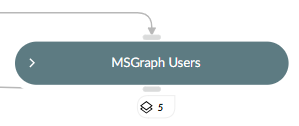
Click  to collapse or expand the entire playbook.