IDE for script development ↗
Use the Cortex XSIAM built-in IDE to create and edit automation scripts. Open the script editor from Incident Response → Automation → Scripts.
The Cortex XSIAM IDE differs from other development environments. For example, it has no interpreter, whereas Visual Studio Code does.
Note
For more complex development needs, we recommend instead using the Visual Studio Code extension. It simplifies third-party integration and script development by enabling users to author Python content for Cortex XSIAM directly in Visual Studio Code. This is also the most efficient way to develop Python Unit Tests.
Script Helper for Cortex XSIAM script development
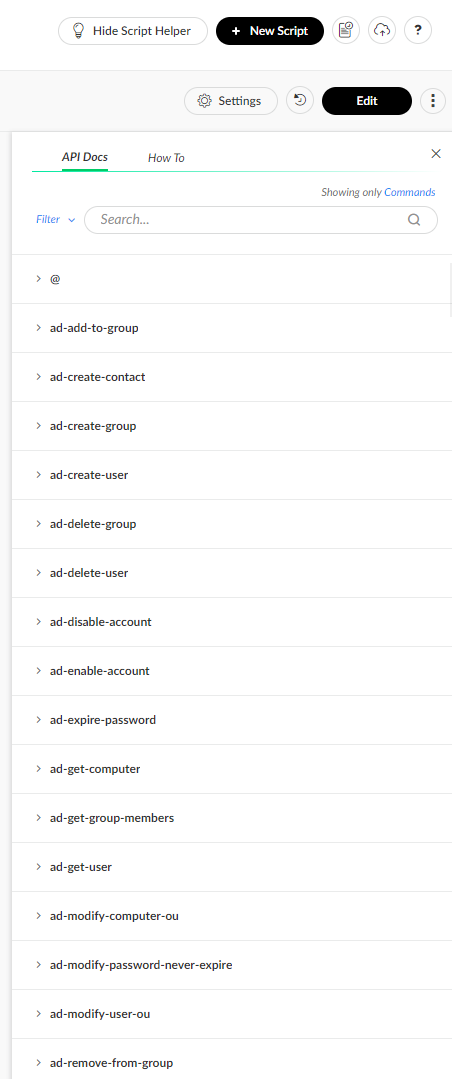
Script Helper provides commonly used functions for Cortex XSIAM automation script development.
To access the script helper, go to Cortex XSIAM under Incident Response → Automation → Scripts → Script Helper.
A list of the common server functions appears.
Script Settings
Clicking the Settings button opens the Script Settings dialog box, which contains configurations for Basic, Arguments, Permissions, Advanced, and Depends on Commands script settings.
For more information about the script settings, see Scripts.
Keyboard Shortcuts
The following are some useful keyboard shortcuts supported in the IDE.
Select
| Action | Windows/Linux | Mac |
|---|---|---|
| Select all | Ctrl-A | Command-A |
| Select left | Shift-Left | Shift-Left |
| Select right | Shift-Right | Shift-Right |
Go to
| Action | Windows/Linux | Mac |
|---|---|---|
| Go to start | Ctrl-Home | Command-Home, Command-Up |
| Go to end | Ctrl-End | Command-End, Command-Down |
Find/replace
| Action | Windows/Linux | Mac |
|---|---|---|
| Find | Ctrl-F | Command-F |
| Replace | Ctrl-H | Command-Option-F |
| Find next | Ctrl-K | Command-G |
| Find previous | Ctrl-Shift-K | Command-Shift-G |
Fold
| Action | Windows/Linux | Mac |
|---|---|---|
| Fold selection | Alt-L, Ctrl-F1 | Command-Option-L, Command-F1 |
| Unfold | Alt-Shift-L, Ctrl-Shift-F1 | Command-Option-Shift-L, Command-Shift-F1 |
| Fold all | Alt-0 | Command-Option-0 |
| Unfold all | Alt-Shift-0 | Command-Option-Shift-0 |
Other
| Action | Windows/Linux | Mac |
|---|---|---|
| Indent | Tab | Tab |
| Outdent | Shift-Tab | Shift-Tab |
| Undo | Ctrl-Z | Command-Z |
| Redo | Ctrl-Shift-Z, Ctrl-Y | Command-Shift-Z, Command-Y |
| Toggle comment | Ctrl-/ | Command-/ |