Extended Threat Intelligence ↗
Extended Threat Intelligence (XTI) offers operationalized Threat Intelligence (TI) seamlessly integrated across the Cortex platform.
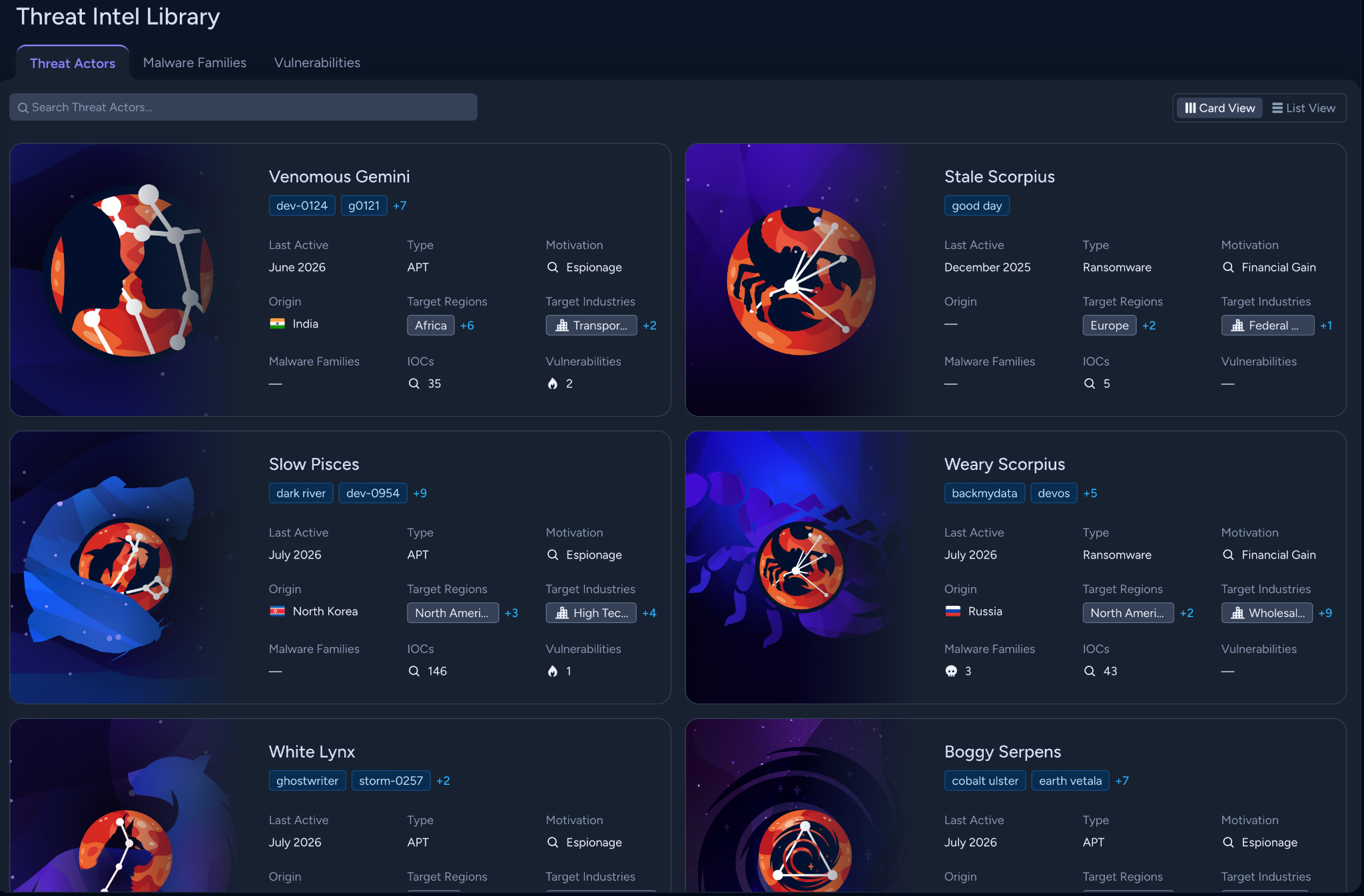
XTI offers the following core capabilities:
- Threat Intel Library: Powered by Unit 42 threat intel data, the Threat Intel Library provides a unified catalog of curated threat objects (threat actors, malware families, vulnerabilities, and reports), helping you understand the broader threat landscape.
- XTI Indicators: XTI indicators include first-party indicators, as well as observables extracted from detections and customer-managed indicators.
- TI context in case and issue investigations: Cases and issues are enriched with the XTI threat intelligence, providing SOC analysts with threat intel context during case and issue investigations.
- AI-driven Behavioral Threat Analysis (BTA): XTI correlates observed behaviors and evidence from security cases and issues with known threat actor Tactics, Techniques, and Procedures (TTPs).
- TI investigations through XQL: Build investigations and hunt queries, and correlate threat intel data with issues data through Cortex Query Language (XQL) using the full depth of XTI intelligence library.
- Interactive TI dashboard: Leverage the built-in XQL dashboard summarizing threat intel relevant to your organization, and clone and modify it as needed.
- Indicator/IOC detections: Continuously monitor your environment for known threat indicators with automated issue generation and dynamic targeting.
- Threat-aware automation and response: Utilize built-in commands in playbooks to automate TI triage, enrichment, and response.
- Accessible TI with AgentiX: Natural language assistance for TI search and explanations powered by AgentiX.
What Cortex XSIAM license do I need to use XTI?
To use XTI, you must have one of the following:
- The Cortex XSIAM Premium license, or
- Another Cortex XSIAM license with the Extended Threat Intelligence (XTI) add-on or the Advanced SOC add-on.
If you have the correct license, you can access Cortex XTI by navigating to Threat Management → Threat Intelligence.
Permissions required for XTI in Cortex XSIAM
XTI requires View or View/Edit RBAC permissions for Threat Intelligence in the Threat Management component tab.
Using indicator rules requires View or View/Edit RBAC permissions for both Threat Intelligence and Rules in the Threat Management component tab.
Using XTI with platform features such as cases and issues or dashboards requires additional feature-specific permissions.
Accessing XTI when using TIM and XTI
If you are currently using Threat Intel Management (TIM), you can access Extended Threat Intelligence (XTI) and TIM side by side:
- Four options are available from the Threat Management → Threat Intelligence menu: Threat Intel Library, Indicators, Indicators (TIM), and Dashboard.
- Threat Intel Library, Indicators, and Dashboard are part of the XTI module.
- Indicators (TIM) is part of the TIM module.
- From the Threat Management → Detection Rules you can access Indicator Rules and Indicator Rules (TIM):
- Indicator Rules are compatible with the XTI module.
- Indicator Rules (TIM) are compatible with the TIM module.
XTI and TIM run in parallel, and switching between the XTI and TIM interfaces does not disrupt your existing workflows and pipelines.
Disable access to XTI from the UI
If you are using Threat Intel Management (TIM), an instance or account administrator can disable access to Extended Threat Intelligence (XTI) from the UI.
- Go to Configurations → Threat Intelligence → Experience.
- Under Choose your Threat Intelligence experience, you see two options:
- XTI + TIM: Show TIM and XTI side-by-side in the navigation pane.
- TIM only: Only show TIM in the left navigation pane.
- Select TIM only.
After you have made the choice, the UI options available from the navigation pane are updated for all users of the tenant:
- One option is now available from the Threat Management → Threat Intelligence menu: Indicators.
- From the Threat Management → Detection Rules, you can access Indicator Rules that work with TIM.