Use the Work Plan in an investigation ↗
In Cortex XSIAM the Work Plan is a visual representation of the running playbook assigned to the issue. Playbooks enable you to automate many security processes, such as managing your investigations and handling tickets. Work Plans enable you to monitor and manage a playbook workflow, and add new tasks to tailor the playbook to a specific investigation.
In an investigation, when you open the Work Plan tab you can see the playbook, the playbook name, and navigation tools.
By default, the Follow checkbox is checked, which allows you to see the playbook executing in real-time. The playbook moves when a task is completed.
In the Work Plan you can do the following:
| Action | Description |
|---|---|
| Change the default playbook | On the left-hand side of the window, select the playbook you want to run. When changing the playbook, all completed tasks are removed and the new playbook will run. If you select playbooks several times you can view the history of which playbooks ran. |
| Rerun the playbook | When changing the playbook, select the current playbook to run again. |
| View inputs and outputs | View the inputs and outputs of each task that has run. You can't view inputs and outputs of any task that hasn't run. |
| Manage tasks | View, create, and edit a playbook task. For each task, you can do the following:
You can manage these tasks in the CLI by using the |
| Export to a PNG | Export the Work plan to a PNG format for easy analysis. |
Example: For a phishing investigation, after the initial playbook run parses the email and extracts email addresses, as part of the manual investigation, you could use the Email Address Enrichment - Generic v2.1 playbook as an ad-hoc playbook task to get more information about these email addresses.
The color coding and symbols in the Work Plan help you to easily troubleshoot errors or respond to manual steps. The following table displays the playbook tasks and icons in the Work Plan.
A playbook will not continue its execution path if a prior task has failed; you must resolve the failed task before subsequent tasks can run.
Playbook tasks and icons in the Work Plan
| Task | Description |
|---|---|
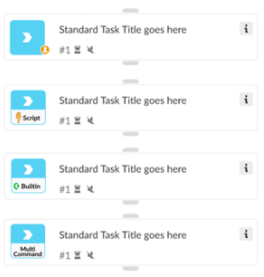 |
An arrow with a light blue square background indicates a standard manual task. The following are kinds of standard tasks.
|
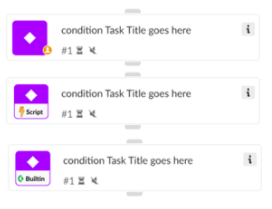 |
A diamond icon in a purple square background indicates a conditional task used as decision trees in your Work Plan. The following are kinds of conditional tasks.
|
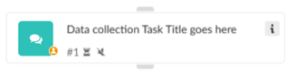 |
The speech bubble in a turquoise background indicates a data collection task. This task prompts the receivers to respond to a multi-question form and submit replies, even if they are not Cortex users. A user icon ( |
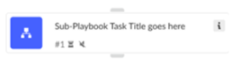 |
The workflow icon in a blue background indicates that the task is a playbook nested within the parent playbook. You can view the playbook by opening the task and selecting Open sub-playbook. |
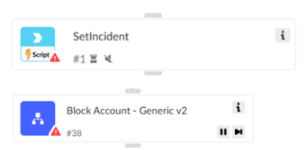 | Task containing an error Scripts or sub-playbooks that have errors are designated by a red triangle. You need to open the script or sub-playbook to review the errors. |
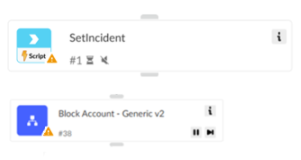 | Task containing a deprecated script or needs to be updated Scripts or sub-playbooks that have updates or are deprecated are designated by a yellow triangle. You need to update the scripts, integration commands, or sub-playbook tasks to their most current version. |
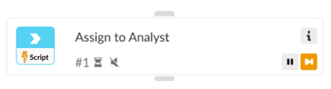 |
When a task is set to skip, the skip icon will be orange. |
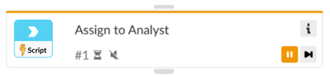 |
When the Work Plan reaches a breakpoint, the task has an orange line at the top to indicate the breakpoint. |
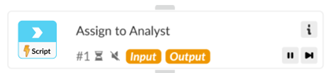 |
When a task is set to have overridden inputs or outputs, the word Input or Output appears in orange. |
 |
When the Work Plan starts to run, all tasks that are about to be performed are gray. |
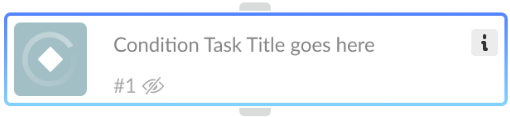 |
A spinning circle inside the gray square indicates a running/in progress task. |
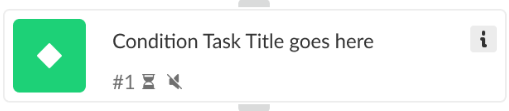 |
The green square indicates a completed task. |
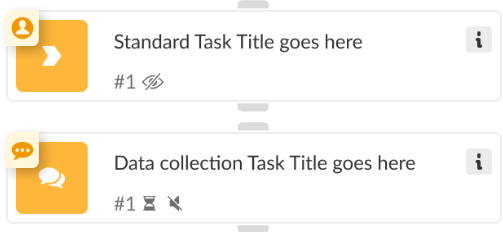 |
The orange square indicates that the task is pending action. If you hover over the icon on the top left corner, details about the reason the task is in waiting mode appear. The user icon ( A speech bubble icon ( |
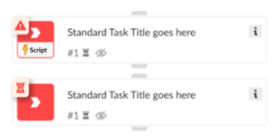 | Failed task The red warning icon indicates that the task failed to complete as expected and requires manual inspection and troubleshooting. Contact your Cortex XSIAM administrator. If you hover on the icon on the top left corner, details about the specific problem appear. If a red warning icon is paired with the clock icon ( |
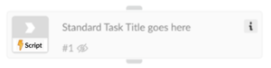 |
The task will look faded to indicate it was not executed. This can happen if this task was set to be skipped when an error occurs, or if it is in a branch that was not executed if a condition wasn’t met. |
 Standard manual task
 ) indicates the task requires manual inputs.
 Conditional task
 Data collection task / Communication task
 Sub-playbook task
 Set to skip
 Breakpoint
 Overridden inputs or outputs
 Pending/in queue task
 Running/ in progress task
 Completed task
 Waiting task
 ) indicates the task is waiting for a questionnaire to be completed.
 ), the task’s SLA is overdue.
 Skipped task
Add ad-hoc tasks to the Work Plan
As part of your issue investigation, within the Work Plan you can create tasks for a specific iteration of a playbook. The task type can be an automation or another playbook. For example, within a manual task, you might need to enrich some data and run an investigation playbook.
When you create a task, add a name, automation, and description. The name and description should be meaningful so that the task corresponds to the data that you are collecting.
- In the Cases page, select the case to update.
- In the Issues & Insights tab, click the issue to add the task to and then click the Work Plan tab.
-
In the Work Plan, go to the task where you want to add a new task and click the + sign at the bottom right-hand corner of the task.
The ad-hoc task is added after the task you clicked.
- Select the task type.
- Standard: Runs a single automation.
-
Playbook: Runs a playbook to enhance the investigation.
The playbook functions as any playbook would and requires you to define the inputs and outputs, as well as any other details.
- Click Save.
- To run the Work Plan again click the Run Again icon.