Create a sync profile ↗
Create Cortex XSIAM sync profiles to map issue fields and synchronize issue data with external applications. Field mapping transfers values such as Status and Description accurately, even when systems use different terminology.
When you link an issue to an external application, such as Jira or ServiceNow, or configure an automation, select the required sync profile. Cortex XSIAM provides default inbound and outbound sync profiles. You can also create custom profiles.
Create a Cortex XSIAM issue sync profile
- Go to Settings → Configurations → Object Setup → Issues → Sync Profiles.
- Click New Profile.
- Type a profile name and description.
- Under Integration, select the external application for field mapping, such as Jira V3 or ServiceNow V2.
-
Under Sync Direction, select Inbound or Outbound.
Inbound maps fields from the external application to Cortex XSIAM. Outbound maps fields from Cortex XSIAM to the external application.
If you use bi-directional syncing, you need to provide both an Inbound and an Outbound sync profile.
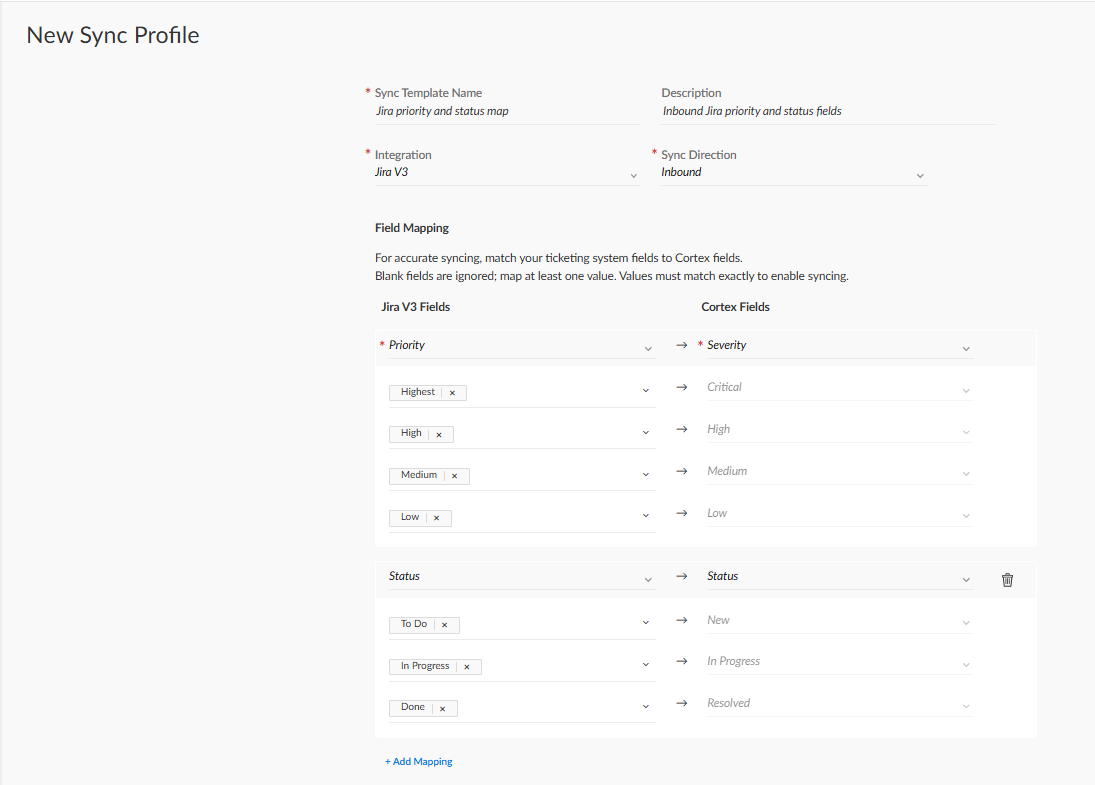
- Under Field Mapping, select a field to map and select the corresponding field. For example, Jira: Priority, Cortex: Severity.
-
Define one or more values for each field that you want to map.
- Blank fields are skipped.
- You must define exact values.
- Custom status values are not currently supported.
- Support is currently limited to a specific set of fields.
-
Click Save.
In this example, the sync profile specifies Inbound mapping from Jira v3 fields to Cortex fields.