Create custom issue layouts ↗
Custom issue layouts let you choose the specific fields and buttons that are displayed for different types of issues. You can create custom issue layouts that include both custom and out-of-the-box issue fields, and add buttons with tasks that can assist and guide analysts in their investigation.
You can import a custom issue layout by clicking Import and uploading the JSON file. You can also modify or task actions on an existing layout existing layout by right-clicking the layout in the layout table.
Create a custom issue layout in Cortex XSIAM
- Go to Settings → Configurations → Object Setup → Issues → Layouts → New Layout.
- Enter a name for the layout.
-
(Optional) Add new tabs to the layout, and drag them to change the order in which they appear.
The Issue Info tab and any new tabs you create can be renamed, hidden, duplicated, or deleted. Hover over the tab name and click the settings button to see the available options. You cannot edit or delete the War Room and Work Plan tabs in the issue layout, but you can hide them by clicking the settings button, and selecting Hide tab.
By default, empty fields within the tab are hidden in the issue layout. To show empty fields, hover over the tab name, click the settings button, and select Show empty fields.
-
Add new sections to the Issue Info tab, or click +New tab.
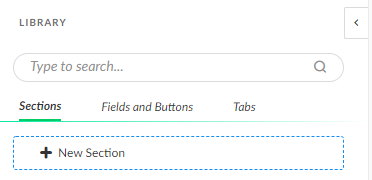
To add a new section, from the Sections tab of the Library drag a New Section into a tab. You can also add the predefined sections, such as Malicious or Suspicious Indicators and War Room Entries.
-
Customize the section
Clicking the pencil icon for a section, to configure how a section appears. You can hide or show the section header, and configure the section fields to appear in rows or as cards.
Some sections have additional configuration options. If you add a Malicious or Suspicious Indicators section, you can configure an indicator search query. If you add a War Room Entries section, you can filter by type of entry, such as chats, notes, or files.
The General Purpose Dynamic Section enables you to configure a section that displays the results of a script. Only scripts to which you have added the
dynamic-sectiontag appear in the dropdown list. You can use the General Purpose Dynamic Section to display widgets, text, markdown, or HTML. For an example of how to add a widget with this section, see Add a custom widget to an issue layout. -
Add custom or out-of-the-box issue fields to the layout.
From the Fields and Buttons tab of the Library, drag fields into sections of the layout.
Limit the number of issue fields to 50 in each section. You can create additional sections as needed.
-
Add buttons to the layout.
Buttons allow you to add tasks to your layout, which can assist an analyst. For example, you can add a button to scan a host or kill a process.
- From the Fields and Buttons tab of the Library, drag a buttons into a section of the layout.
- Click to configure.
-
Enter a descriptive name for the button, select a color, and select the script that you want to run when the button is clicked.
For fields (script arguments) that are optional, you can define whether to show them to analysts when they click on buttons. To expose an optional field, select the Ask User checkbox next to the script argument(s) in the button settings page.
The script that runs when an action button is clicked accepts only mandatory arguments through the pop up window and does not provide an option for any non-mandatory arguments to be filled in when the button is clicked. We recommend using a wrapper script to collect and validate arguments in scenarios where there can be a combination of mandatory and non-mandatory arguments for a button.
- Save the layout.
Export issue layouts in Cortex XSIAM
You can export custom issue layouts and duplicates of system issue layouts
To export a single issue layout, right-click on the layout in the layouts table, and select Export. To export all custom issue layouts and duplicates of system issue layouts in a single JSON file, click the Export All button above the layouts table.